
As well as setting up KPIs through the KPI Library > Create Template, users have the ability to create single KPIs against only one supplier. This capability exists at the supplier level, within the Supplier Modules > Performance > KPI Setup.
- Navigate to the relevant supplier by clicking into the logo or the supplier’s name.
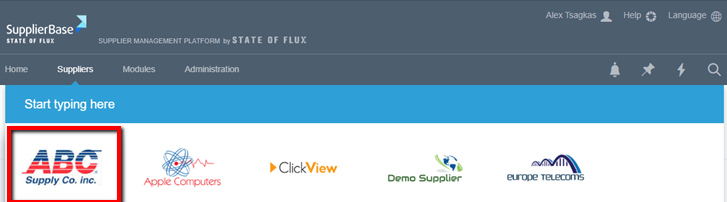
- Follow through to the Supplier Modules > Performance > KPI Setup page, and click into the Add Library KPI/ Add Supplier KPI.
o Add KPI from Library – this feature gives users the ability to take KPIs from the KPI Library
o Add Supplier KPI – this feature allows users to create bespoke KPIs for their supplier, however, this KPI must be assigned to a position in the KPI Library, as follows:
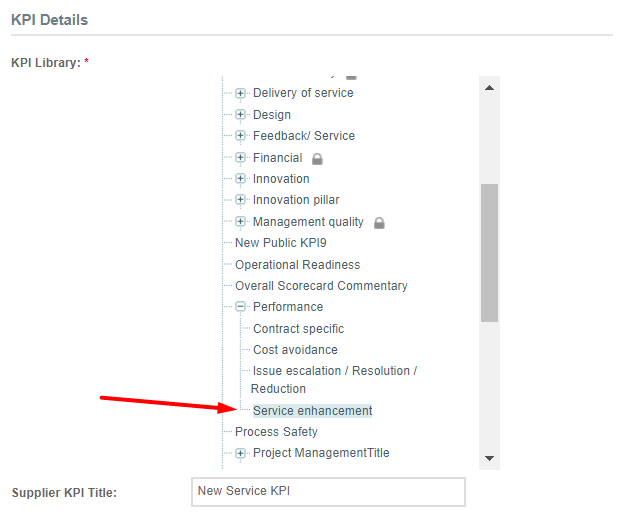
In the above diagram, ‘Service Enhancement' has been selected as the location for this bespoke KPI, it has been titled ‘New Service KPI’ and will be inserted into the ‘Performance’ Pillar. It is important to place this KPI in the KPI Library to ensure that any associated scores are attributed to a particular pillar for reporting.
- Once through to the KPI setup page (below), here users can select specific settings for their KPIs, these settings are outlined in the list below.
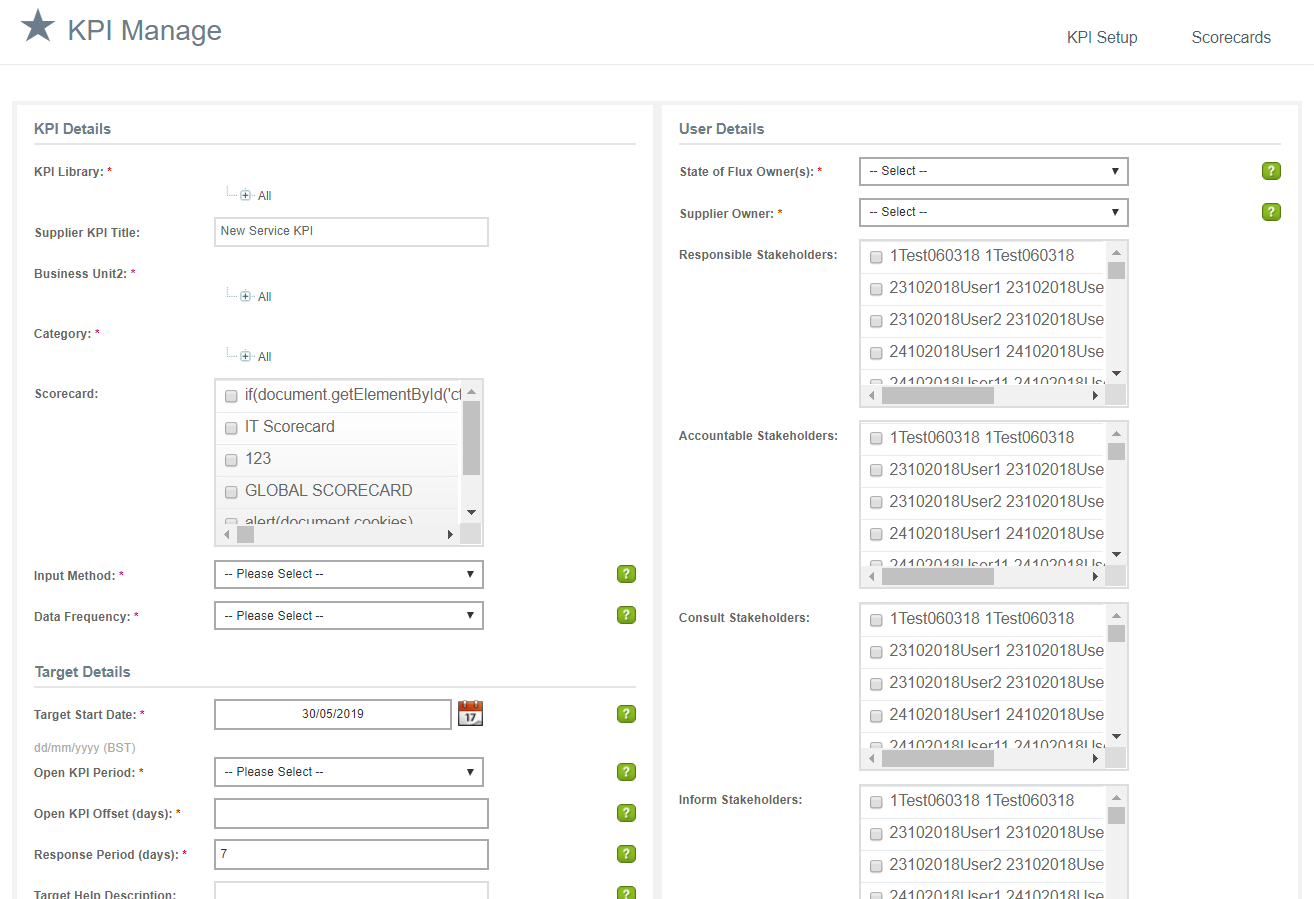
KPI: Select a relevant KPI from the KPI library.
Business Unit/ Region: Select the region you are assessing the supplier for.
Category: Select from the category structure the category you are assessing the supplier for.
Input method: Select 'Manual' if the KPI requires a single 'objective' score or 'Survey KPI' if the KPI require 'subjective' assessment from multiple stakeholders.
Data frequency: The data frequency defines the frequency that KPIs will open and require data from the KPI owners.
Response Period: The response period defines the number of days after the KPI's end of a period that users should respond to this KPI.
Target Help Description: Help text to guide the user in filling the actual value of the KPI. This is displayed on mouse-over on the KPI Scoring page.
KPI Target: Select 'Higher is better' when the KPI should be scored 100% when the target is met and the % score decreases as the value decreases. Select 'Lower is better' when the KPI should be scored 100% when the target is met and the % score decreases as the value increases. Threshold targets are scores like the higher / lower is better targets, but the % score decreases the further away in either direction the value of a KPI is.
Target Units: This is the unit of the target value.
Per: This is the frequency of the target. Combined with the Target Units, this gives a value like Hours per month, tons per year etc.
Target Value: This is the ideal target value for the KPI. A score of 100% is achieved when the value of the KPI meets or exceeds this number.
Green (threshold): The KPI be graded as Green when the actual value is equal to or above (below for 'Lower is Better' KPIs) this value.
Amber (threshold): The KPI will be graded as Amber when the actual value is equal to or above (below for 'Lower is Better' KPIs) this value.
KPI Owners: Select one or more customer / supplier users that should be responsible for entering data for this KPI.
Status: Set the status of a KPI to 'In Progress' to start recording data against the KPI. Set the status of the KPI to 'Archived' when the KPI is no longer in use