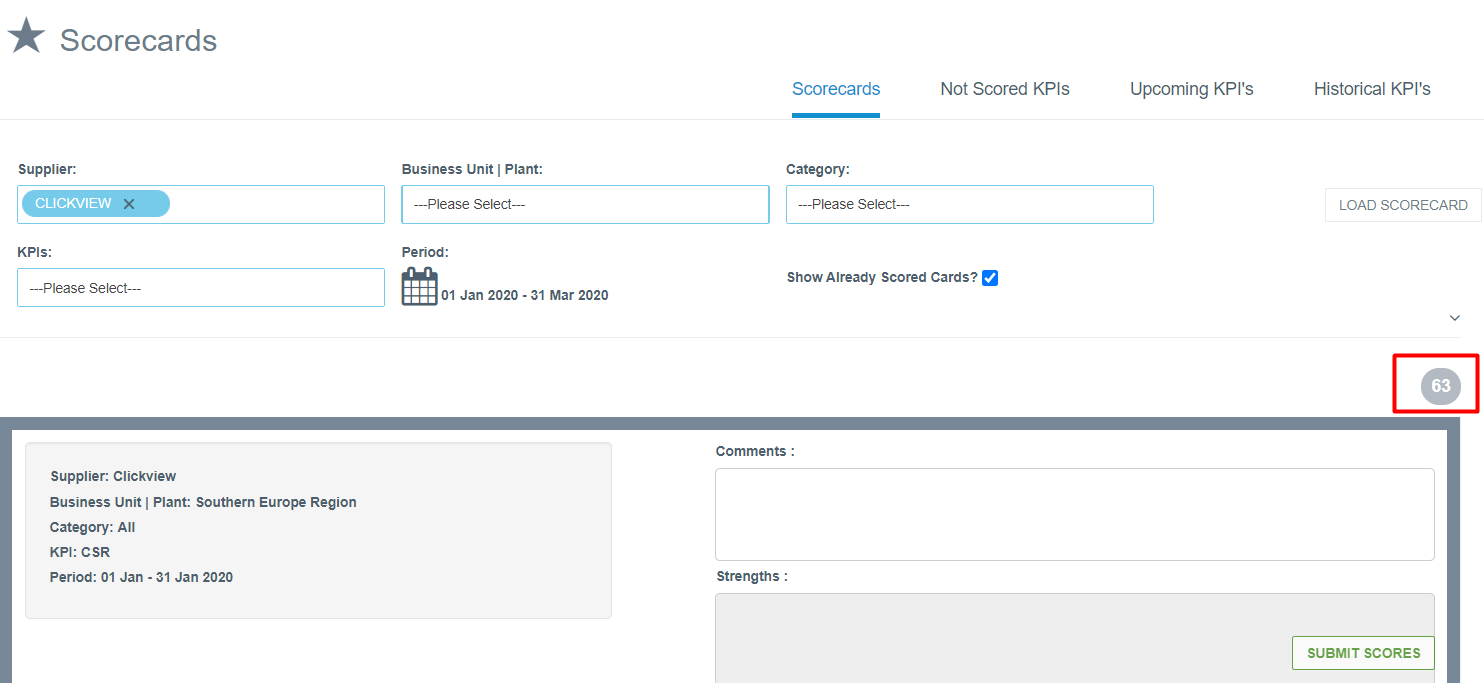
In SupplierBase users have the ability to view in one screen all the KPIs related to one supplier that are assigned to them for scoring, so that they can view all their scores before submitting them. This can be done in the Scorecards page in the Performance Module.
The Scorecards page is available in the module and the supplier level, under the KPI Scoring.
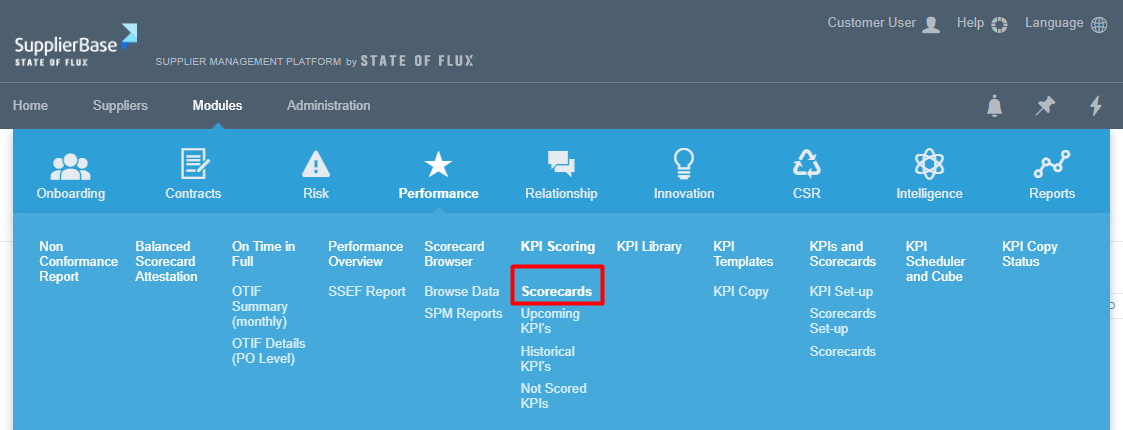
In the Scorecards page, users can define the parameters which apply to the KPIs they need to score.
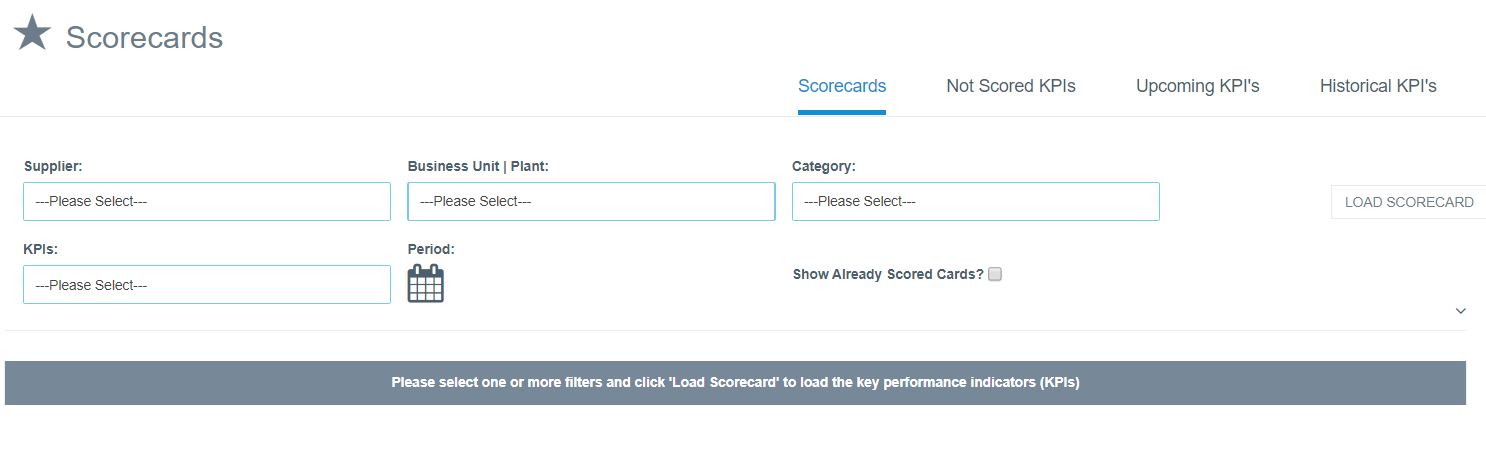 The parameters that users can select in order to filter their KPIs are:
- Supplier (mandatory field)
- Business unit
- Category
- KPIs
- Period.
In the supplier level, the supplier field is prepopulated, so users can only filter one or more of the other fields if needed.
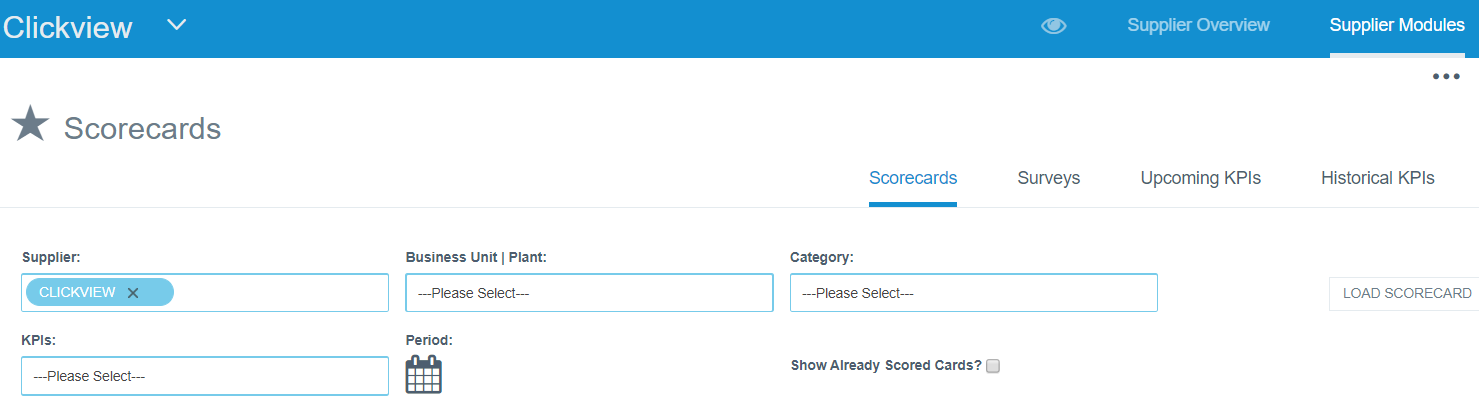
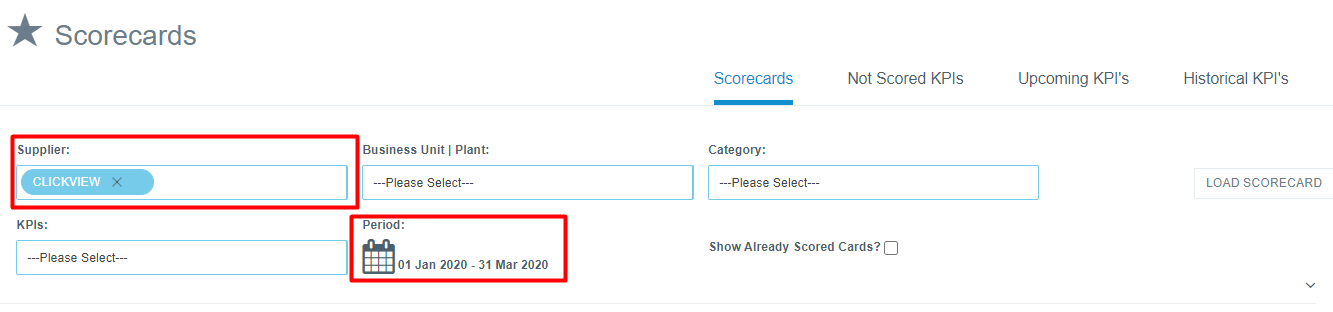
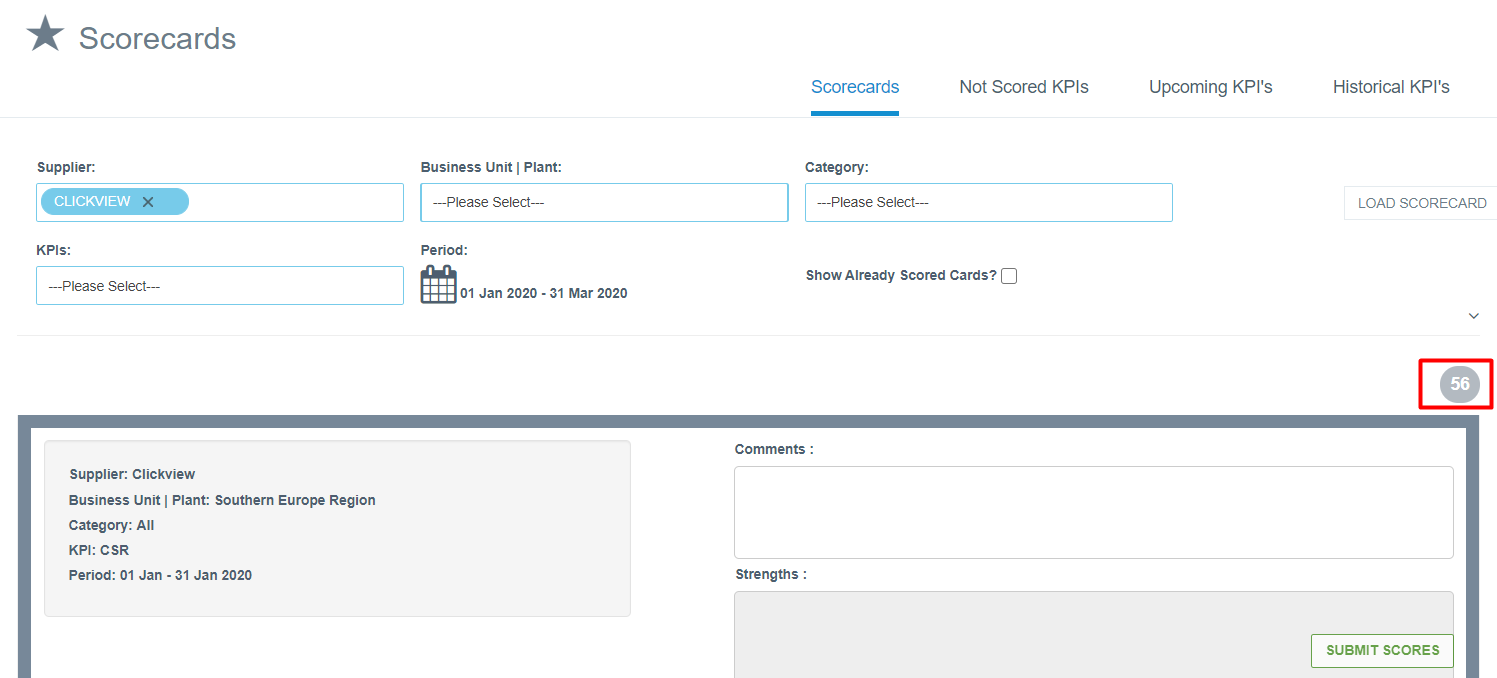
In the example below, a user wants to generate the scorecard related to all the KPIs of Clickview supplier in the 1st quarter of 2020. So the filters applied, are the one of the supplier and the one of the period.
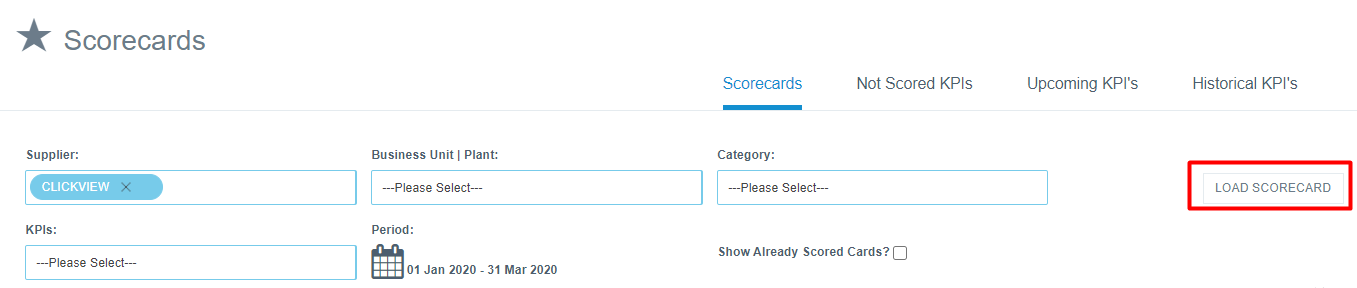
After filtering the parameters they want, users have to click the Load Scorecard button.
After they click the button, the scorecard is generated. Users can view how many KPIs they have to score on the top of the page. In the example below, the KPIs of Clickview supplier in the first quarter of 2020 are 63.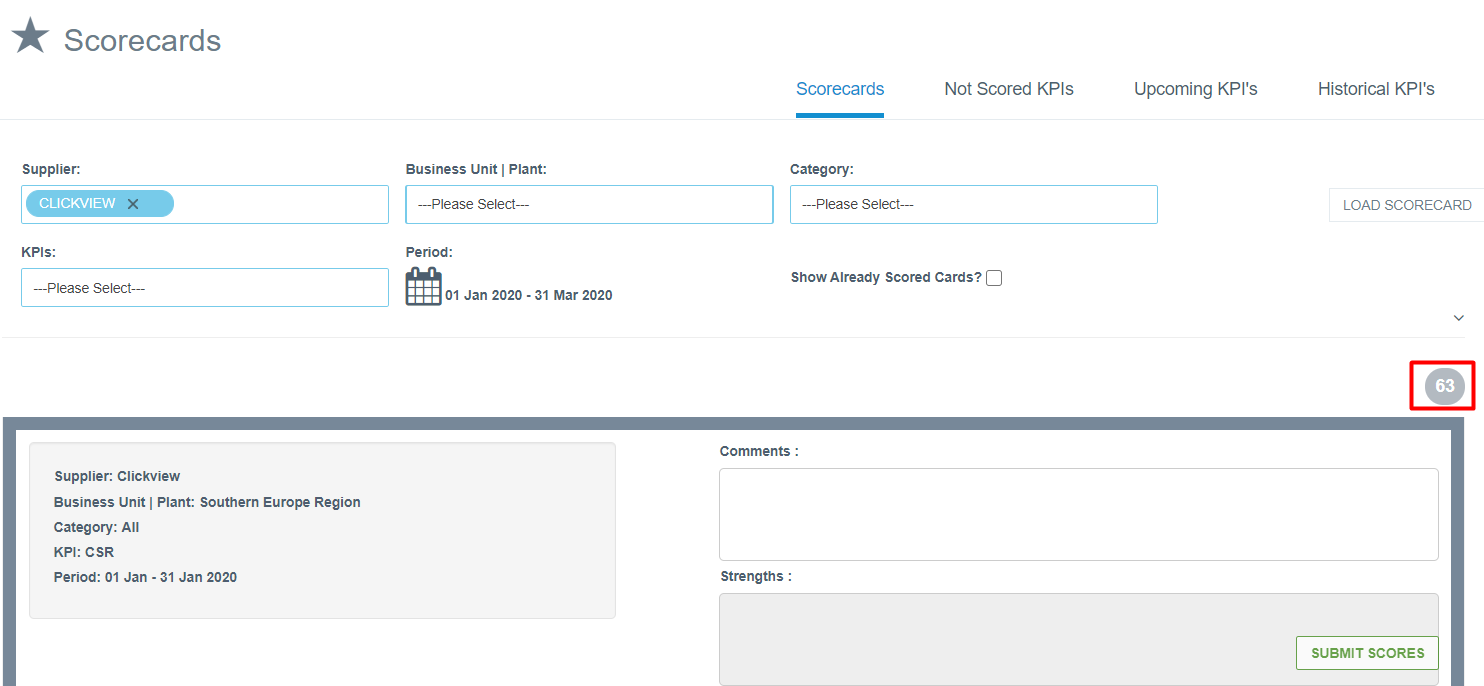
Users can start scoring the KPIs. The Submit Scores button is always visible as they scroll down, so users can submit the scores any time they want, without scoring all the cards in the page.
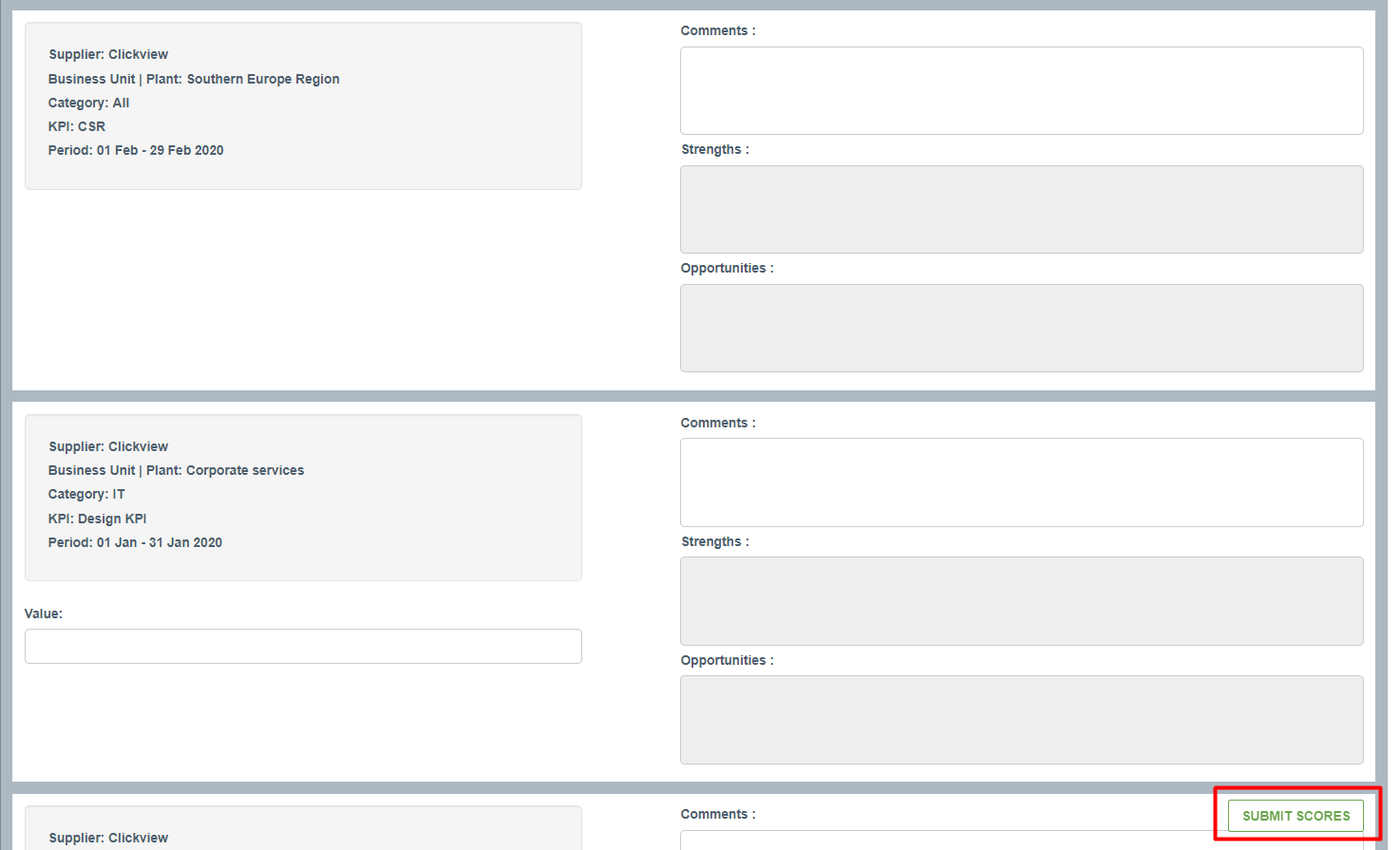
As they submit the scores, the cards that display the KPIs disappear from the scorecard and the number of remaining KPIs on the top of the scorecard drops. For example, after scoring 7 KPIs the number changes from 63 to 56.
If the users want to see already submitted scores for the selected filters, they can click on the Show Already Scored Cards button.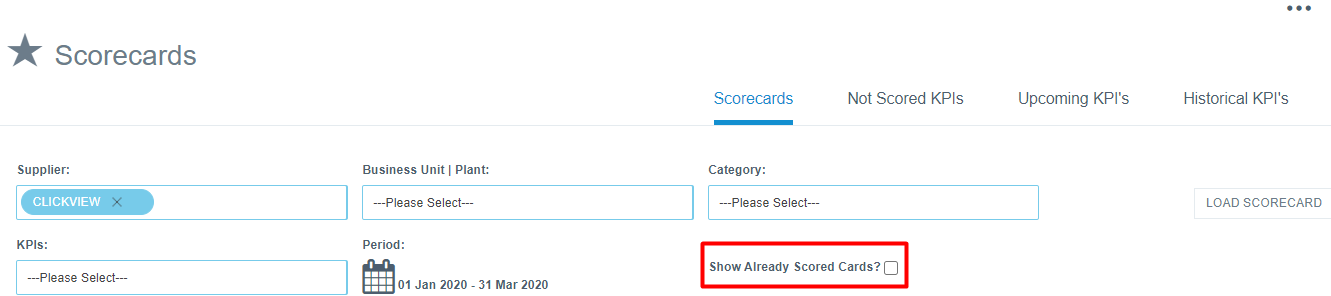
The already scored cards appear again in the Scorecard and the number goes back to 63.