The KPI Library is the foundation for performance management in SupplierBase, it holds the pillars and metrics that are used to measure performance of suppliers.
The library will be configured to reflect the organisation’s approach to performance management. As the library is set out in a tree structure with a maximum of 4 levels, users will have access to categories of KPIs. An example can be seen in the screenshot below:
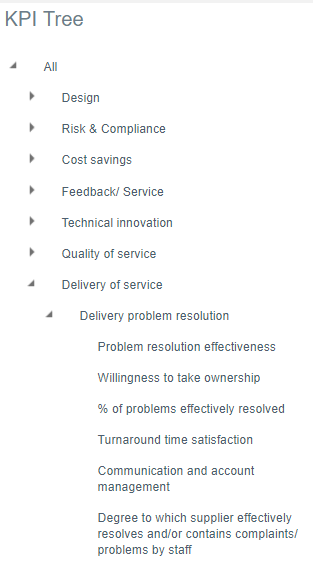
Displayed above is an example of a KPI Library, beneath the ‘All’ Level (Level 1) there are seven Level 2 KPI categories, these are referred to as Pillars. Under the ‘Delivery of Service’ pillar, we have 2 further KPIs, there are the Level 3 KPIs and then finally beneath those, we have the final tier which is Level 4.
By clicking on the title of the pillar, the library editor opens up on the right side of the page, containing all the KPIs within that pillar. By clicking the Level 3 KPI, the editor contains the associated Level 4 KPIs.
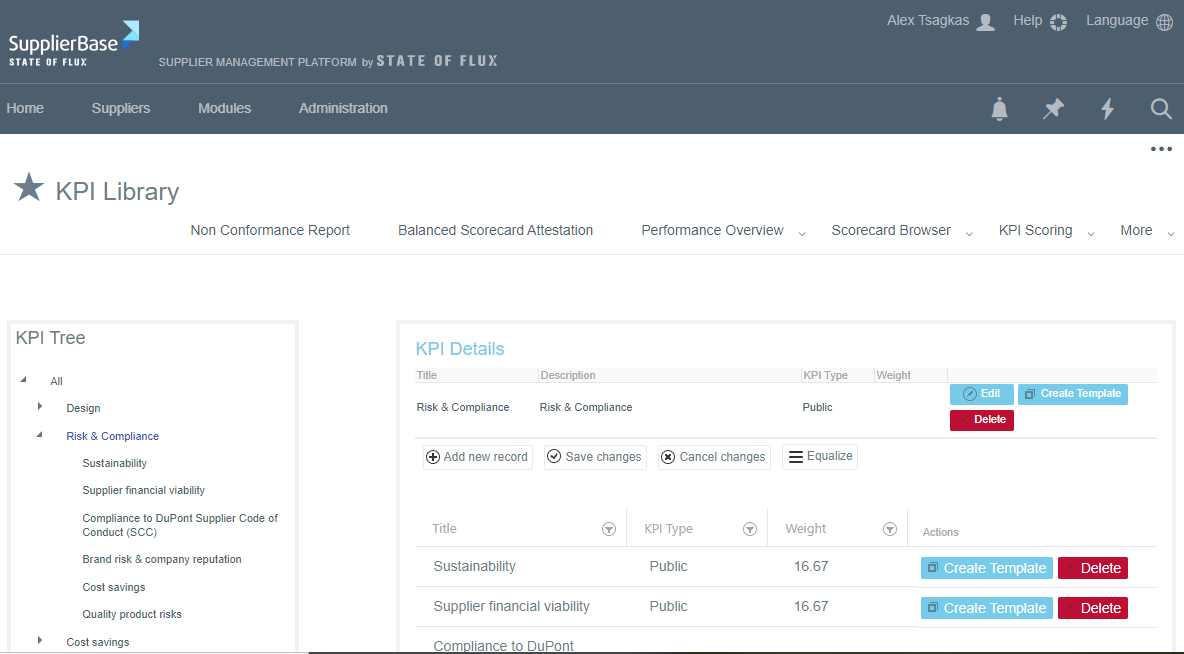
A user can add a new pillar item or a Level 3 and 4 KPI item into the tree, by clicking on ‘Add new record’ which brings out an empty field to assign a title to the new pillar or the Level 3 and 4 KPI. Before these changes are saved a weight must be assigned to the new item.

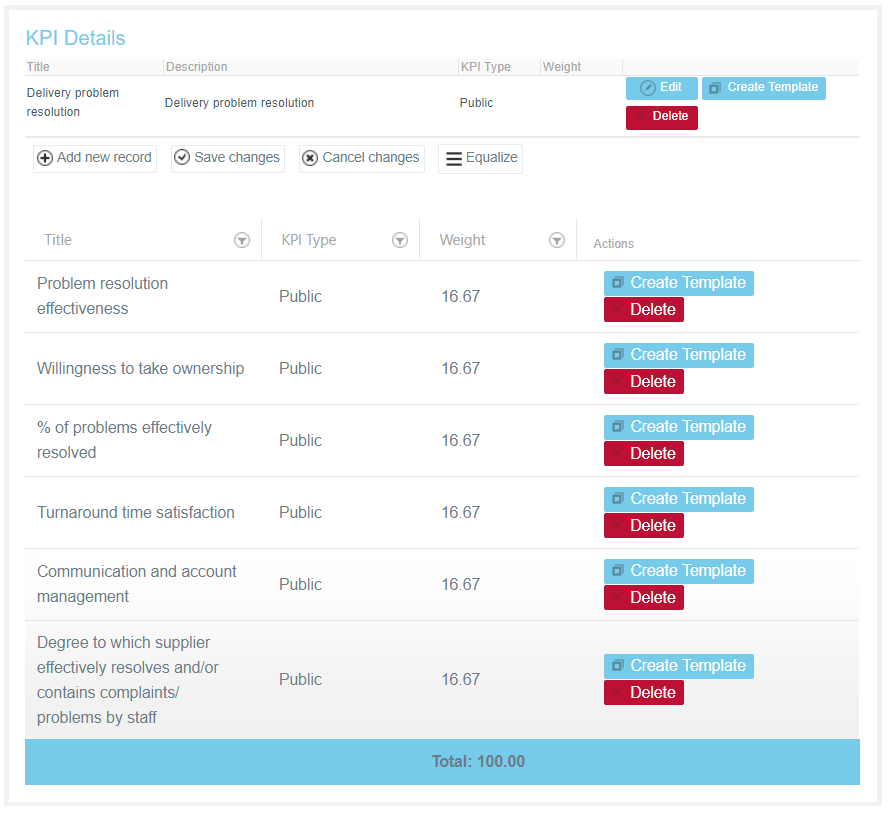
SupplierBase has the ability to weigh KPIs against each other, for instance in cases where one pillar is more important than another – it is possible to weigh the Pillars, Level 3 and Level 4 KPIs. For example, each of the 6 pillars in the picture above, can be assigned weights against each other. In the image below all 6 KPIs are weighed equally, by clicking on the weight number it can be edited.