
In SupplierBase, users have the ability to create alerts that will notify customer and/or supplier users that a KPI has been scored below a defined threshold. In order to do that, users must follow the steps below:
1) Define threshold
First, the low performance threshold must be defined. This is can be done in the supplier level in supplier modules > Performance > KPI Setup page.
In the KPI Setup page, users will either create a new KPI or edit an existing one. In both cases they will be directed to the KPI Manage Page. In the bottom of the page, users have to fill in the Alert Threshold field as shown below.
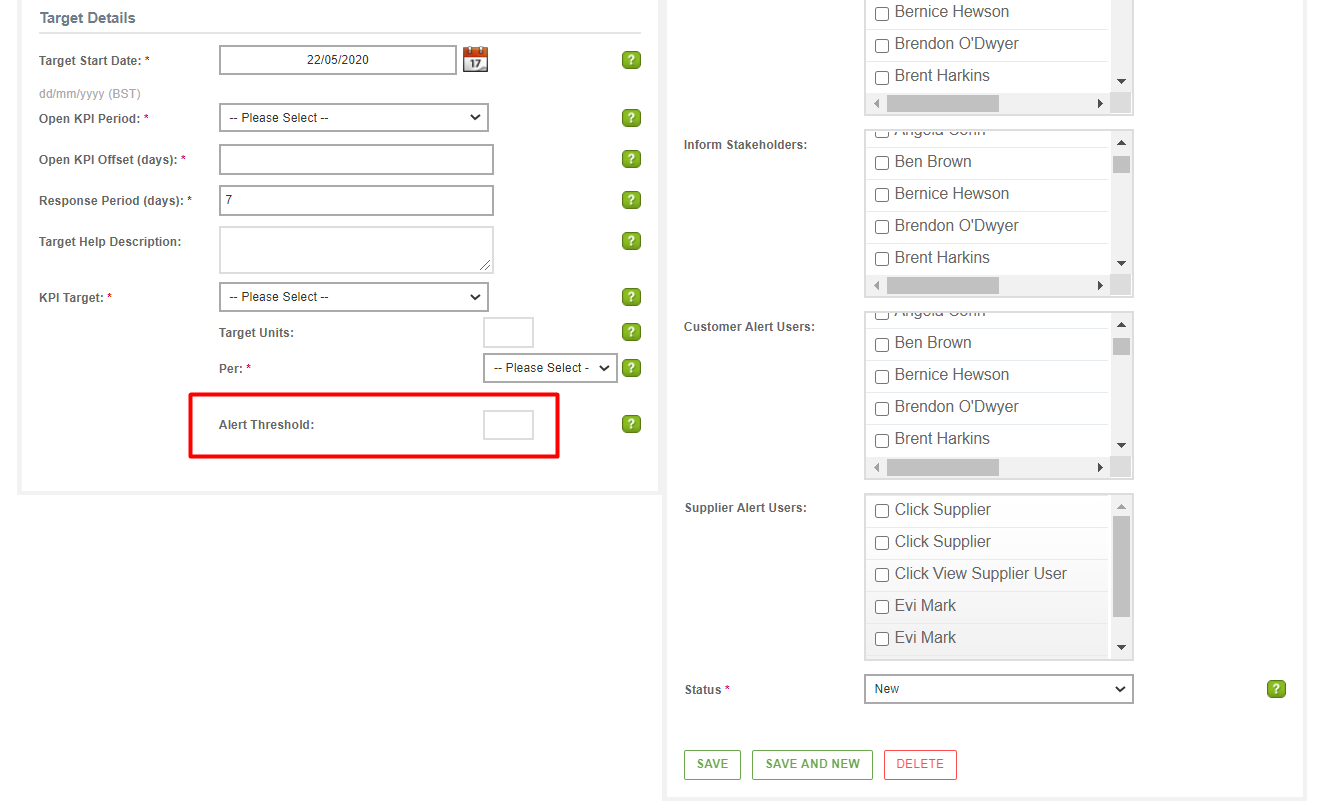
2) Define users that will receive the notification
In the KPI Manage page, users also need to select which users must receive the low performance notification. They can do that in the Customer Alert Users and Supplier Alert Users fields. In both fields, multiple users can be selected.
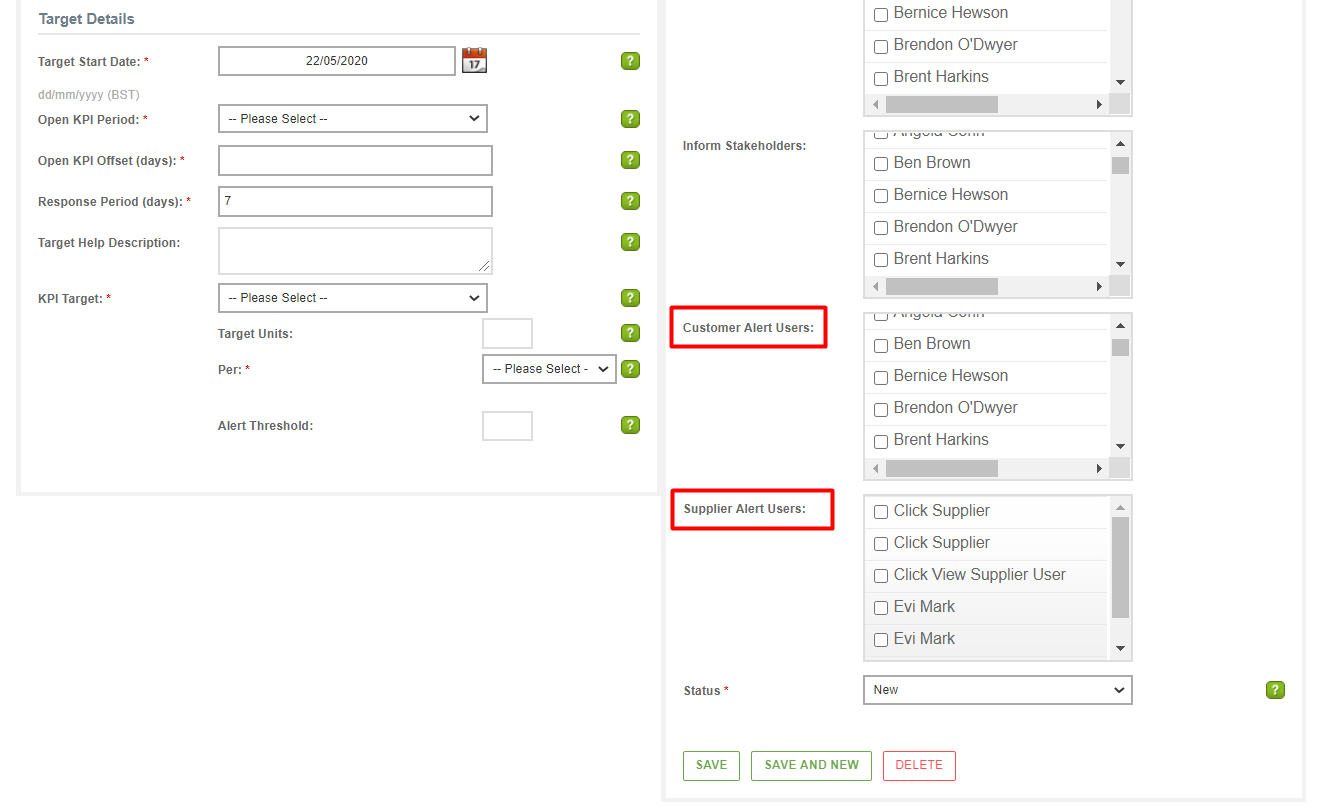
3) Define the email notification trigger
This low performance notification can be triggered:
a) Automatically by the system. In this case, the Reporting Cube that runs every night, will trigger email notifications to the selected users, if KPI scores are below the defined threshold.
b) Manually from the Historical KPIs page. In this case, users can navigate to Performance > Historical KPIs page (in module or supplier level) and find the KPI with the low performance score and hover over it. One of the buttons that will appear is the Alert button.
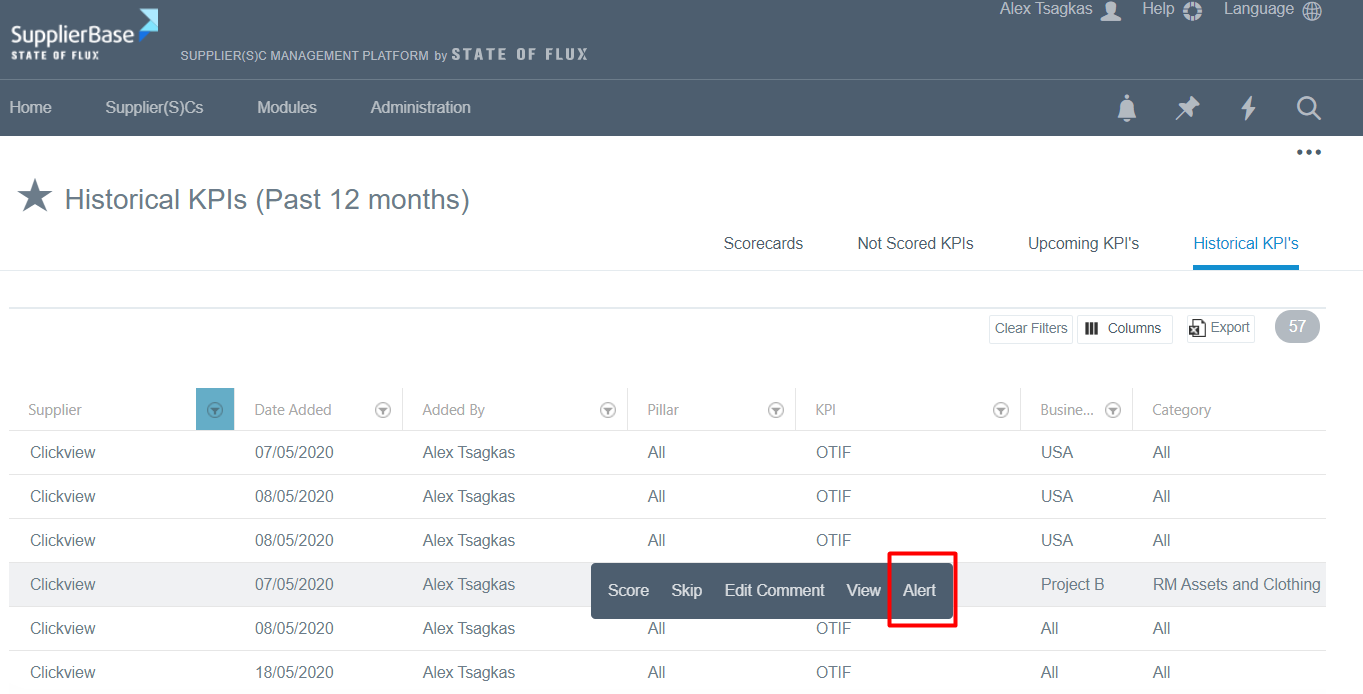
When users click the Alert button, the window below pops up.
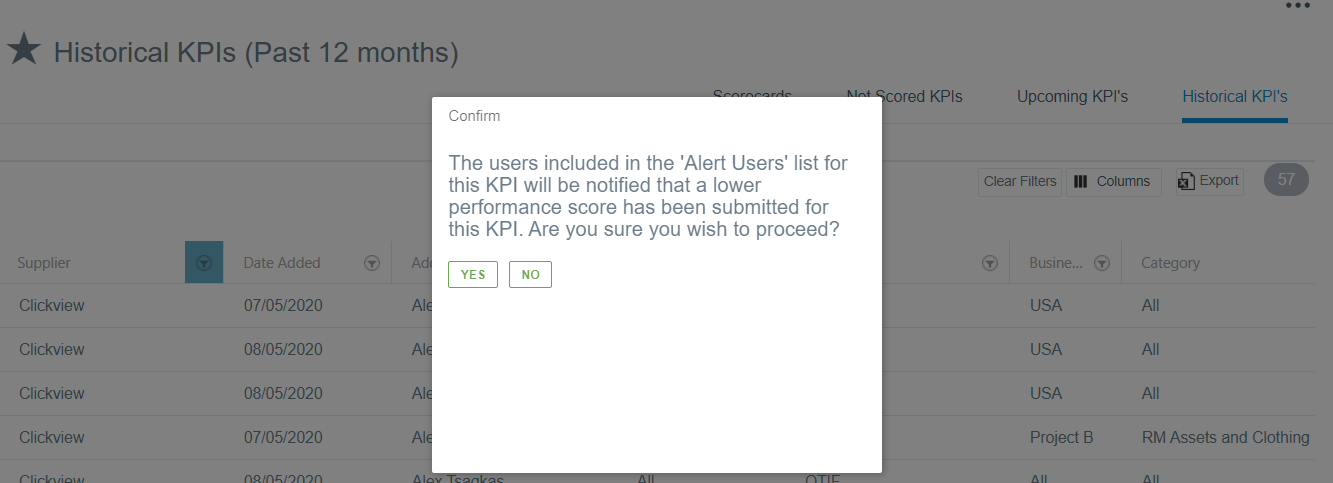
If users click Yes, the notification will be sent to the selected for alert users.