
From the KPI Library, users can set up templates of KPIs, which can be used in cases where multiple suppliers need to be measured on the same KPI. For example, if the KPI ‘Capability’ is required to be measured against 25 suppliers, a single KPI template would be created and then copied to each of the 25 suppliers.
To do this:
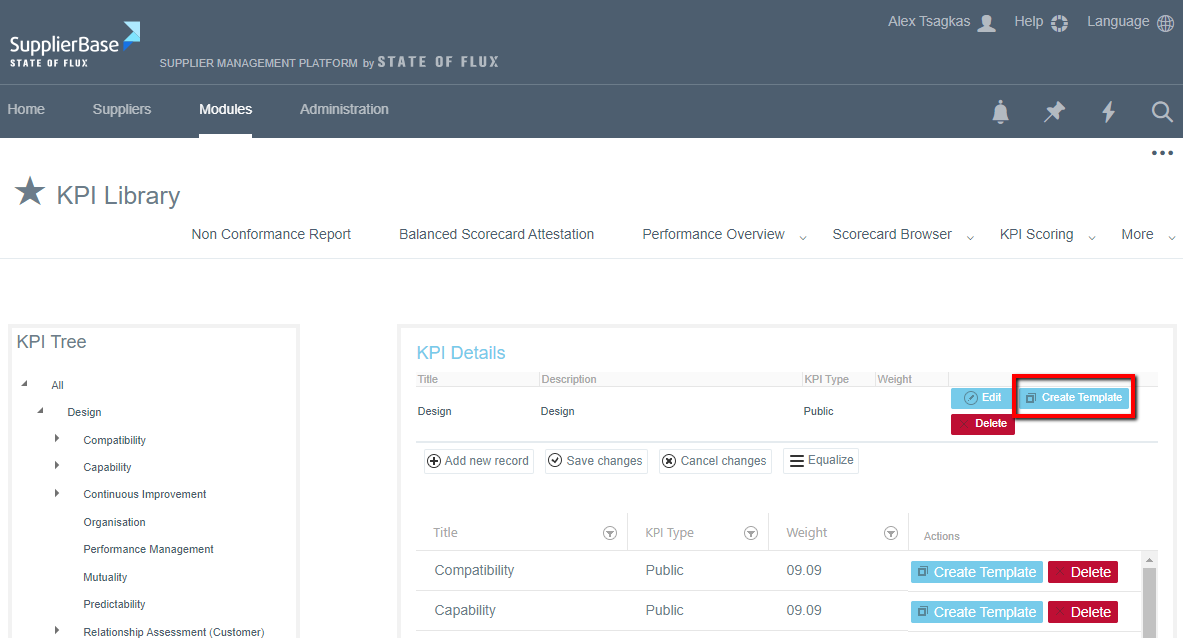
- Click on the Create Template button, as shown below
- A new page showing the settings of the KPI can be seen, in which the list of settings are outlined as follows:
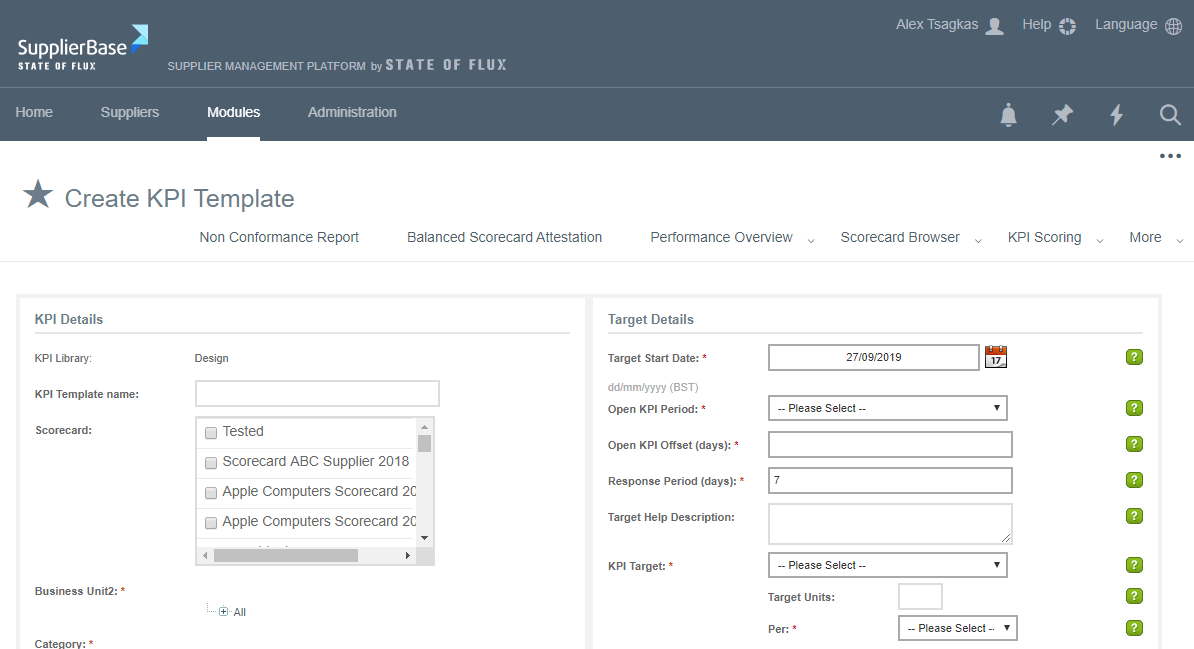
KPI: Select a relevant KPI from the KPI library.
Business Unit/ Region: Select a relevant region you are assessing the supplier for.
Category: Select from the category structure the relevant category you are assessing the supplier for.
Input method: Select 'Manual' if the KPI requires a single 'objective' score or 'Survey KPI' if the KPI requires 'subjective' assessment from multiple stakeholders.
Data frequency: The data frequency defines the frequency that KPIs will open and require data from the KPI owners.
Response Period: The response period defines the number of days after the KPI's end of a period that users should score this KPI.
Target Help Description: Help text to guide the user in filling the actual value of the KPI. This is displayed on mouse-over on the KPI Scoring page.
KPI Target: Select 'Higher is better' when the KPI should be scored 100% when the target is met and the % score decreases as the value decreases. Select 'Lower is better' when the KPI should be scored 100% when the target is met and the % score decreases as the value increases. Threshold targets are scores like the higher / lower is better targets, but the % score decreases the further away in either direction the value of a KPI is.
Target Units: This is the unit of the target value.
Per: This is the frequency of the target. Combined with the Target Units, this gives a value like Hours per month, tons per year etc.
Target Value: This is the ideal target value for the KPI. A score of 100% is achieved when the value of the KPI meets or exceeds this number.
Green (threshold): The KPI will be graded as Green when the actual value is equal to or above (below for 'Lower is Better' KPIs) this value.
Amber (threshold): The KPI will be graded as Amber when the actual value is equal to or above (below for 'Lower is Better' KPIs) this value.
KPI Owners: Select one or more customer or supplier users that should be responsible for entering data for this KPI.
Status: Set the status of a KPI to 'In Progress' to start recording data against the KPI. Set the status of the KPI to 'Archived' when KPI is no longer in use.
- Once the settings have been defined, save the template and the page will redirect automatically to the KPI Templates page.
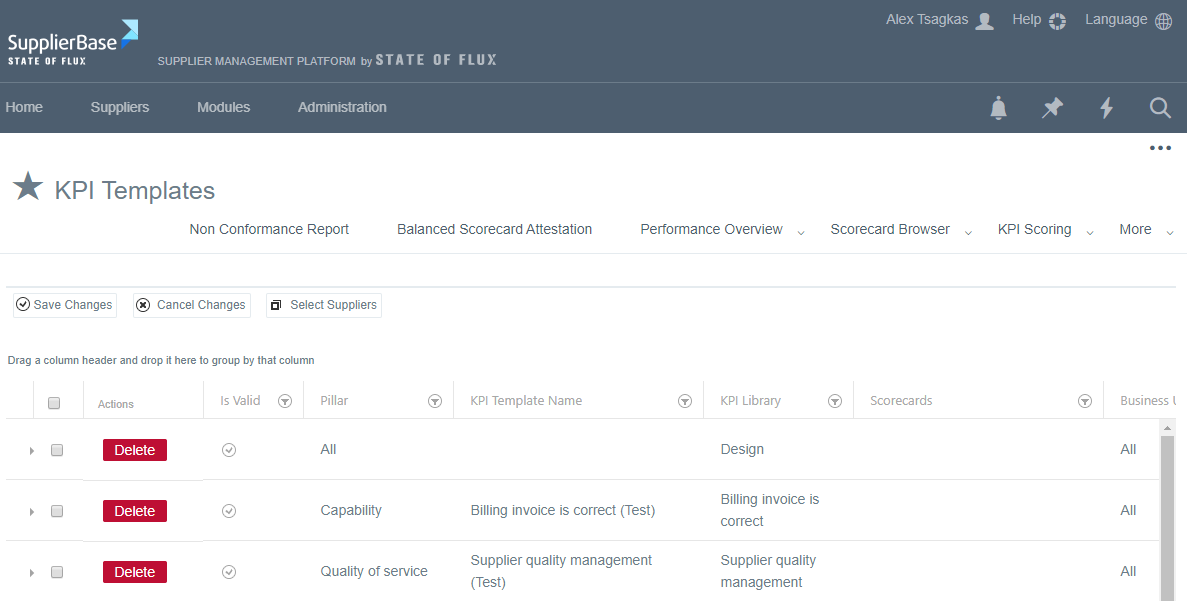
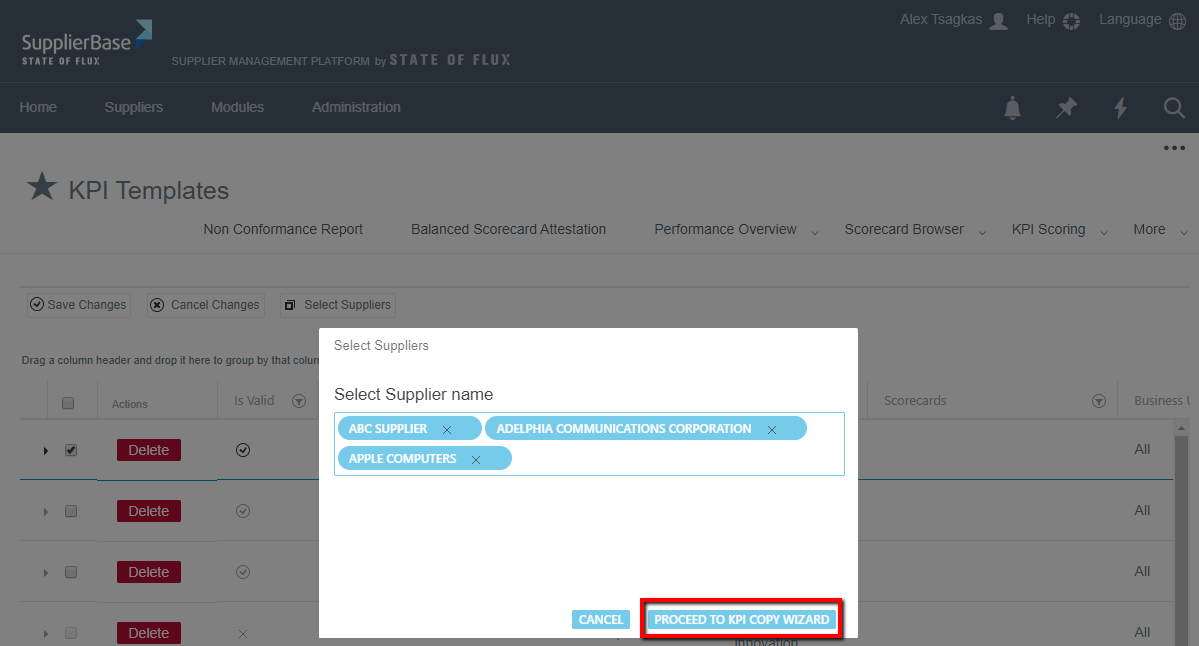
- In the KPI Templates page, multiple suppliers can be assigned to KPIs by clicking on 'Select Suppliers', when a pop-up appears giving a drop-down option of suppliers.
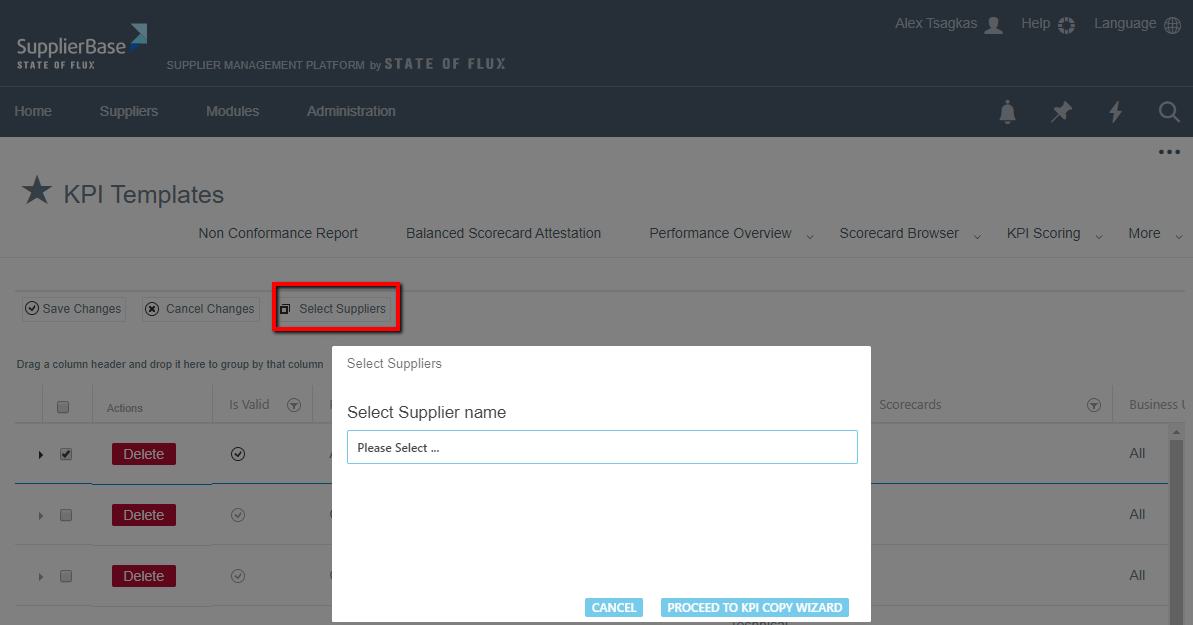
- Then click on Proceed to KPI Copy Wizard for the final step in the process.
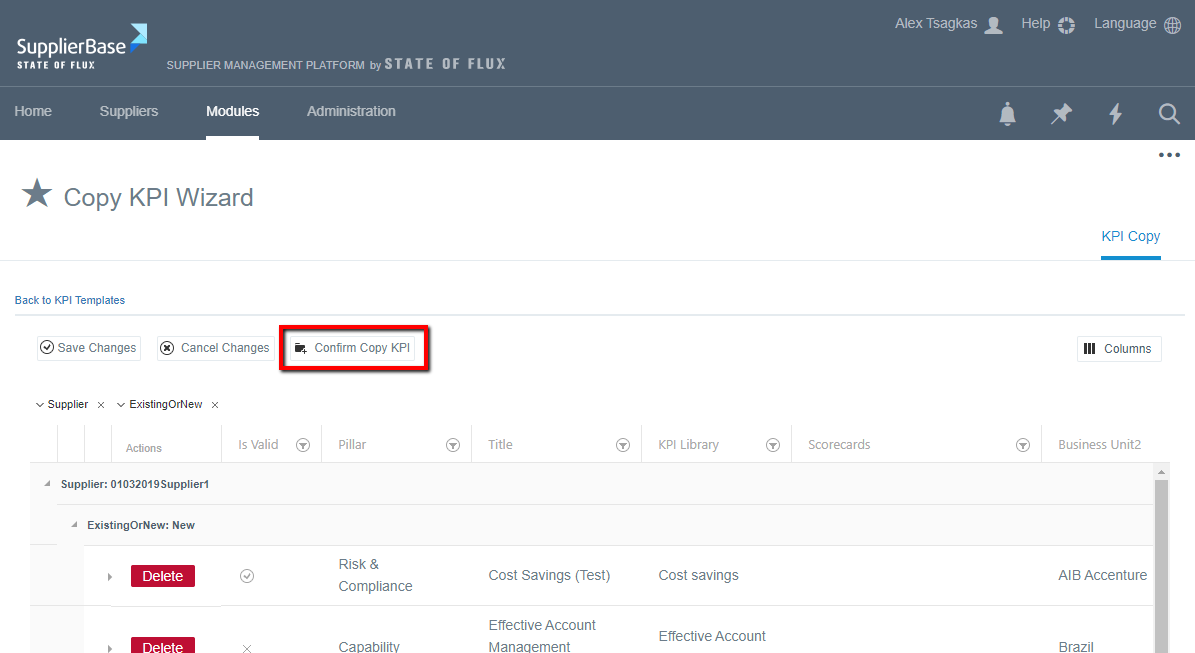
- In Copy KPI Wizard page, ensure all settings are correct and then click Confirm Copy KPI.
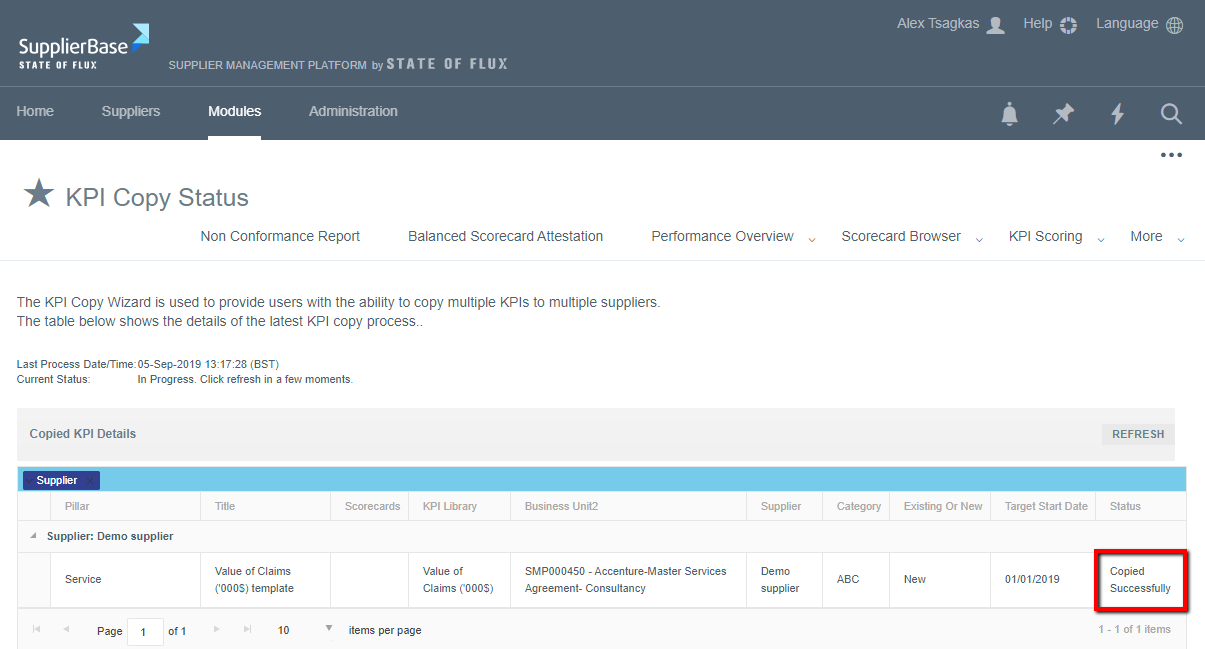
- Within the KPI Copy Status page, users can monitor the Status of the copy process.
- With the copying process completed, you can now view you KPIs at the Supplier Level by navigating to the relevant supplier > Supplier Modules > Performance > KPI Setup, where the copied KPIs are listed along with other KPIs setup against this supplier.