
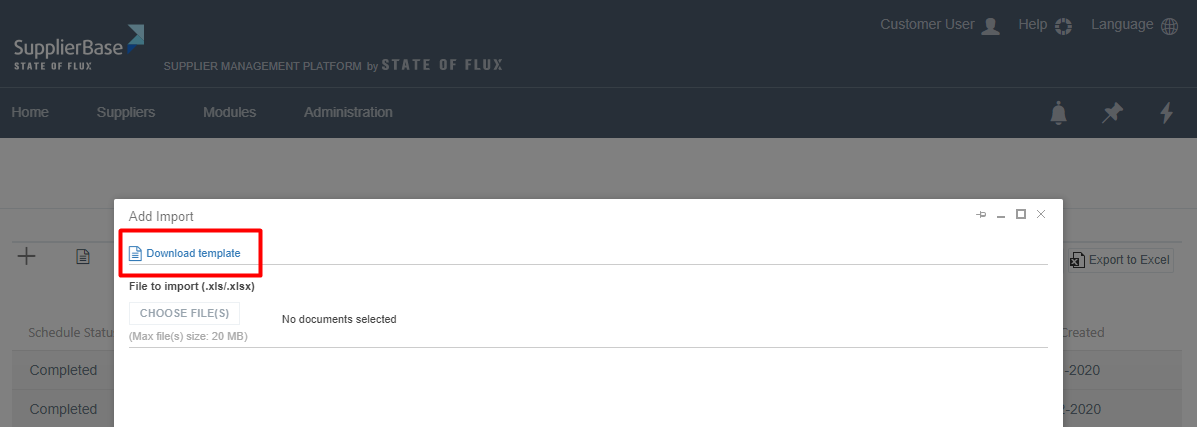
To upload or edit contracts in bulk, users will need to download the Import Template, which is found in the Administration > Import > Contracts page.
General Guidelines
In order to fill in the excel template correctly, please note the following:
Cell Values
The fields in the template match the configuration of the fields in the Contracts page.
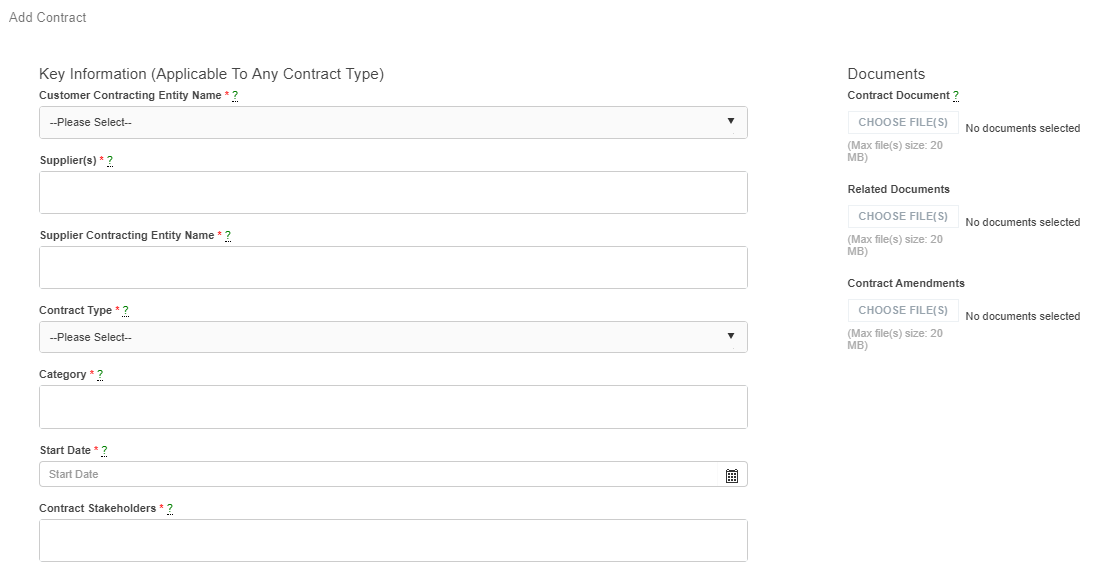 In some of the fields, the user has to select options from drop down lists that are inserted in the platform (e.g. suppliers, categories. business units), as shown in the screenshot below.

For a successful upload, the excel cells that correspond to platform drop down lists, need to be completed with the exact values of the lists. The template cells are case-character sensitive, so if the entry does not match precisely the platform options, the import fails. For example, to upload the NDA contract, in the Contract Type cell the user should write "NDA" and not "Nda". Another example would be that a supplier name is "Test Supplier" in the platform, but in the import file the user writes "Test". This again would cause the import to fail, because the supplier name Test, does not match exactly the platform entry.
Multiple values
For cells that need to be populated with multiple values, please note that the values must be separated with semicolon (;), e.g. Test Supplier Inc; Demo Supplier).
Mandatory fields
The template does not provide indication to the user about all the mandatory fields. Users should know before starting the upload which columns are mandatory and they need to be populated.
NOTE: According to the different contract types, different fields are mandatory.
- For the fields that are not dependent on contract types: if an import is made with a mandatory field empty, this will appear as an error in the validation log file, and the contract row will fail to be uploaded.
- For the fields that are dependent on contract types: if an import is made with a mandatory field empty, the import will be successful.
Field Rules
1) Contract Key/Contract Number
The "Contract Key" field is the most important column of the file. It is a specific number for each contract which the clients can select, a system generated number. because: This is the unique identifier of the contracts in the platform.
It is the "key" that matches old imported contracts that exist in the platform with the ones in the file, and does not allow the creation of duplicates. The contract key field can have any text that you want, e.g. the key of the 3rd party software file. For example, if you use SAP, the Contract Key field can have the SAP generated number for the contract. If there is no contract key, the system will generate one.
It helps the editing of an existing contract. This will happen, because when the contract key matches the old imported contract, then it will detect which fields are updated (if they were empty or had different content before) and change them in the platform.
To upload new contracts in the platform, that do not already have a contract number from another source the Contract Key field should be empty.
To edit existing contracts, you need to insert their Contract Keys in the template. This will link the entries to the existing contract and make the changes that you want to apply.
To add Child Contracts, you need to populate the Parent Contract Key field.
To edit Child Contracts, you need to insert both the Contract Key and the Parent Contract Key.
2) Category
in this column, the entries need to correspond to the most granular level of the hierarchy. For example., for the category with 3 levels like All/IT Applications > ERP Applications > Enterprise Applications Support, the correct entry would be "Enterprise Applications Support".
3) Users
In the template there might be many columns that require the insertion of users, e.g. contract stakeholders, business owners, budget holders etc. In these columns, the First and Last Name of the user should be inserted.
4) RAG status
When uploading a new contract, the RAG status column needs to remain empty. The system will auto -generate the correct RAG status after the creation of the contract.
When editing a contract, the RAG status column will be populated. You can leave it as it is, no changes need to be made in this field.
5) Date
In the columns that require a date to be inserted, please use the format DD/MM/YYYY.
6) Contract documents
Please review the relevant article on how to insert the contract documents.