
The platform provides users with the ability to record and manage contract actions.
Select a contract and click on the view (eye) icon.
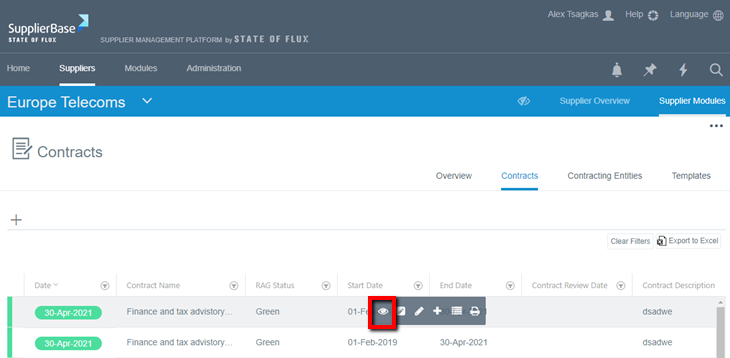
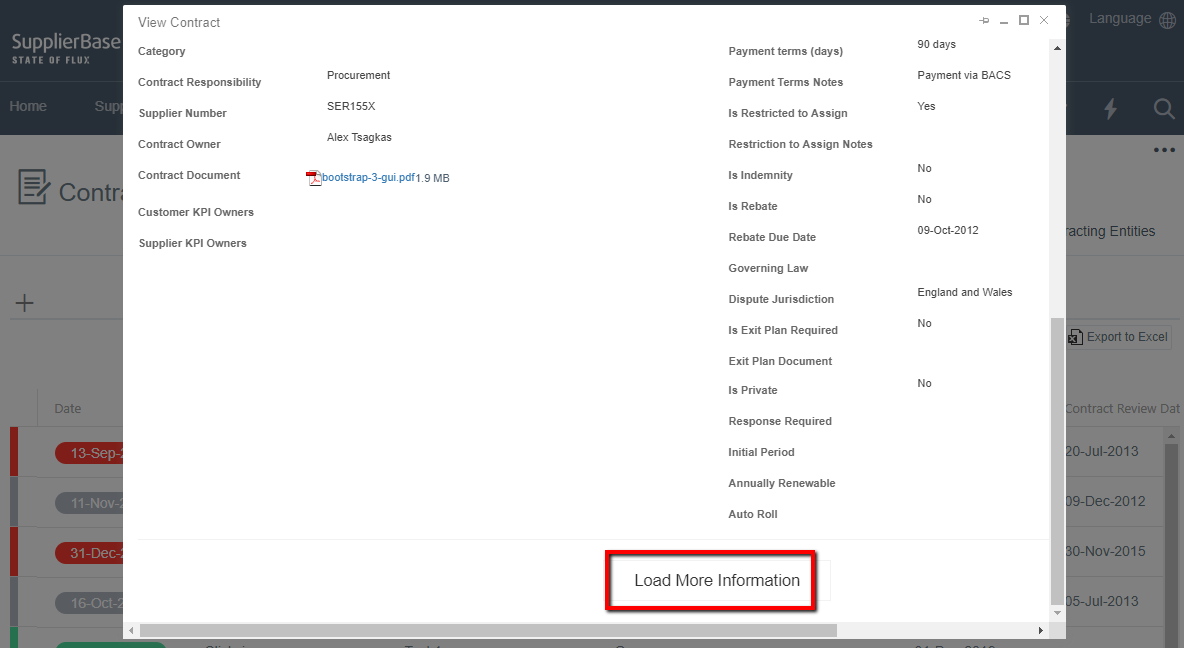
When you click on the eye icon, a pop-up window will be loaded and it will include the detailed information about a contract. If you scroll down you will see that there is a 'Load more information' button.
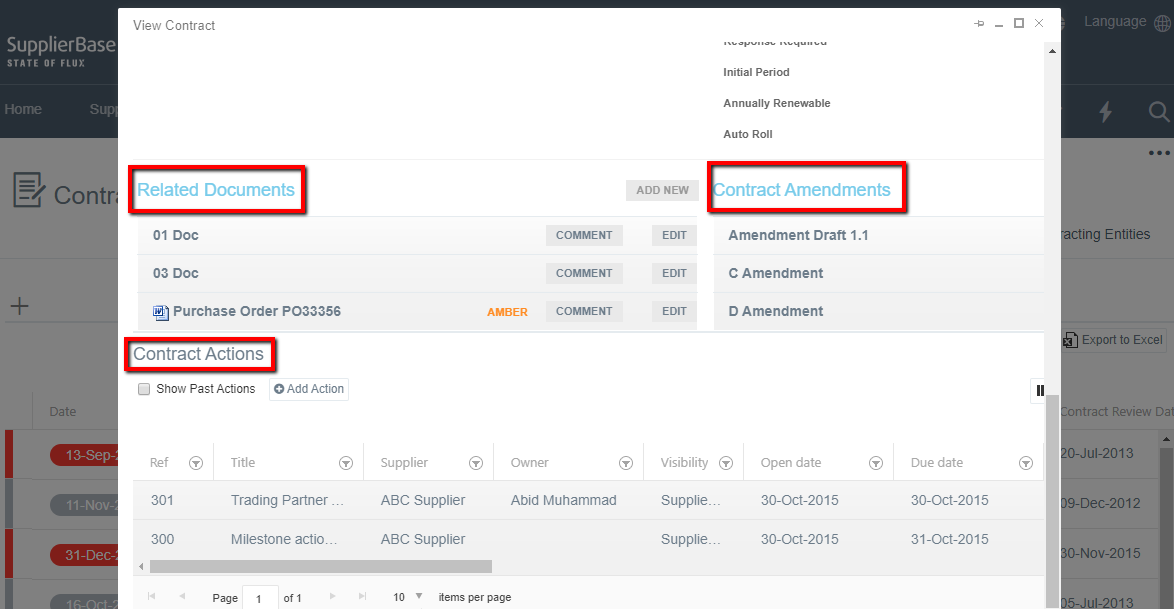
When you click on the Load More Information button, the window expands and it shows two (2) document repositories: Related Documents and Contract Amendments (PDF only), and an actions area.
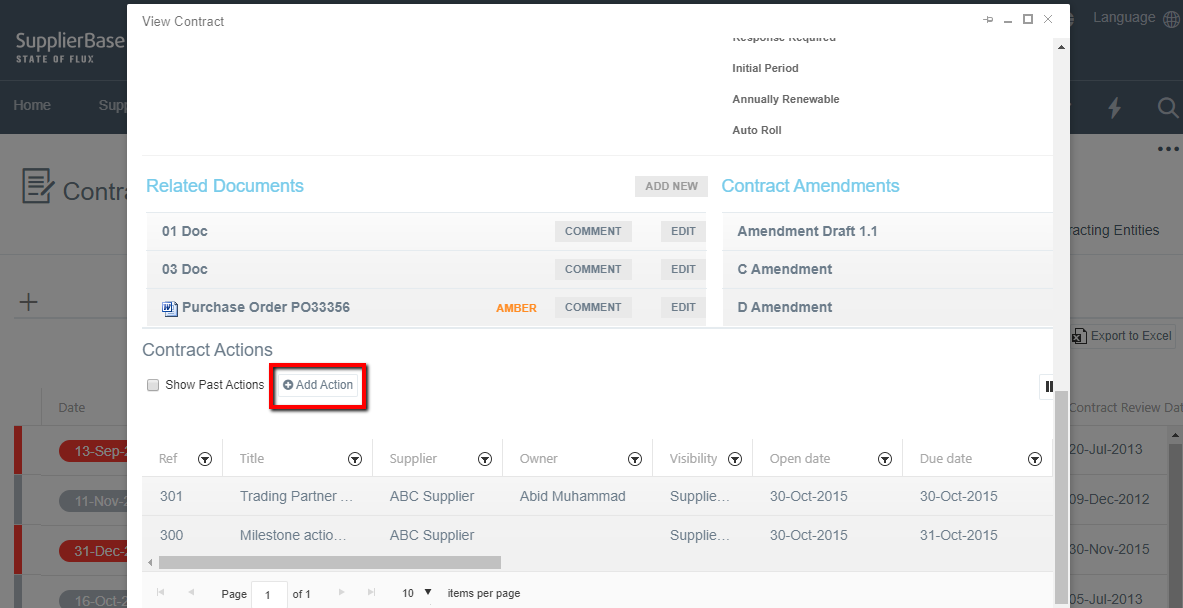
The contract actions grid shows a list of actions that are linked to that specific contract. To add a new actions, click the Add Action button at the top left of the grid.
The following window pops up.
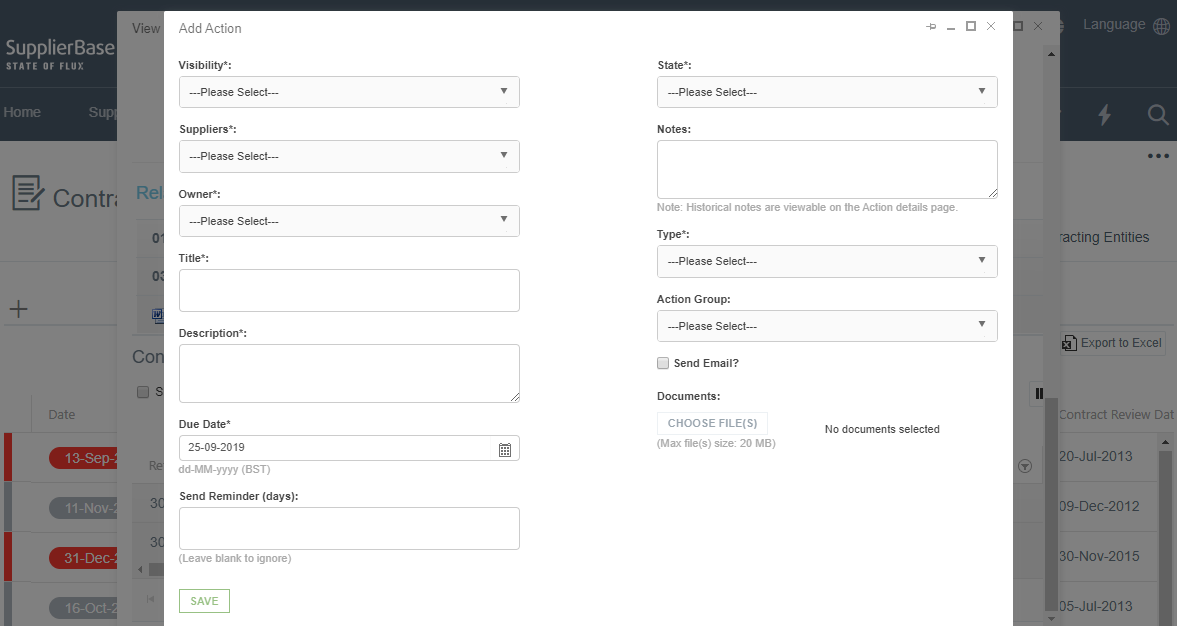
In this window, the users must fill –in the necessary fields and assign an action to someone, e.g. remind him to review a contract.
The fields appearing in this window are the following:
Visibility: if the supplier can see this action or it is created for internal purposes only
Owner: who is the owner of the contract
Title: title of the action
Description: description of the action that is created
Due date: the date by which the action must be completed
Send reminder: if the action is not completed, a reminder can be sent about the action
State: in this field the progress of the action must be defined, e.g. If it is completed, on hold, in progress, etc.
Notes: additional comments about the action
Type: definition of the type of action e.g. corrective, compliance etc
Send email: this option lets the user notify the supplier about this action, if it is a supplier-shared action
Documents: in this field you can upload any relevant documents
Once you fill in the mandatory fields, click the Save button and your action will be added in your contact’s page.