
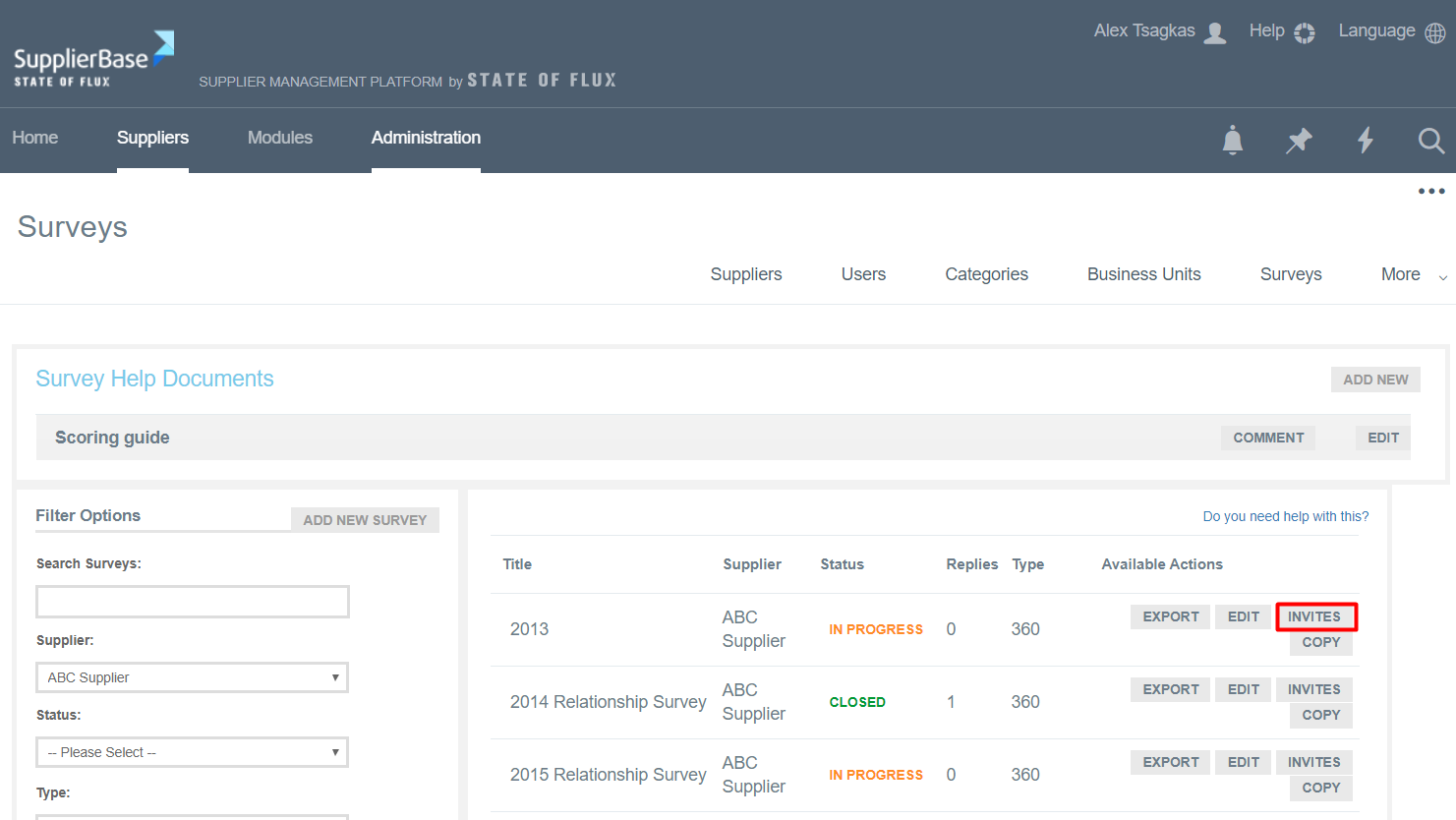
From the Surveys page, click on the Invites button next to a survey.
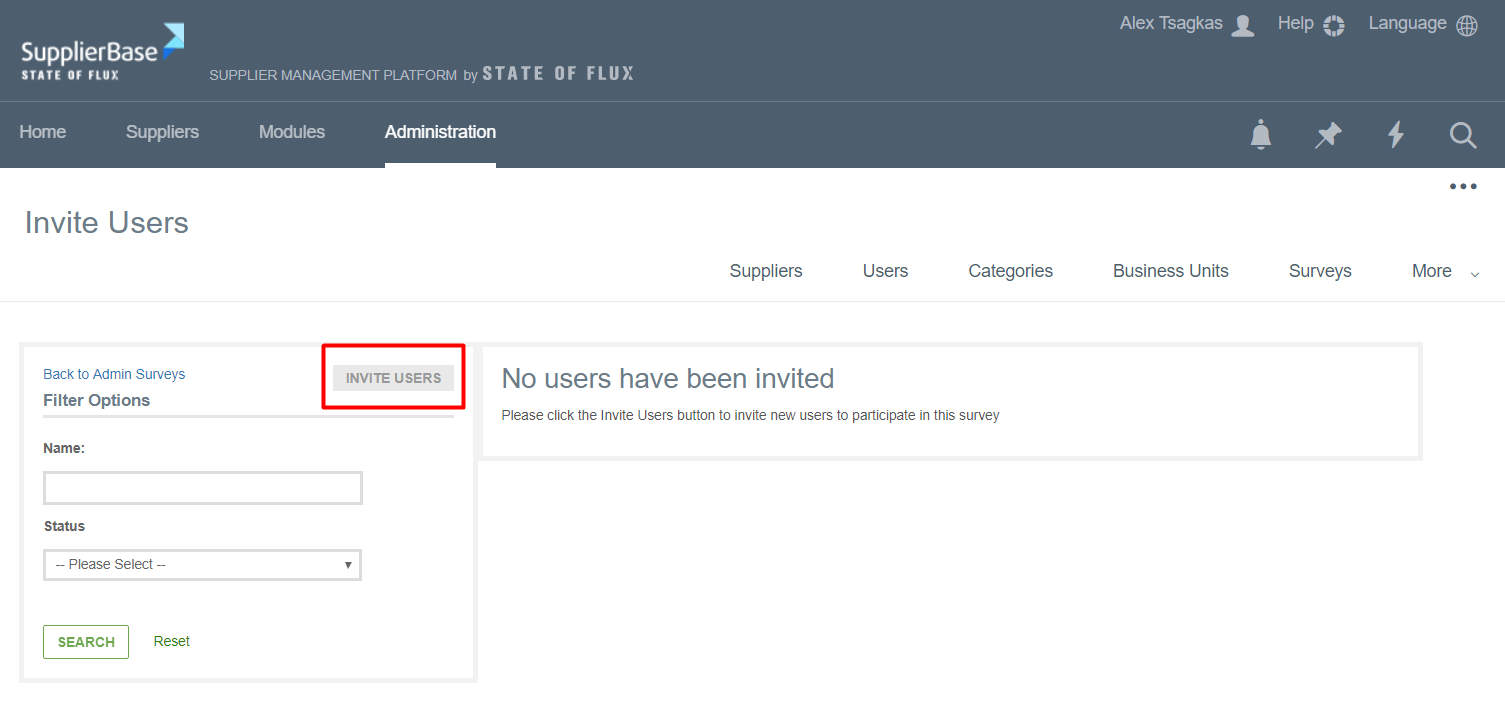
The Invite Users page is loaded. Click on the Invite Users button.
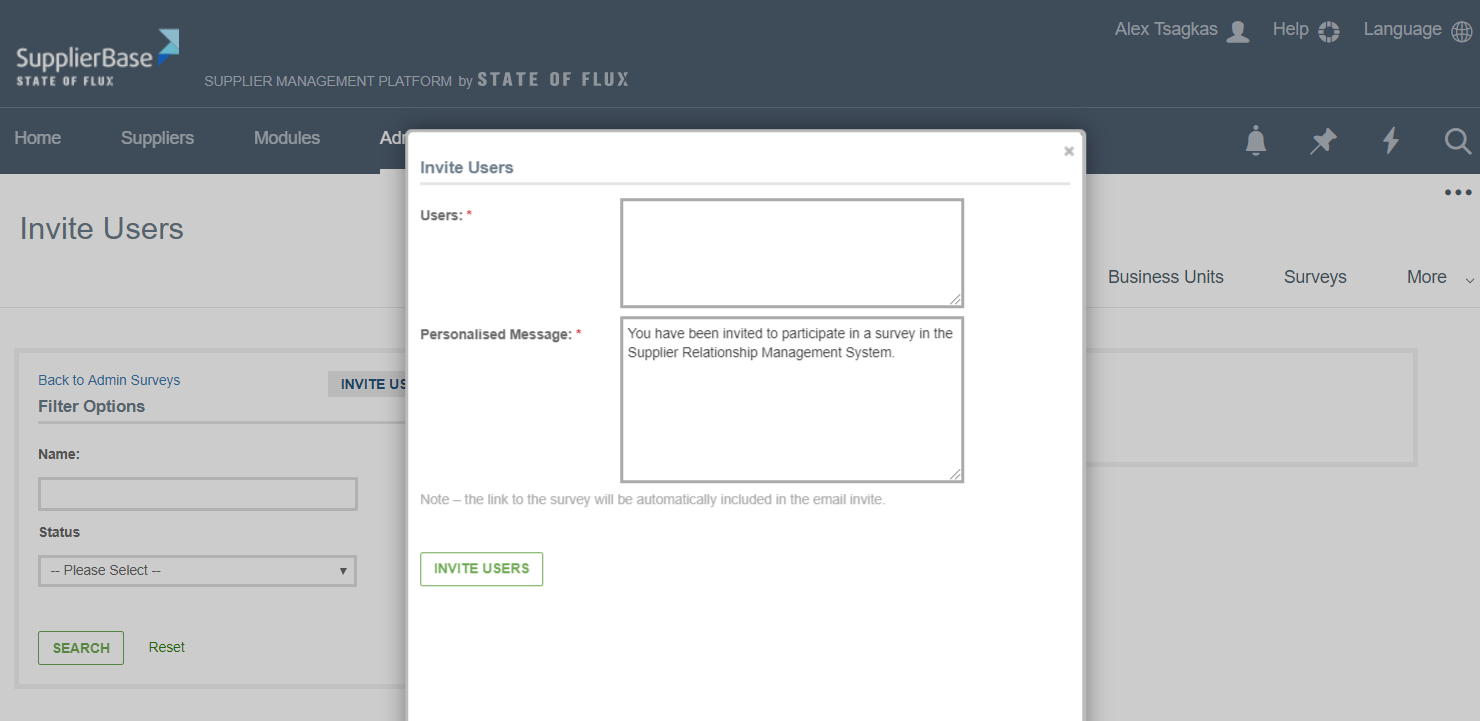
A pop up window appears.
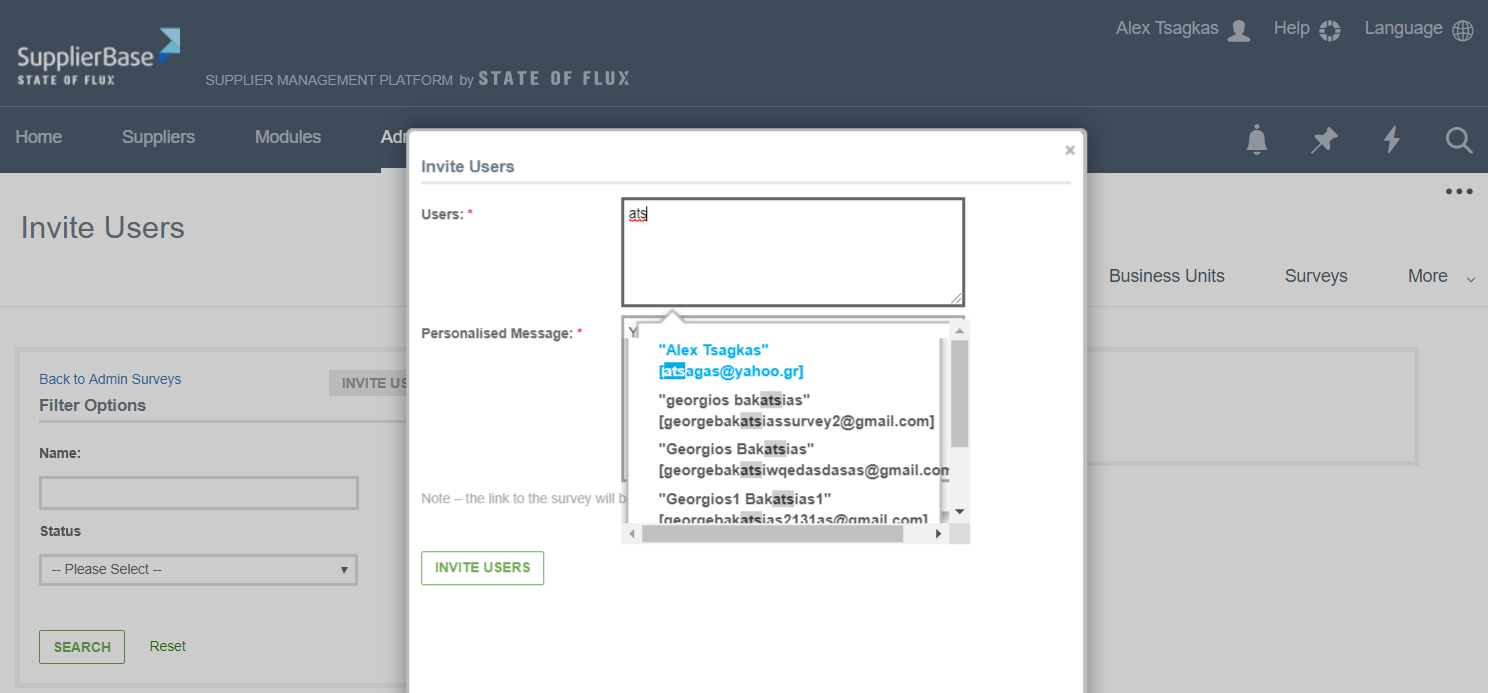
You can enter one or more users by starting to type the name of a user.
Results replace the user list, displaying possible selections and the user can continue typing until the selection has filled the textbox or hit the down arrow to select a user.
You can also personalise the message that will be sent to the Invites.
After that, click on the Invite Users button. A system generated email will be sent to the invites list which includes the link to the survey.
IMPORTANT NOTE: Only users that are assigned to a supplier can be invited to respond to a survey for that supplier. If there is requirement for individuals that are not users of the system, to respond to a survey, user accounts must be created for these individuals. These users must be given the role SMS Customer Survey Users or SMS Supplier Survey Users. As outlined in the User Groups and Permissions section of this guide, these users have only access to the Surveys page.