1.1 Create a survey
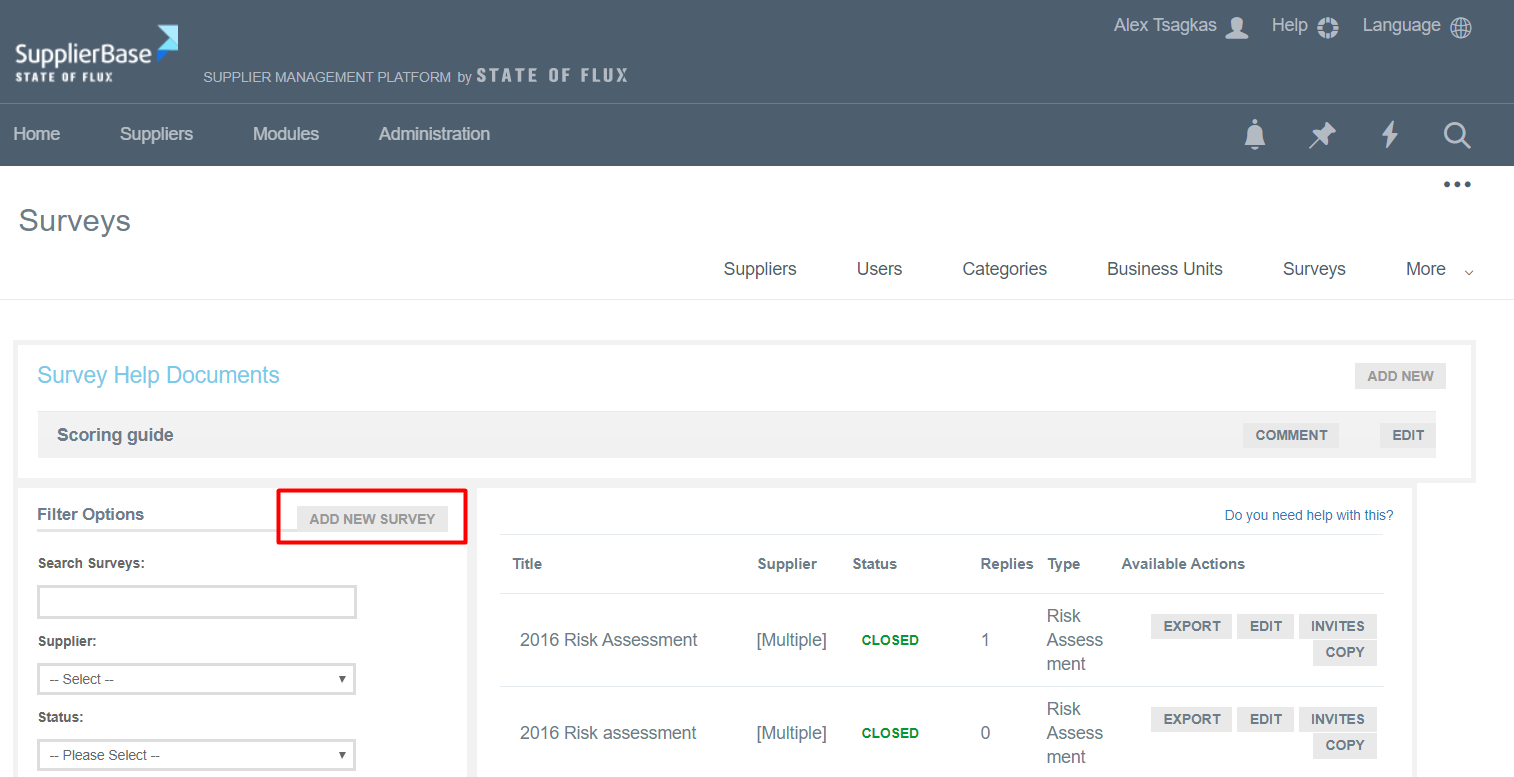
In order to create a survey, go to the Administration > Surveys and click the Add New Survey button.
Once you do that, the window below pops up.
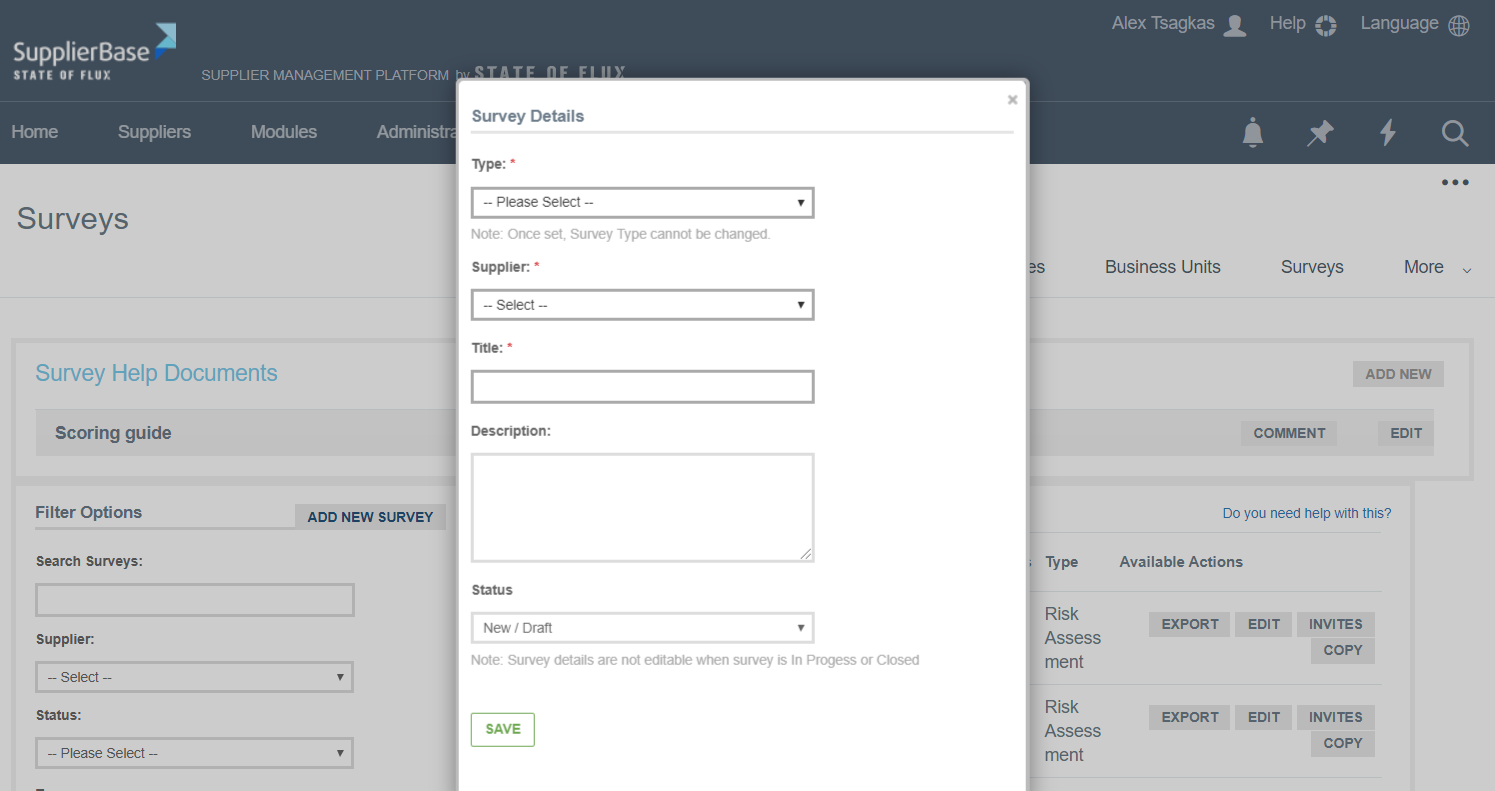
In this window:
Select the Type of the survey.
Select a Supplier.
Enter a Title.
Enter a Description of the survey.
Enter Status of the survey.
Click on Save.
The survey is created and the survey’s page is loaded.
IMPORTANT NOTE: A new survey is in New/Draft status. At this status, users can change the title, description, questions and structure of the survey. Once the status of a survey changes from New/Draft to In progress, the aforementioned elements cannot be edited.
Users can use the Back to Admin Surveys to return to the list of surveys.
1.2 Add questions to a survey
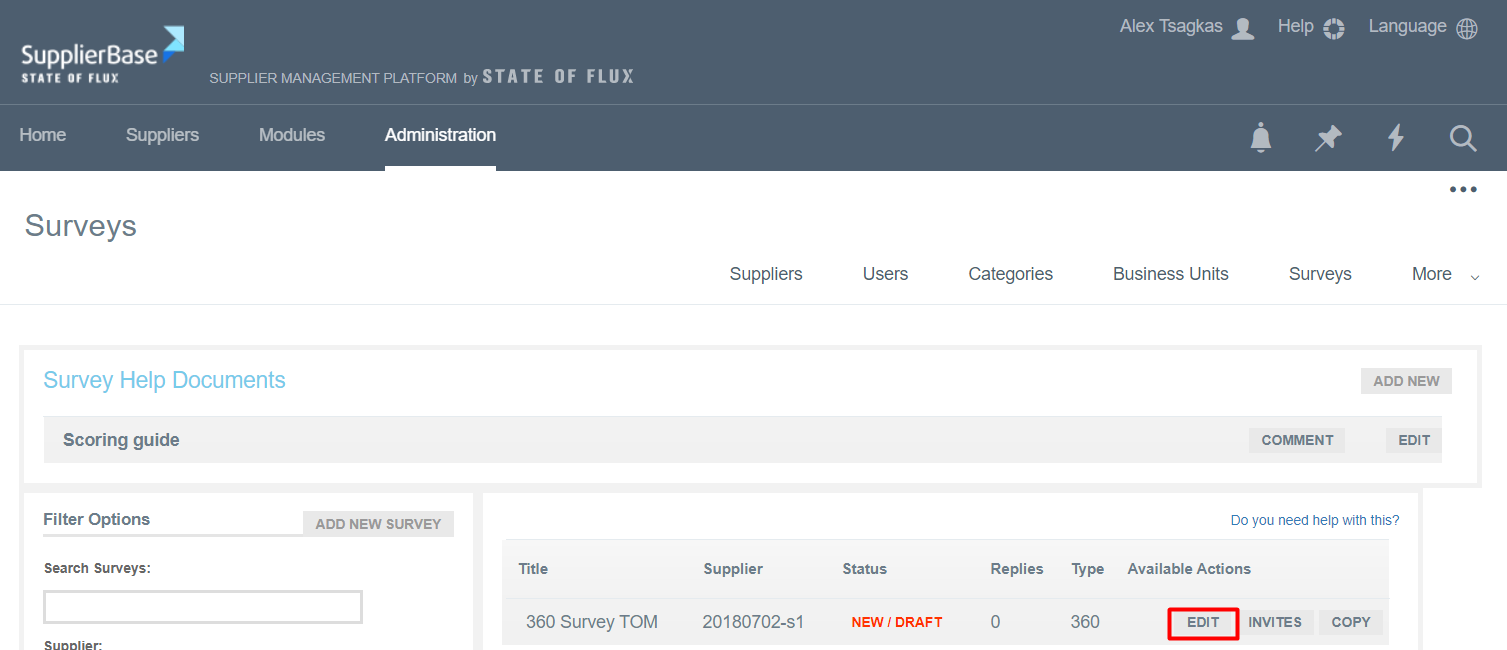
In order to add questions to the survey, the user needs to select the Edit button next to the survey.
The survey information is displayed.
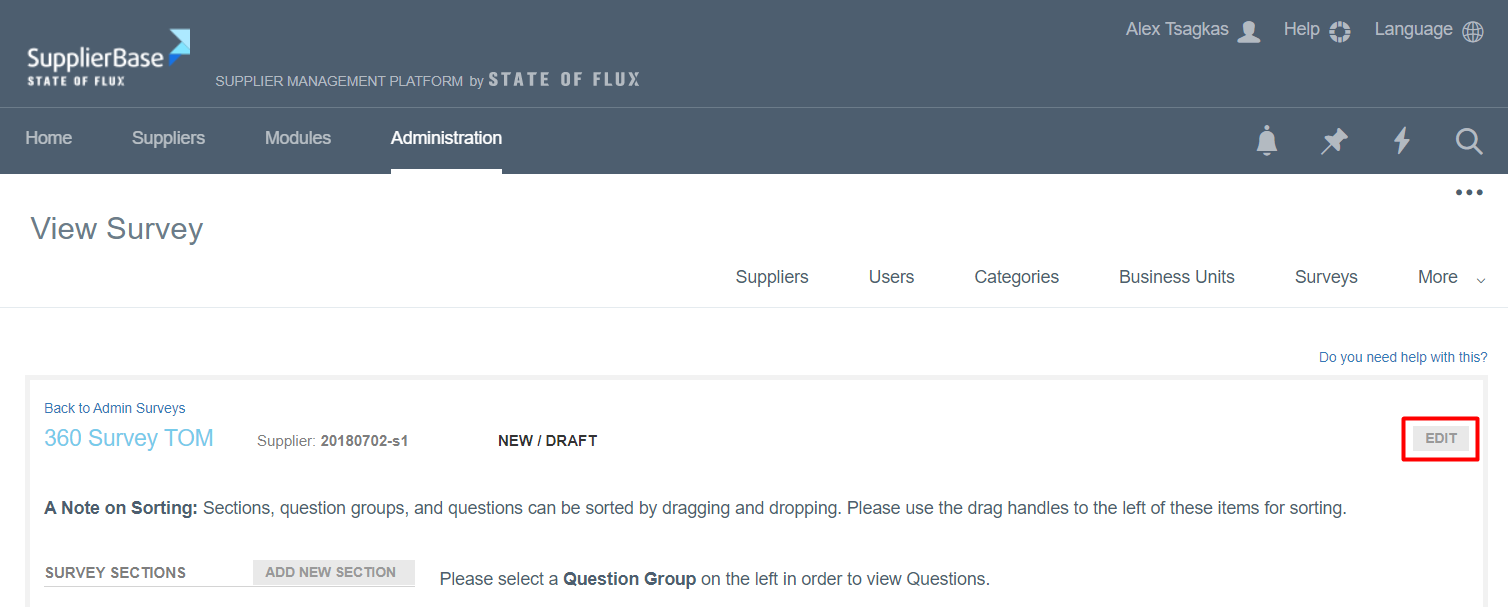
Click on Edit on the top right corner of the section. A pop-up window is loaded.
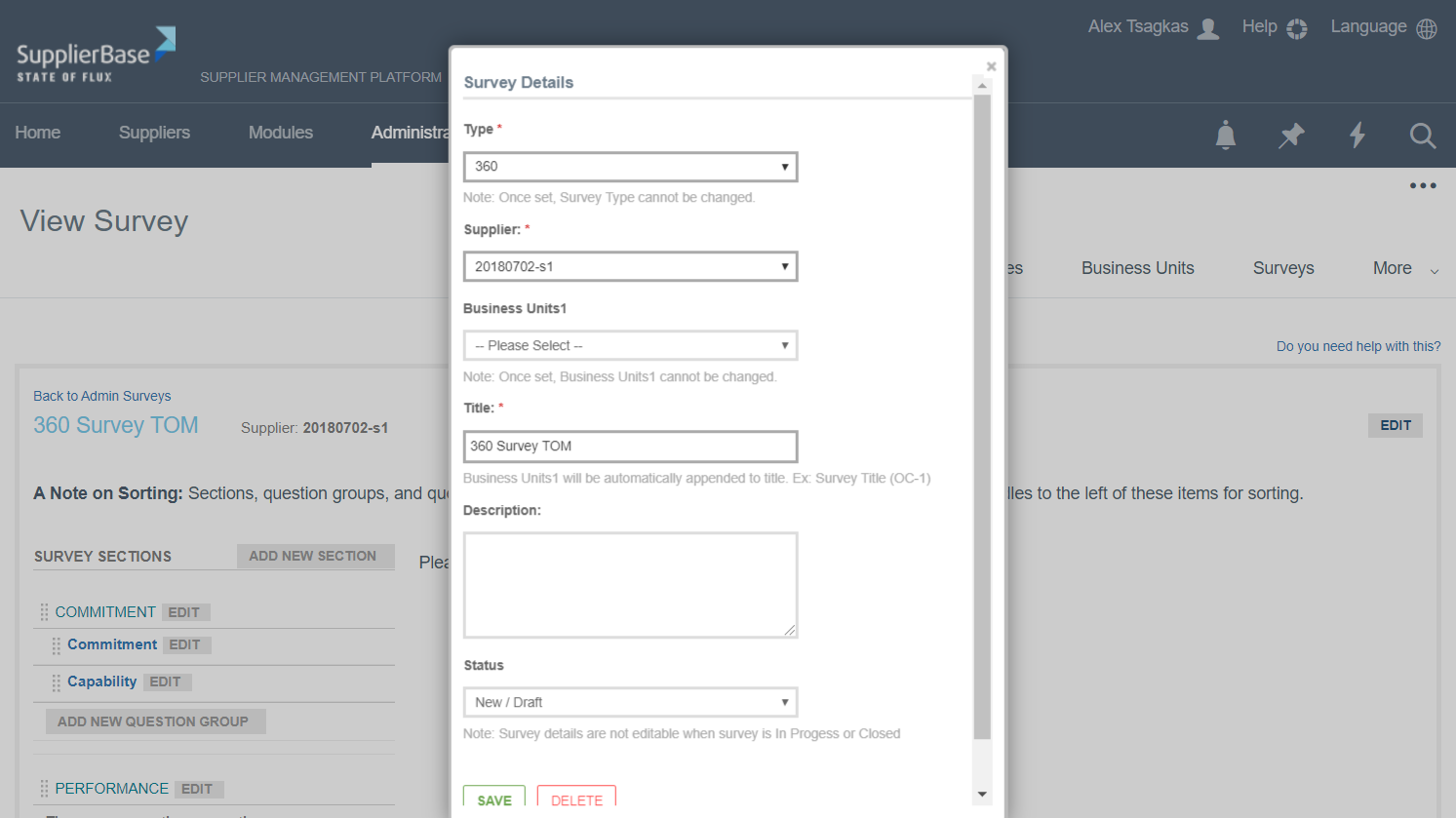
The user can change the title and description of the survey and change the status from New/Draft to In Progress and from In Progress to Closed. Please note that once a survey is closed, no results can be submitted anymore and the survey cannot be placed back in progress.
The structure of a survey includes three levels: sections, question groups and questions.
Sections
Click on Add New Section.
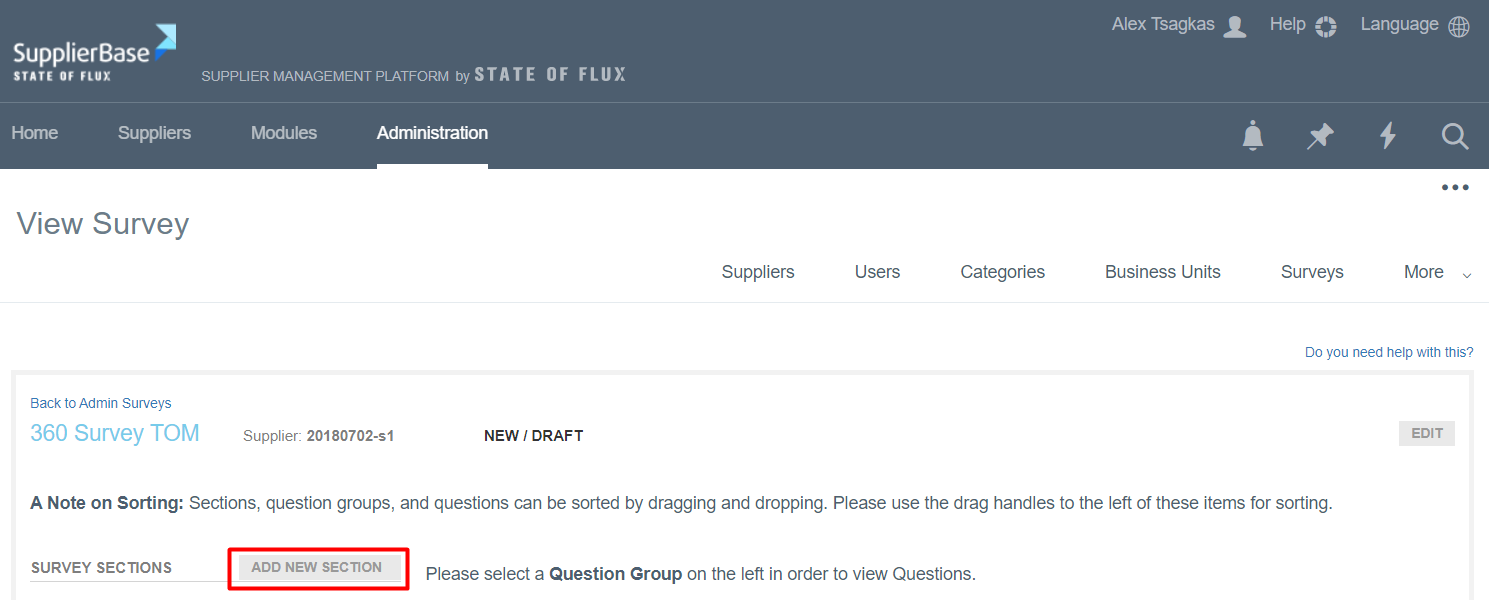
A pop-up window appears.
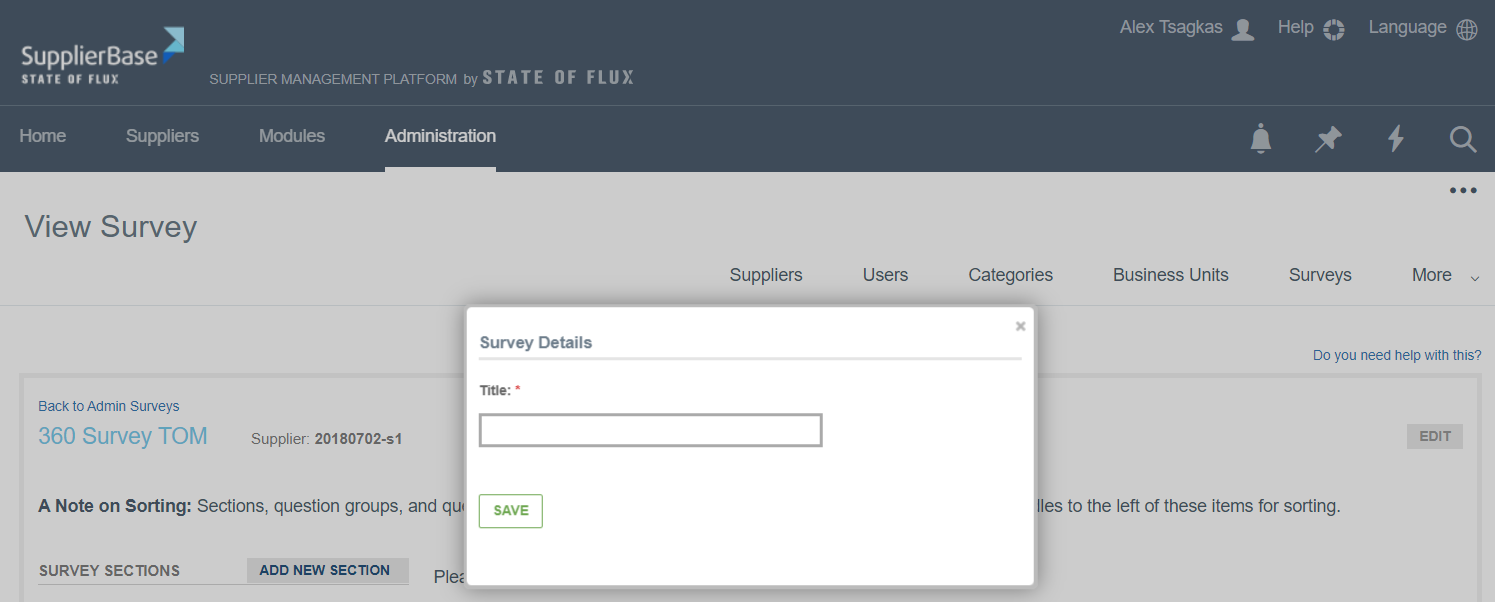
Enter a Title for the section (e.g. Commitment) and click on Save. The section is added into the survey. Repeat the process to add more sections into the survey.
In order to edit the name of the section, click the Edit button next to it.
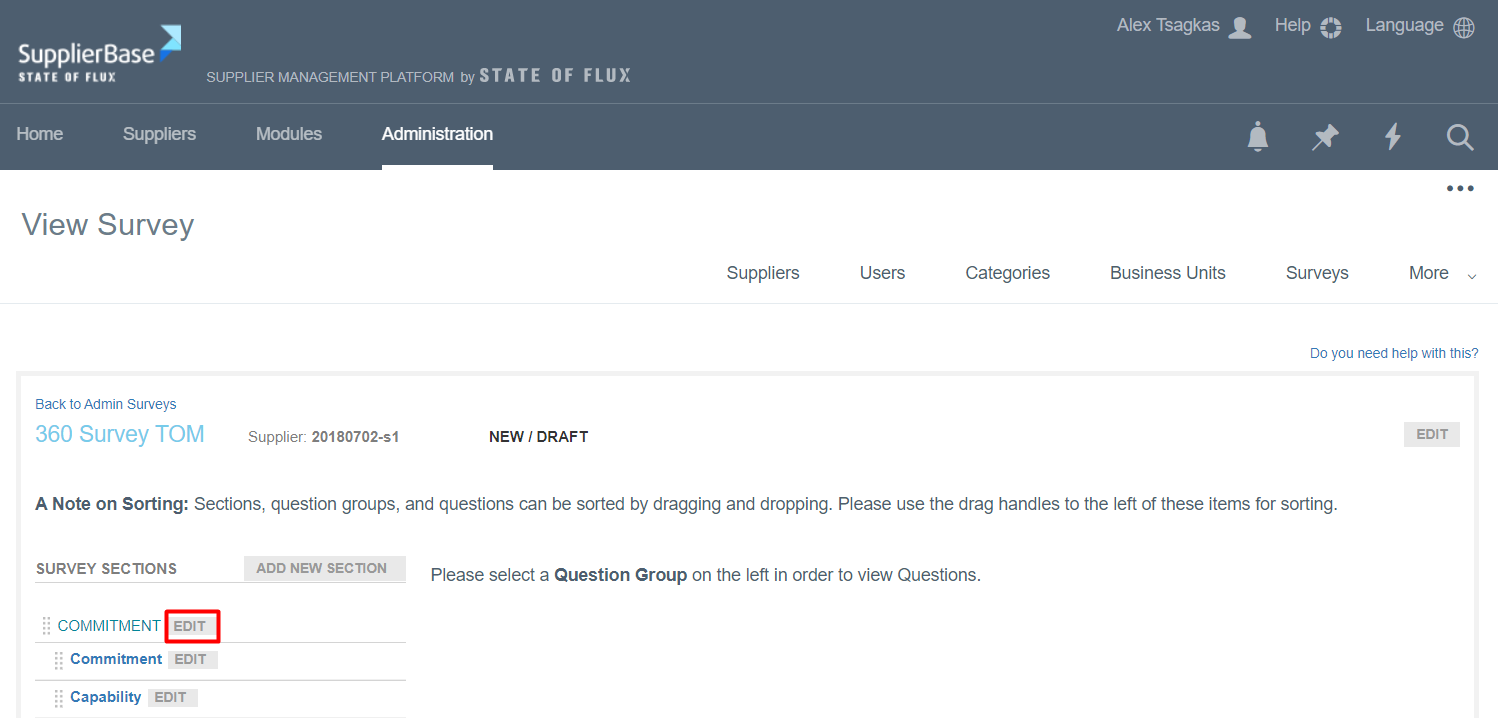
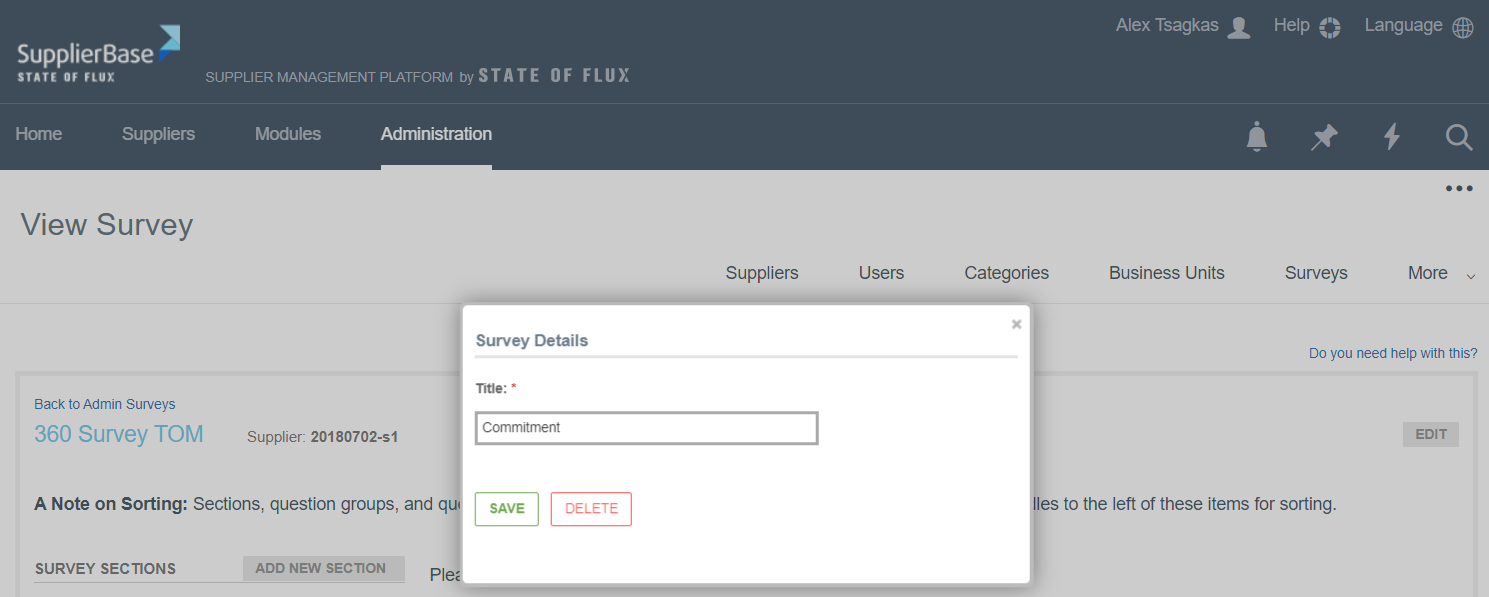
A pop up window appears, in which you can either edit the section and save it again, or you can delete the section.
Groups
Users can add question groups within each section. To do that, click on the Add New Question Group button.
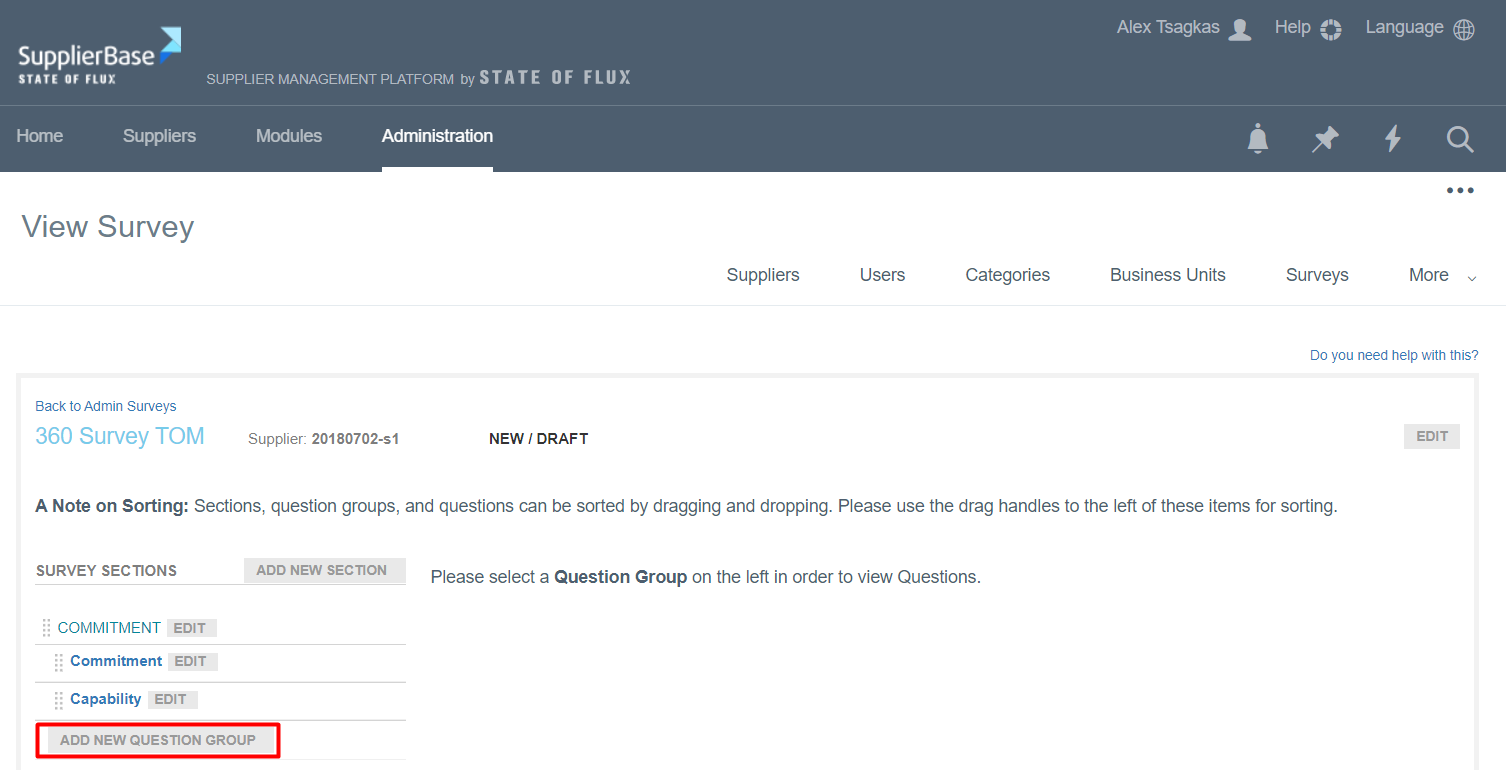
A pop up window appears, in which you have to select the question group from the drop-down list and then click Save.
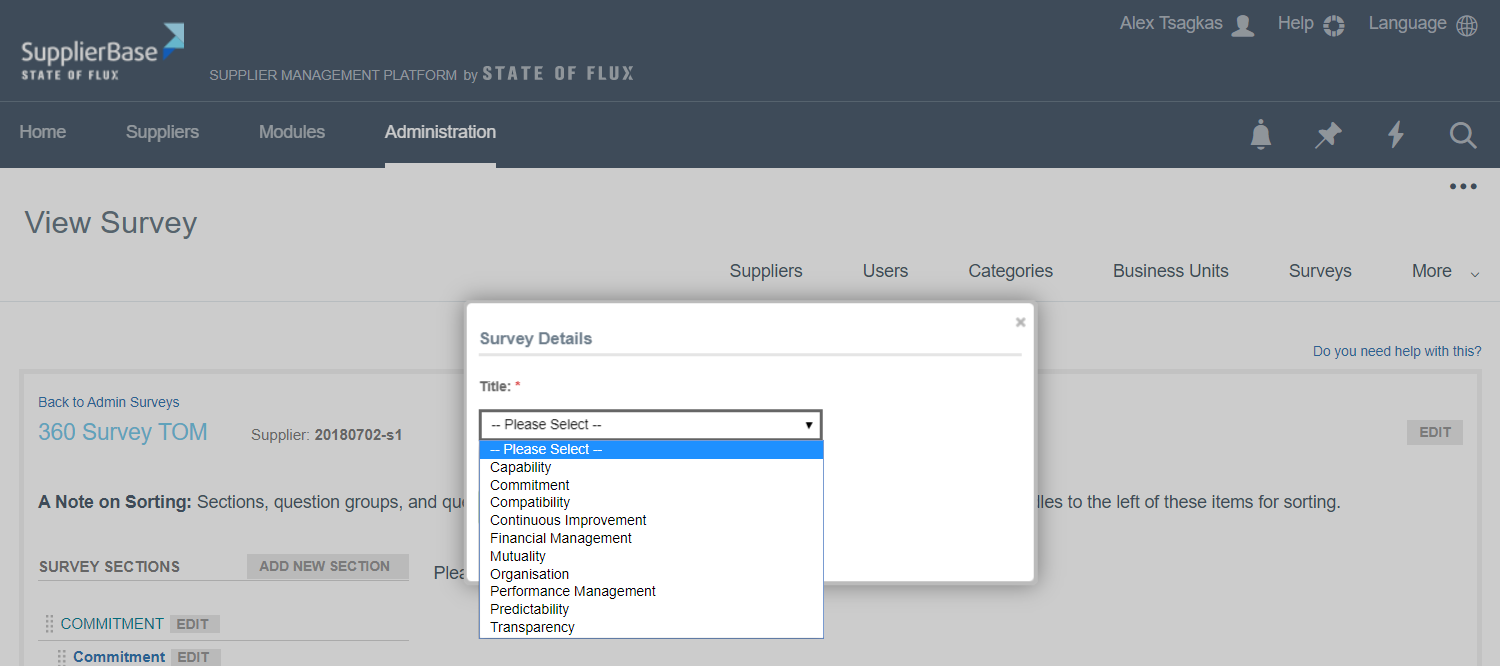
The question group is added into the section. Repeat the process to add more question groups into a survey section.
IMPORTANT NOTE: 360 Surveys are constructed based on a pre-defined list of question groups. When the user adds a survey question group to a 360 survey, a drop-down list of the available question groups will be displayed.
In case you want to edit the question group or delete it, click on the Edit button next to it and a pop up window allowing you to edit these actions will appear.
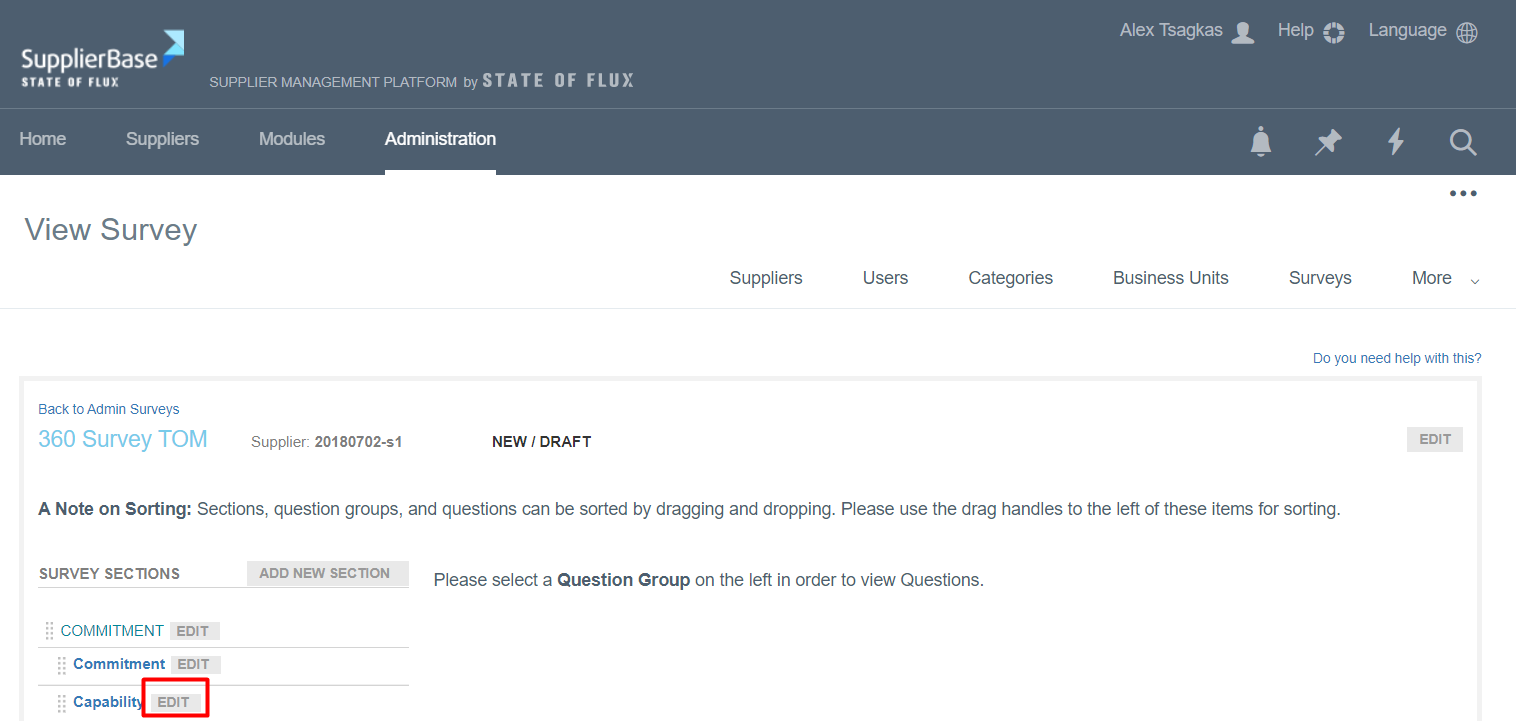
Questions
Users can add one or more questions within a question group.
From the surveys page, click on a question group and then click on the Add New Question button that appears.
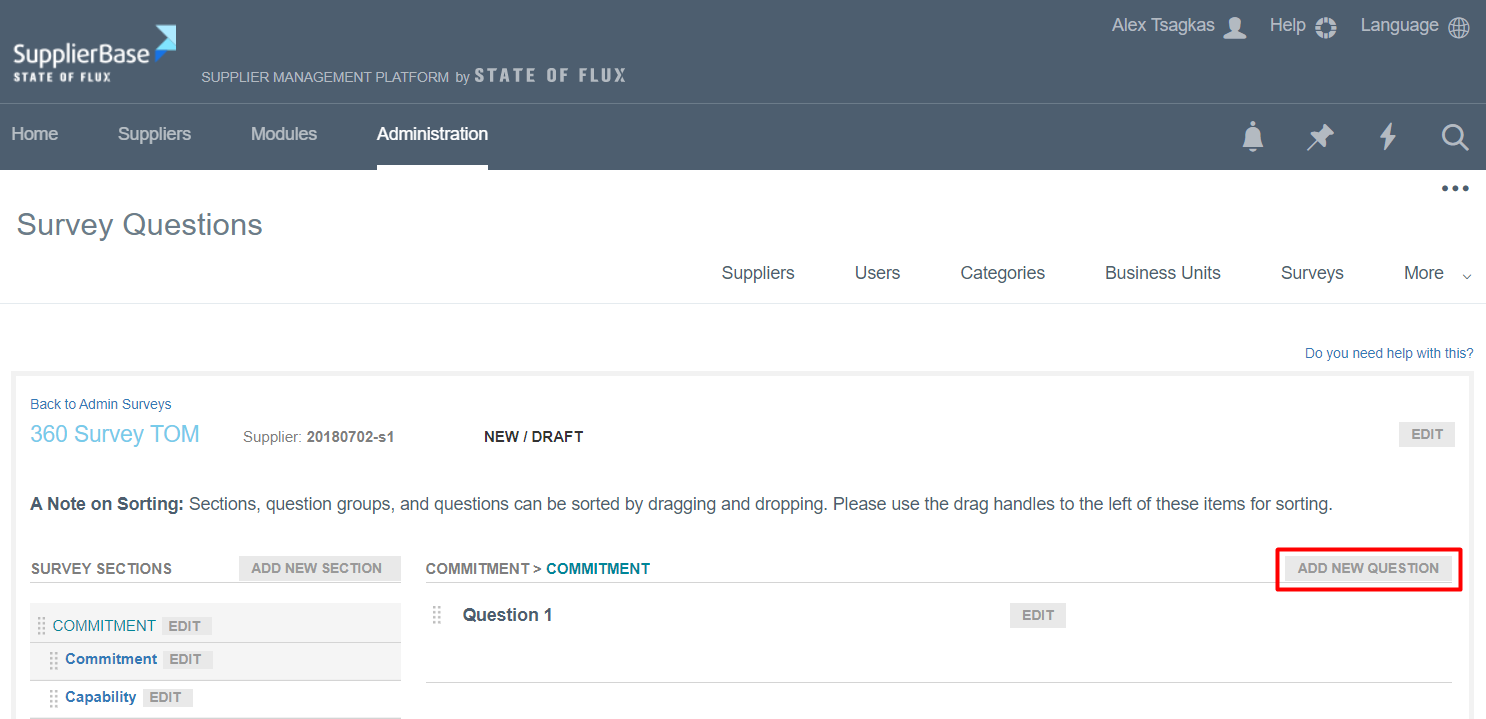
A pop up window appears.
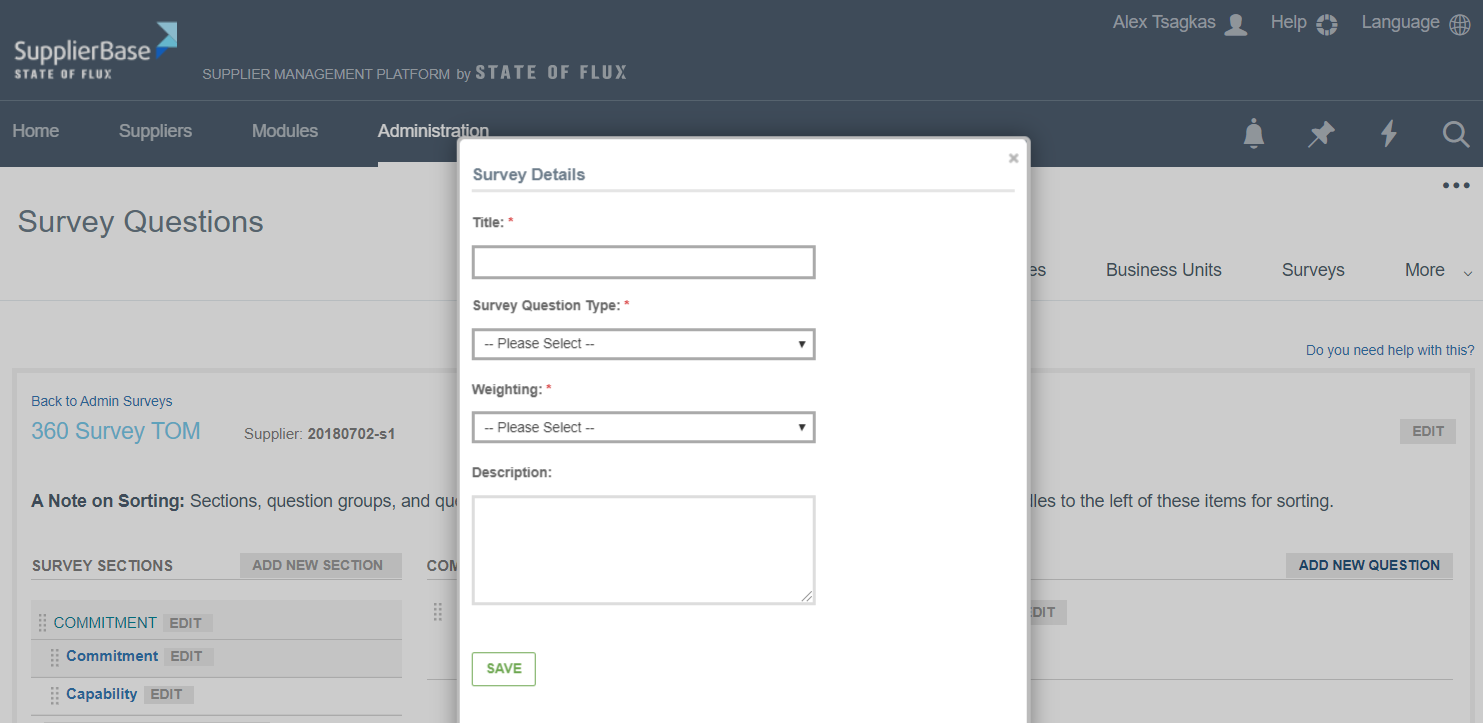
- Enter a Title for the Question Group (e.g. Question 1).
- Enter Survey Question Type.
- Enter the Weighting of the question. The weighting of a question reflects the importance of a question in determining the overall weight of a question group. Question weights range from 1-5. The higher the weight of a question, the higher its importance and therefore its effect on the overall weight of the question group it belongs to. The weightings are linear – so a question with a weighting of 2 is worth twice as much as a question with 1 and 3 is worth 3 times as much. Therefore, if the user wished, for example, to create two equally weighted question groups, one comprising 4 questions and the other comprising 2 questions, the user would need to create 4 questions with a weighting of 1 for the first question group, and 2 questions with a weighting of 2 for the second question group.
- Enter a Description of the Question (e.g. Our Partner has strong operational capabilities).
Click on Save. The question is added into the question group.
Repeat the process to add more questions into the question group.
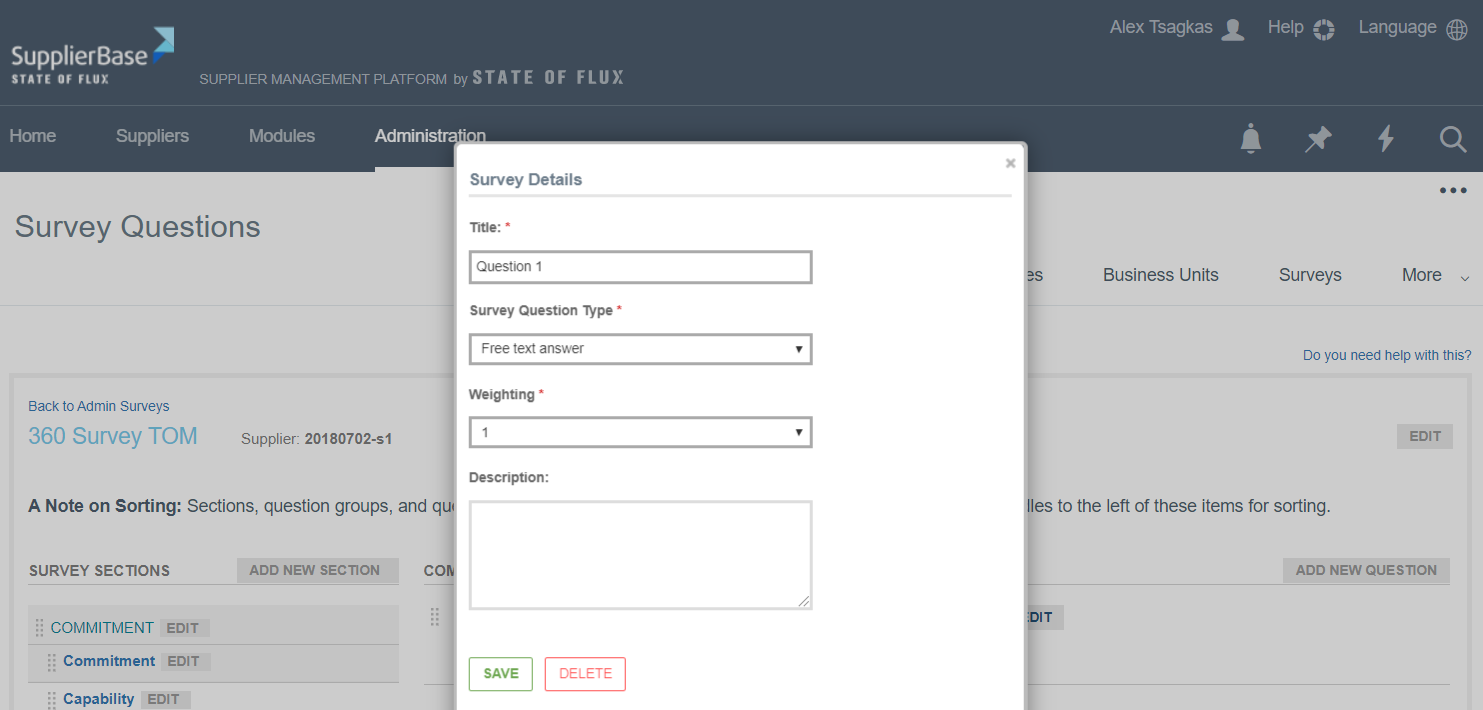
To edit or delete a question, click on the Edit button next to it and a pop up window allowing you do do these actions will appear.
1.3 Drag and drop functionality
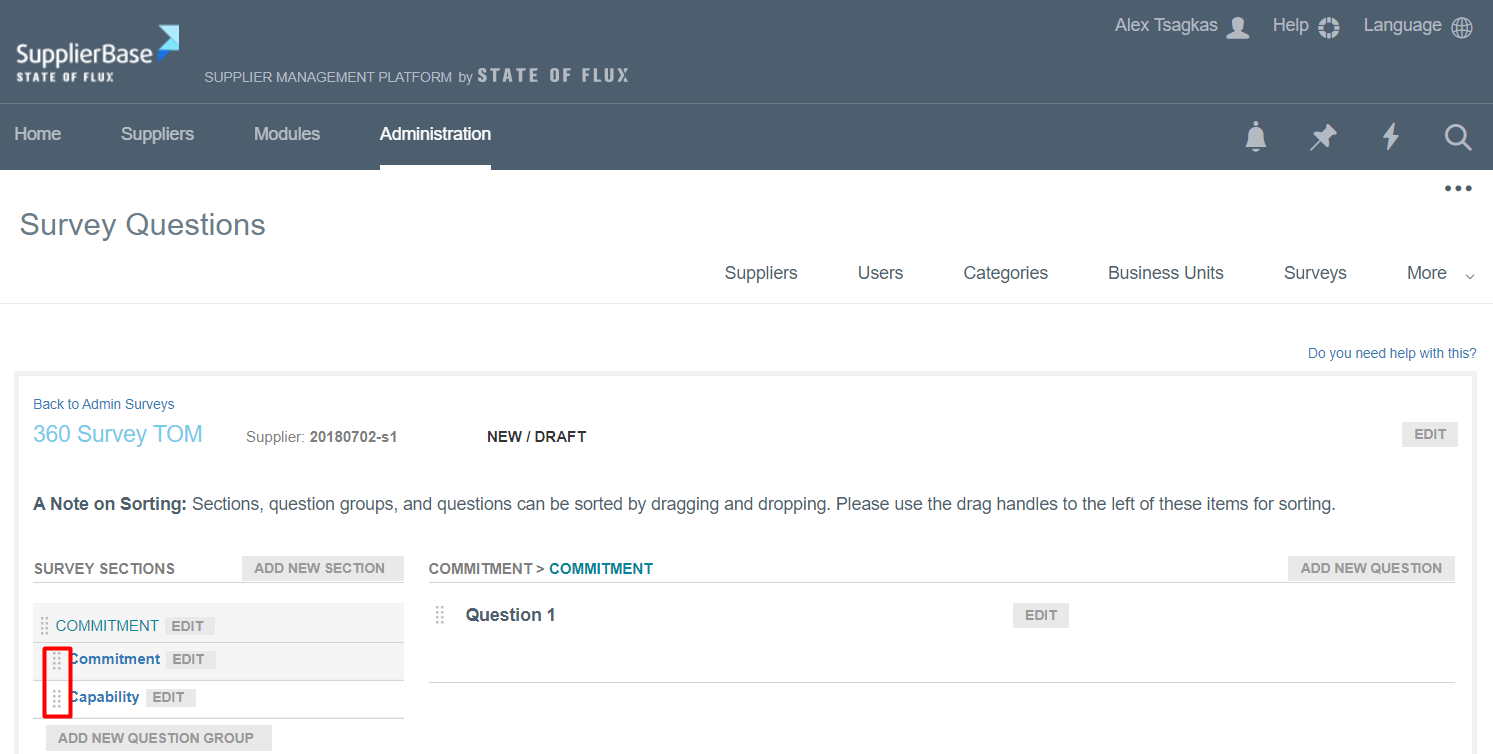
Sections, question groups, and questions can be sorted by Drag & Drop functionality. Please use the drag handles to the left of these items for sorting.
Select a section, question group or question (left click and hold).
Drag the section, question group or question into the new position (holding the left click).
Drop / Release the left click.
The section, question group or question has moved to a new position.