
Actions can be one-off or recurring. Recurring actions can have a defined recurrence type (weekly, monthly, yearly) and recurrence pattern (defined date, defined day).
To make an existing action recurring, click in the list of actions of a supplier on the full-edit icon (small pencil icon) next to a meeting.
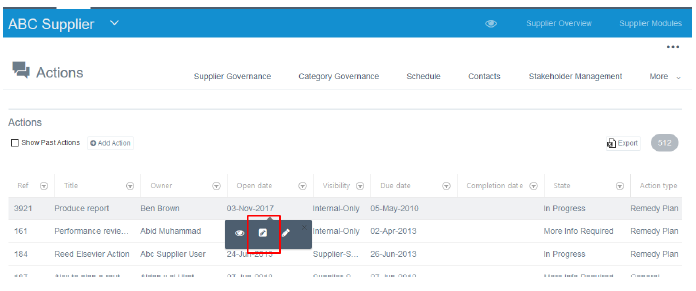
A pop-up window appears.
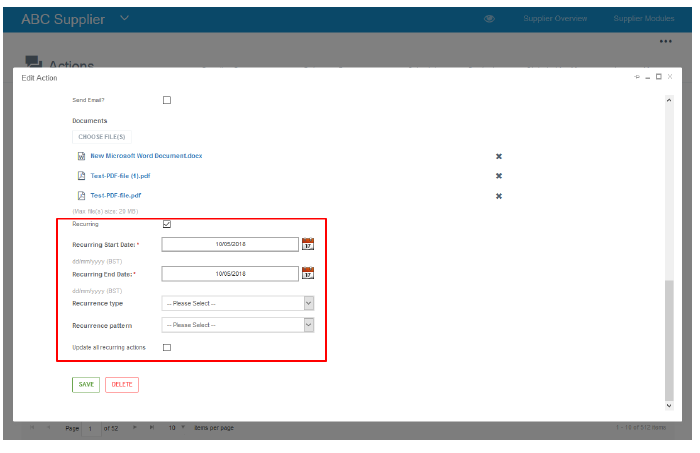
- Select the recurring checkbox
- Select a start date
- Select an end date
- Select a recurrence type
- Select a recurrent pattern
o Defined date: creates recurring actions at a specific date of, for example, a month (e.g. 15th August)
o Defined day: creates recurring actions on a specific day of, for example, a month (e.g. third Monday of August)
A few notes about recurring actions:
- The Recurrence Type defines the frequency of a meeting i.e. daily, weekly, monthly, quarterly, and annually.
- The Recurring Start Date and the Recurring End Date define the period within which, the recurring actions should be created at the defined frequency. For example, if the Recurrence Type is monthly, the Start Date = 01/08/2016 and the End Date = 30/10/2016, then the platform will generate three actions (for August, September and October).
- The Recurrence Pattern defines the pattern of creating recurring actions.
- When the user creates a recurring action and clicks on ‘Save’, a user notification (pop-up window) will appear to ask the user to confirm that ‘XX actions will be created’ to prevent users from creating multiple actions by mistake.
- There is no mass-delete feature for deleting in bulk occurrences of an action, once these are created.
- All actions (recurring and one-off) will be displayed in the actions landing page so that these are all included in one place (there will therefore be a long list of actions). Existing search and filter functionality will be used to enable users to search for actions. The actions will be displayed in descending order by date.
- Child actions of a recurring action (parent) are displayed in the recurring actions details page so that users can see all iterations of a recurring action in one place.
- One-off (child) actions can be edited and deleted without impacting the recurring (parent) action.
- Recurring (parent) actions can be edited (e.g. extended) so that additional actions are created. For example, if a monthly recurring action, with start date = 01/08/2016, and end date = 31/12/2016, exists and the user changes the end date to 31/03/2017, then three more actions will be created (for January, February and March 2017).
- Recurring (parent) actions cannot be deleted unless there are no one-off (child) actions.
Examples of recurring actions (with pattern = defined date)
Weekly meeting with start date = 15/08/2016 (Monday)
o Parent = 15/08/2016 (Monday)
o 1st iteration = 22/08/2016 (Monday)
o 2nd iteration = 29/08/2016 (Monday)
o 3rd iteration =05/09/2016 (Monday)
o 4th iteration =12/09/2016 (Monday)
o 5th iteration = 19/09/2016 (Monday)
Monthly meeting with start date = 15/08/2016 (Monday)
o Parent = 15/08/2016 (Monday)
o 1st iteration = 19/09/2016 (Monday)
o 2nd iteration = 17/10/2016 (Monday)
o 3rd iteration =21/11/2016 (Monday)
o 4th iteration =19/12/2016 (Monday)
o 5th iteration = 16/01/2017 (Monday)
Examples of recurring actions (with pattern = defined day)
Weekly meeting with start date = 15/08/2016 (Monday)
o Parent = 15/08/2016 (Monday)
o 1st iteration = 22/08/2016 (Monday)
o 2nd iteration = 29/08/2016 (Monday)
o 3rd iteration =05/092016 (Monday)
o 4th iteration =12/09/2016 (Monday)
Monthly meeting with start date = 15/08/2016 (Monday)
o Parent = 15/08/2016 (Monday)
o 1st iteration = 15/09/2016 (Thursday)
o 2nd iteration = 15/10/2016 (Saturday)
o 3rd iteration =15/11/2016 (Tuesday)
o 4th iteration =15/12/2016 (Thursday)