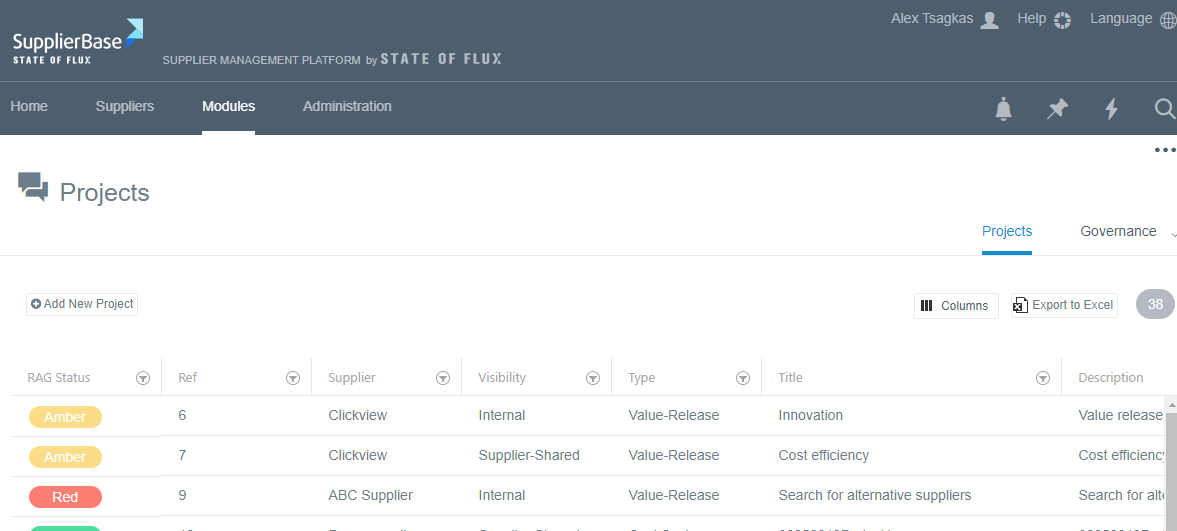
In SupplierBase you can add a Project in two ways in the platform:
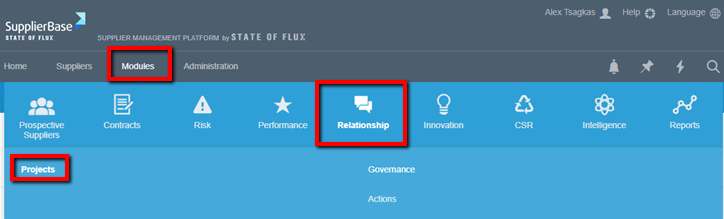
- Through the Module level, under Modules > Relationship > Projects
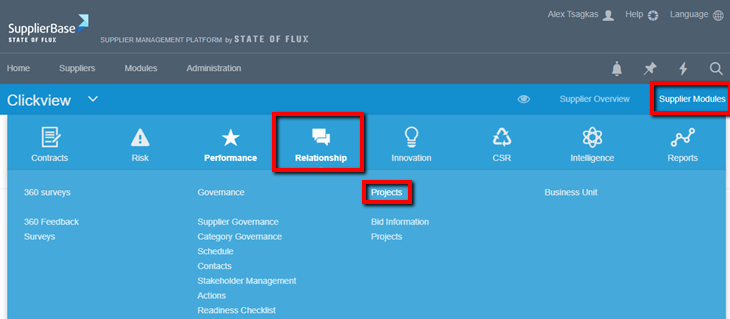
- Through the Supplier level, under Supplier modules > Relationship > Projects
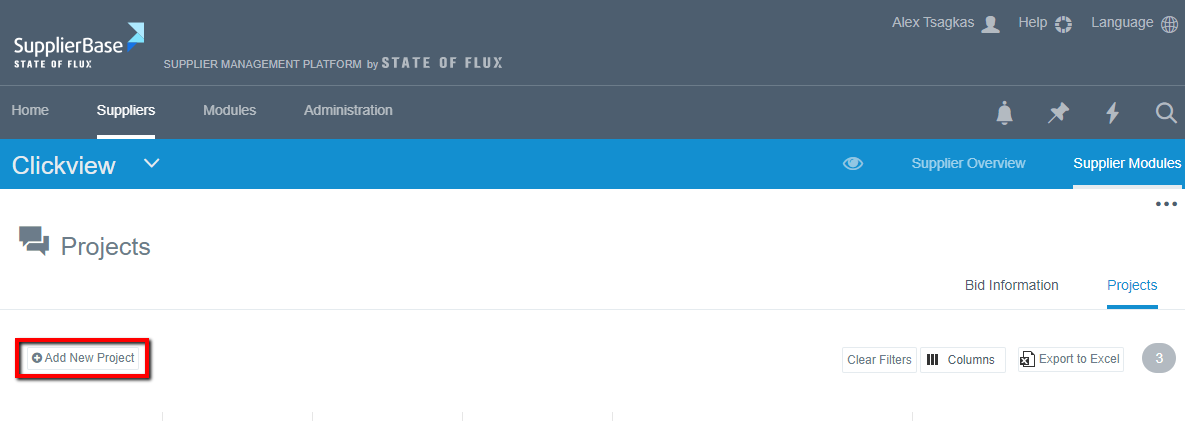
In both of these pages, in order to add a new project, you have to click on the Add New Project.
Once you do that, a pop up window appears, in which you have to fill in the details of the project.
The fields in this page are the following:
Title: the name of the project, that allows for easier search
Description: details about the purpose/scope of the project
Supplier: to which supplier the project is related to
Project owner: the person who is responsible for the project and its progress
Project team: people involved in the project from the customer’s and the supplier’s side
Project objectives: the goals that will be accomplished throughout the project
Estimated financial benefit: the value in monetary terms that the project will offer
Estimated non-financial benefit: the value that company will gain
Start date: the date on which the project will start
End date: the date by which the project must be completed
Categories: the category to which the project is relevant, e.g. packaging
RAG Status: Red, Amber, Green status.
IMPORTANT NOTE: the RAG status field is not changed automatically by the system, like in other modules. The status will be defined upon mutual agreement between the customer and supplier users.
Visibility: whether the project is visible to the supplier or not
Status: the status of the project (new, in progress, on hold etc)
Type: choose whether the goal of the project is cost saving, value release or continuous improvement
Region: which region this project is related to
Documents: upload any relevant files to the project
Internal owners: internal users involved in the project. The people selected from this list, will receive the notifications relevant to the project.
Supplier owners: supplier users involved in the project. The people selected from this list, will receive the notifications relevant to the project.
Responsible Stakeholder(s): the people responsible for completing the project
Accountable Stakeholder(s): the people who are accountable for the proper execution of the project
Consult Stakeholder(s): the people who need to provide their expertise and consultation for the project
Inform Stakeholder(s): the people who need to be kept in the loop on project progress.
Send Email: the Yes option will trigger an email that will be sent to the internal and supplier owners and notify them about the addition of a new project
Once you fill in all the necessary fields, click the Save and Close button. The project is added in your list of projects as shown below.