
Access a questionnaire
If you are invited to complete a questionnaire in SupplierBase you will receive a platform-generated email.
The questionnaire invitation email will include a link which will direct you to the specific page at SupplierBase where you can complete the questionnaire.
Please note that you can access the questionnaires, which you have been invited to, without necessarily clicking on the link in the questionnaire invitation email. You can navigate to the questionnaires module, from any page of the platform, by clicking on the bell-shaped icon and then selecting the questionnaires option as shown below.
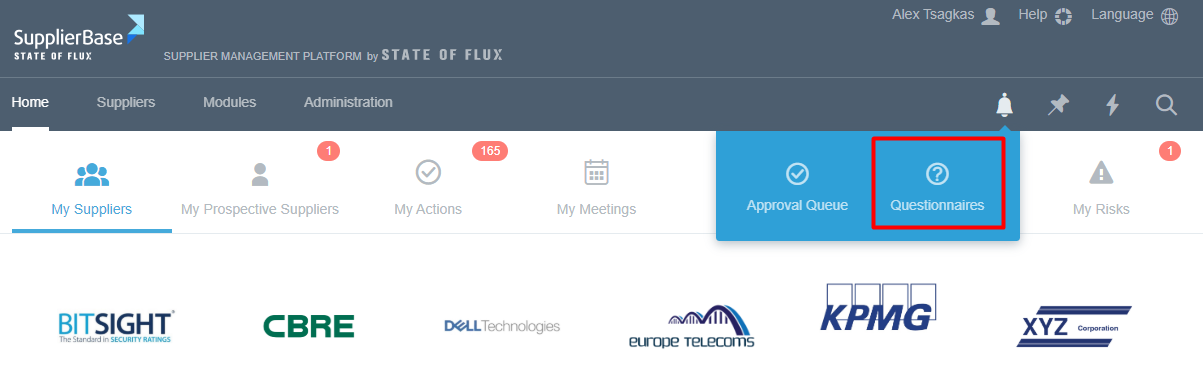
This will direct you to the questionnaires module, which includes all the questionnaires that you have been invited to.
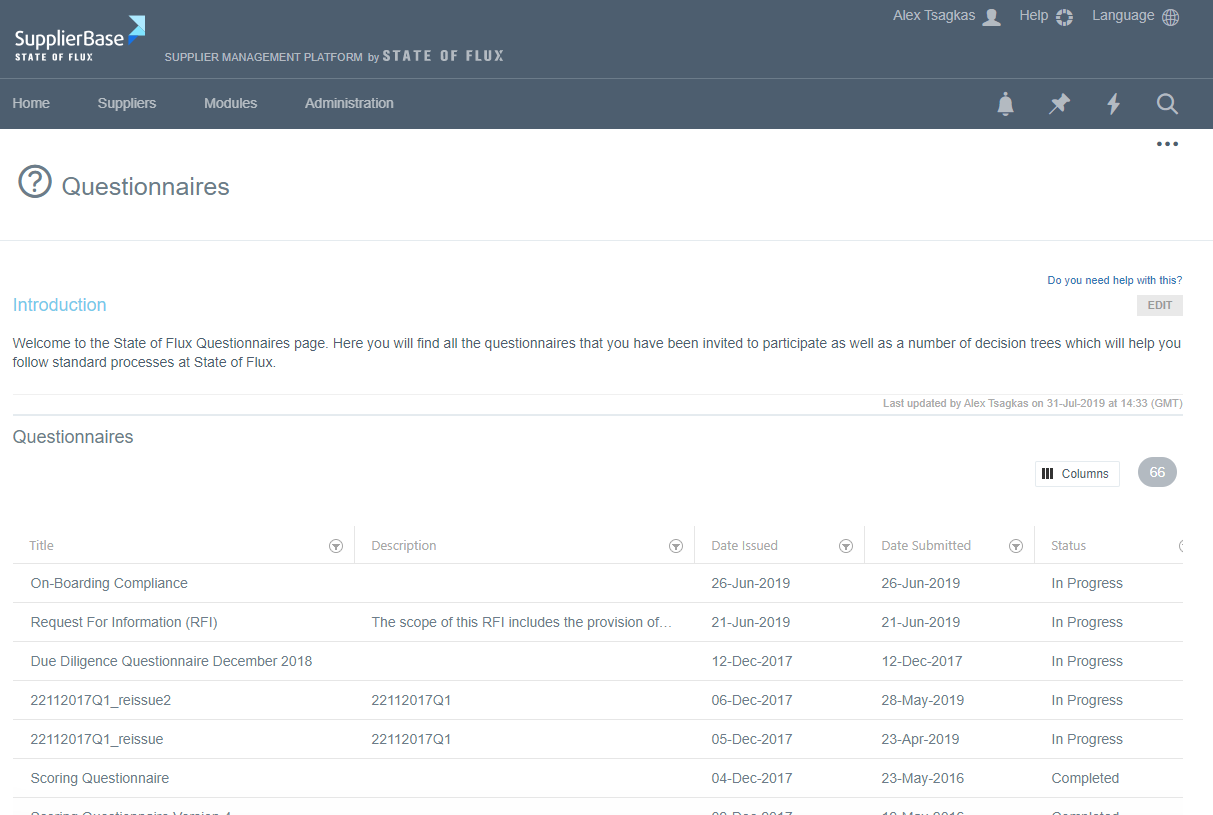 Please note that you can respond to a questionnaire in multiple sessions.
Skip (or branch) logic might also apply to a questionnaire. This means that the question a user is being asked to respond to depends on his / her response in the previous question. For example, if a user states that they do not have a business continuity plan, any subsequent questions regarding business continuity plans might be skipped. This will help ensure that the user is only responding to questions that are relevant to him / her.
Complete a questionnaire
To complete a questionnaire, you can click:
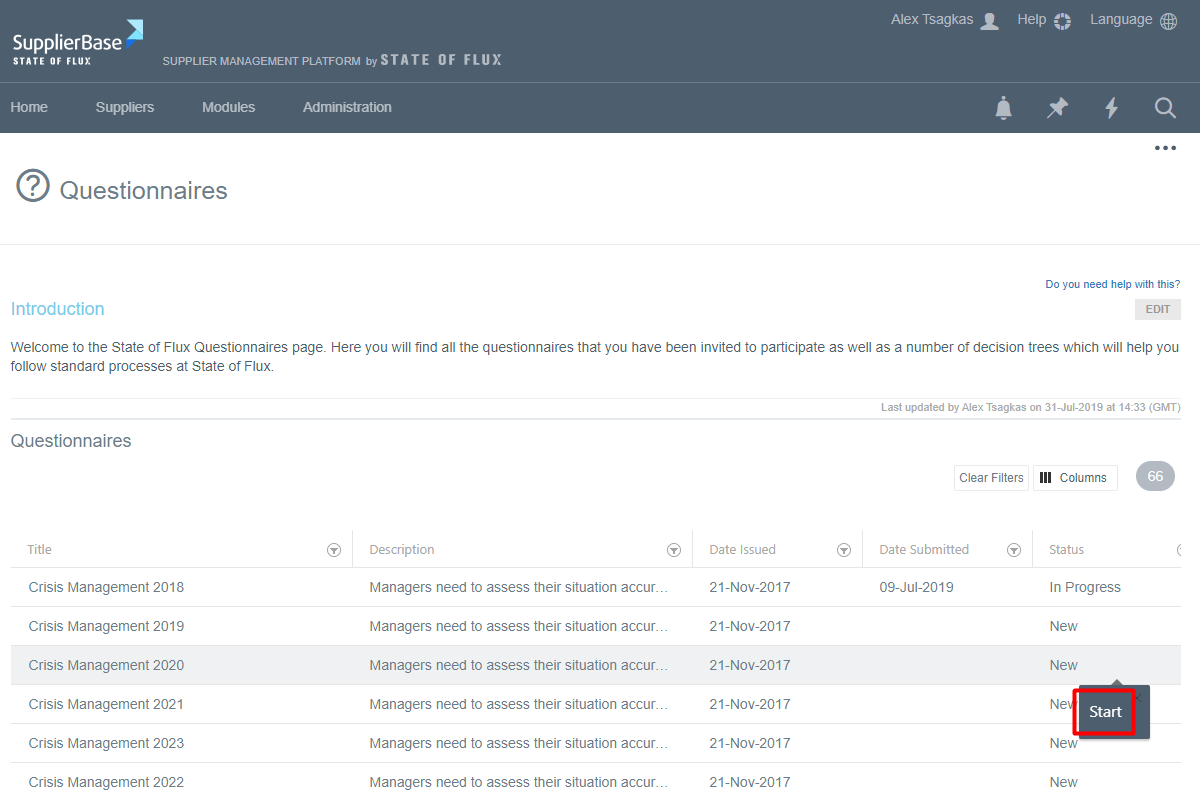
- Start to complete a questionnaire for the first time. The start button appears if you click on the New status of a questionnaire.
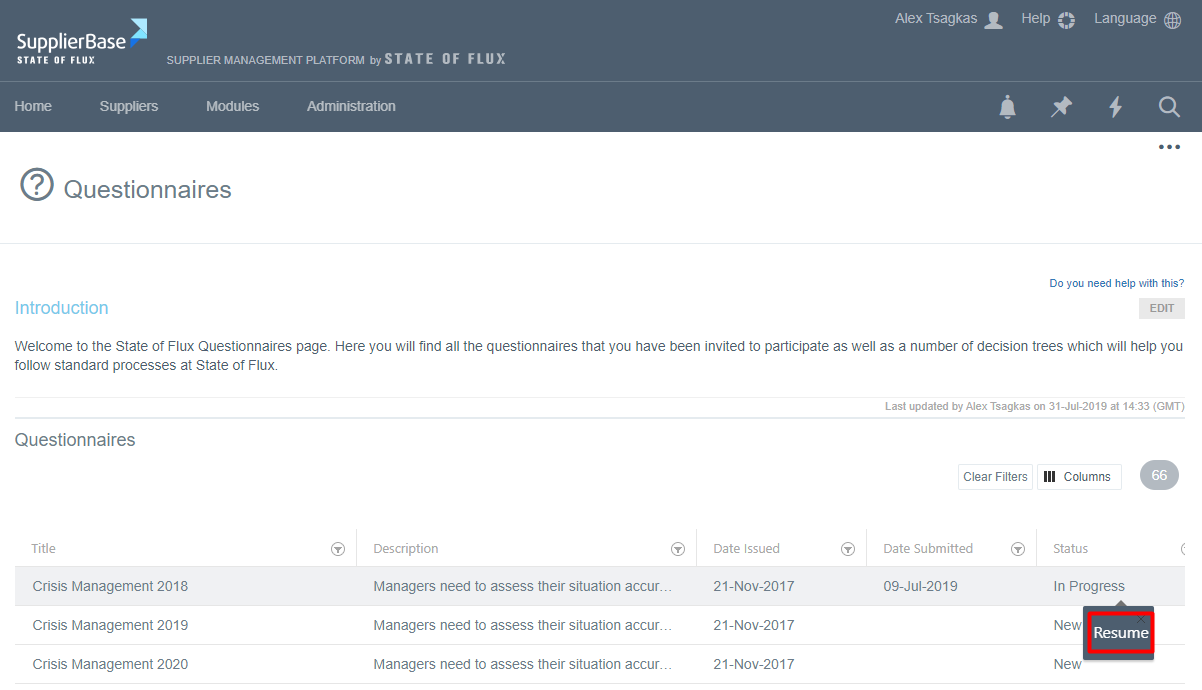
- Resume to continue a questionnaire which you have already started. The resume button appears if you click on the In Progress status of a questionnaire.
If you click either of the buttons, a screen with the questionnaire will appear. On the left of the screen, the user can see how many questions the questionnaire includes and the kind of questions he is expected to answer.
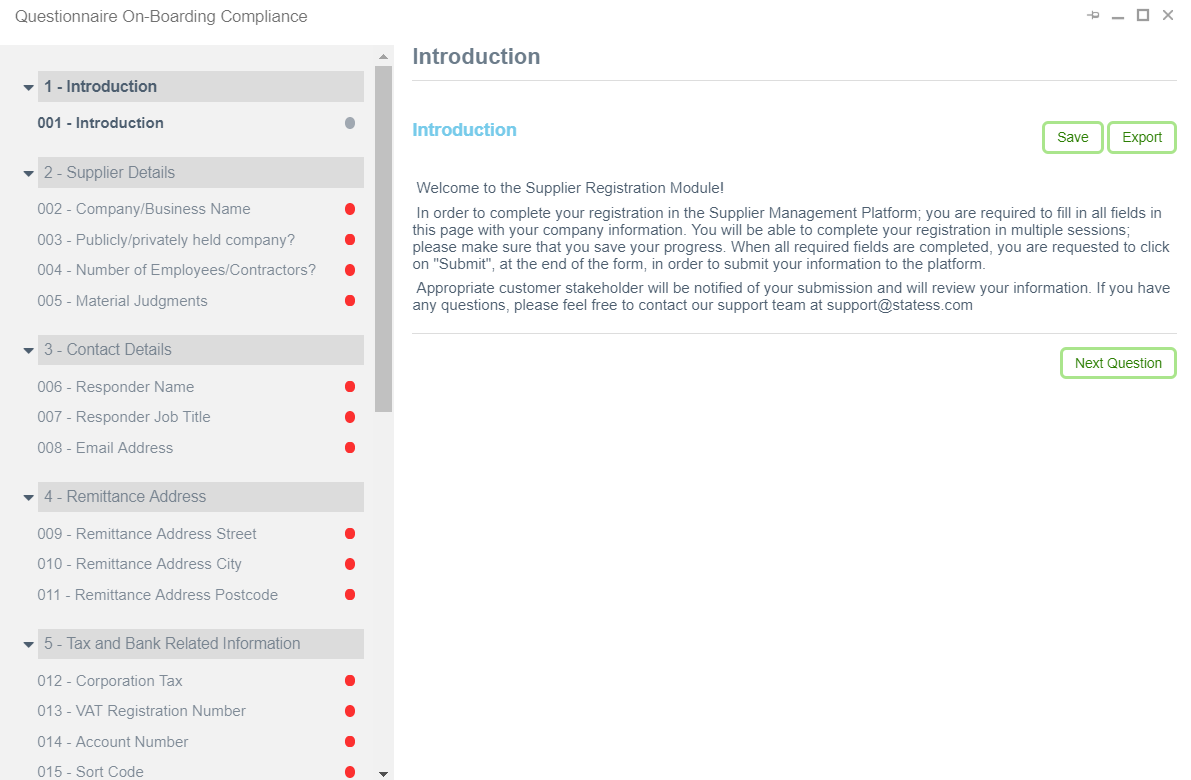
Each questionnaire is made up of several sections and questions on a particular topic. Users may be asked to either select from a list of answers, or provide a free text response and/or supporting documentation. Where necessary, onscreen guidance or supporting documentation may be provided to provide clarity regarding a question.
- Read the question presented on screen and any supporting guidance
- Provide a response by either:
- Selecting from the available options
- Typing a free text response in the commentary field.
- Uploading a supporting document
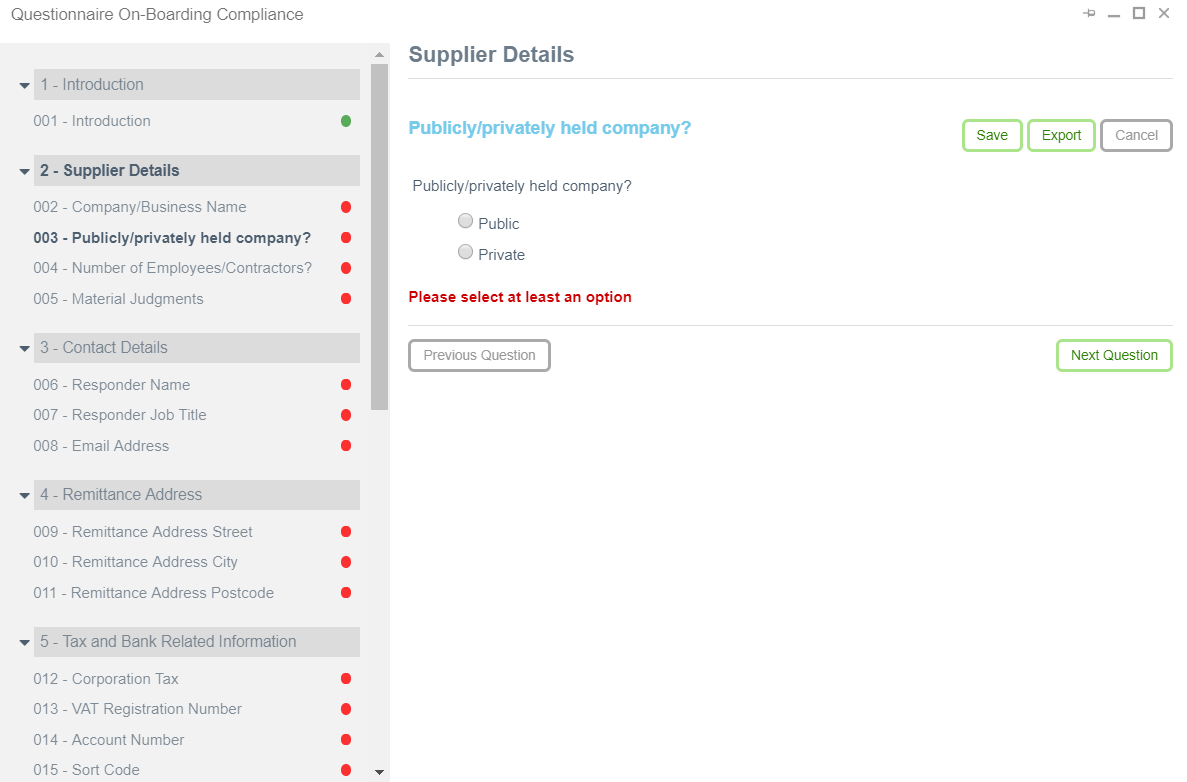
- Upload a document, if required
- Click Choose File(s).
- Browse and select the file.
- A message "Document(s) updated successfully" appears.
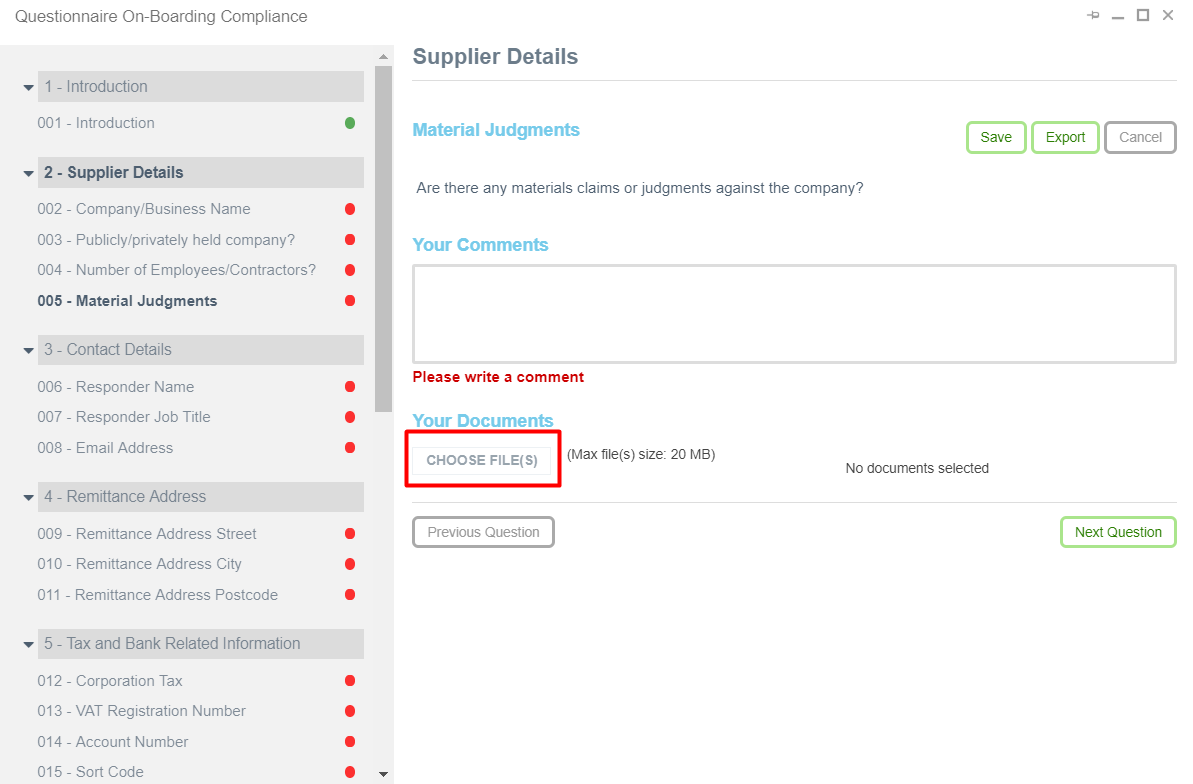
- Click the Next Question button to progress to the next question.
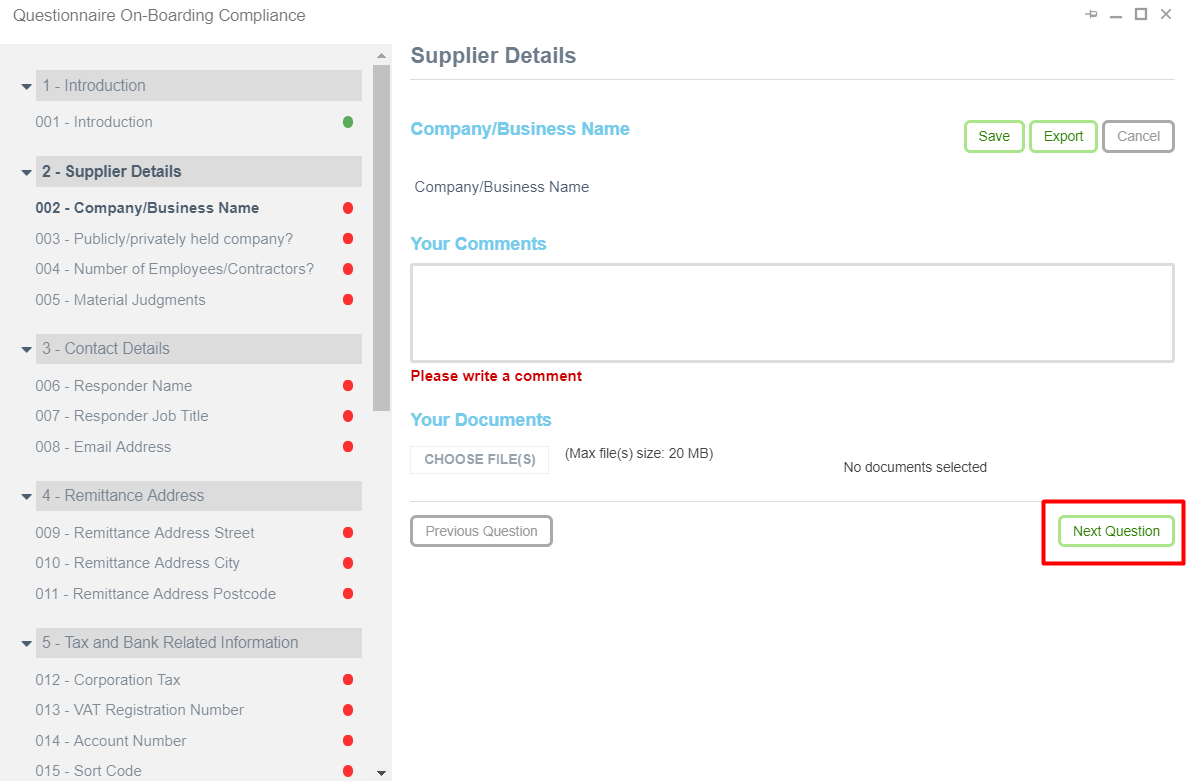
Note that some questions require a mandatory document or comment to be provided; the user will not be able to proceed without providing these. A user notification message will appear on screen.
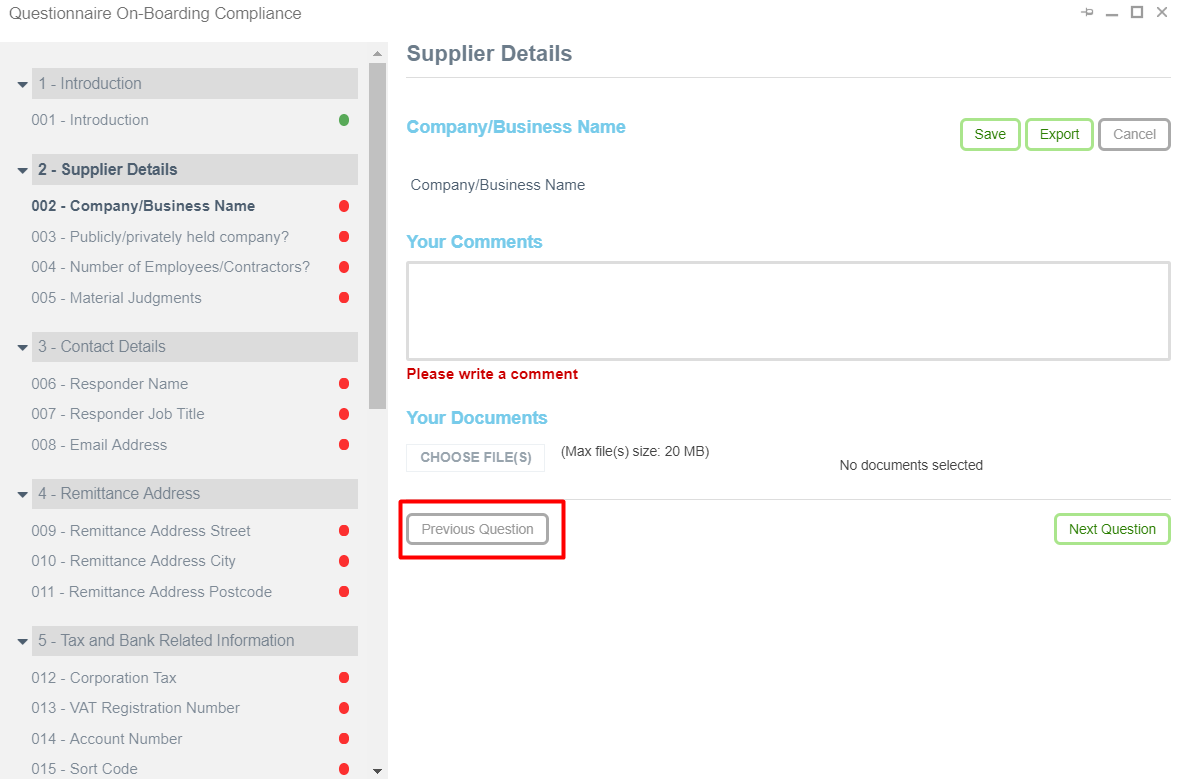
If you want to revisit a question you have already answered, click the Previous Question to go back.
View your progress
Your progress in completing the questionnaire can be tracked via the green and red dots next to each question on the left of the screen. The green dots mean that the question has been answered, whereas the red dots mean that the user must go to the question and answer it. 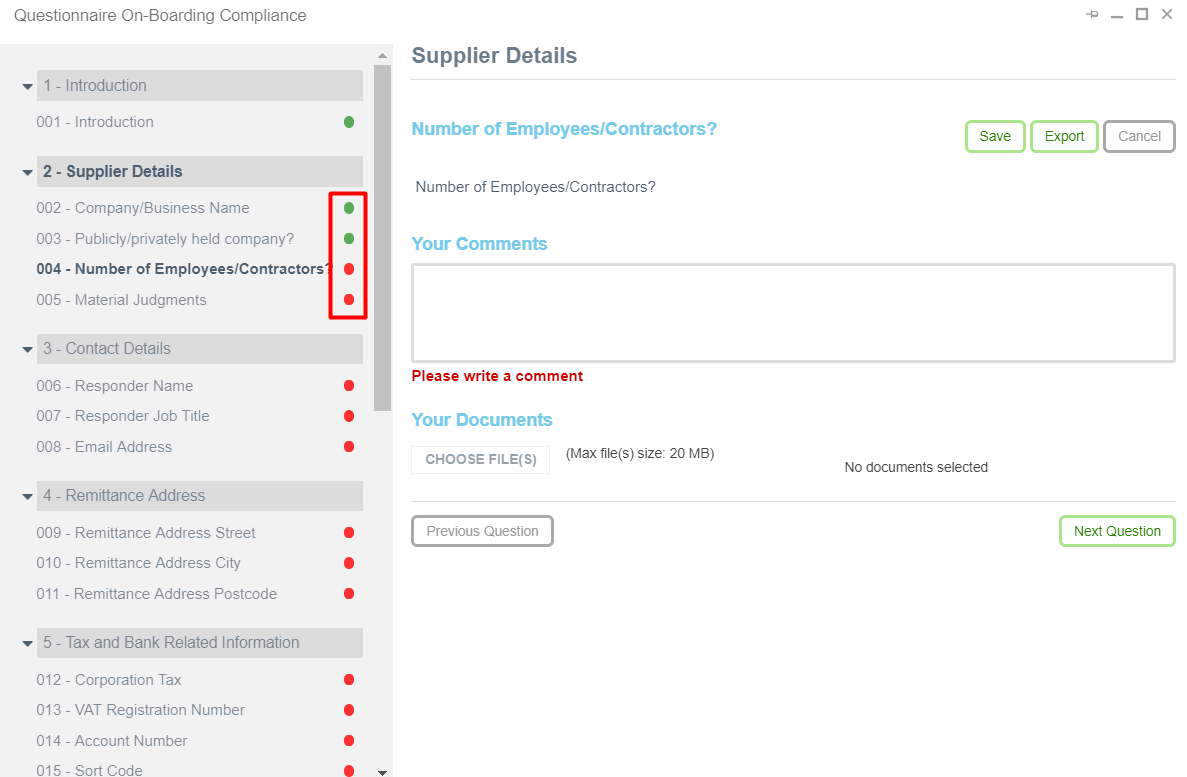
Save questionnaire
If you cannot finish the questionnaire at once, and you want to revisit it, you have to save your answers. To do that, click on the Save button on any page.
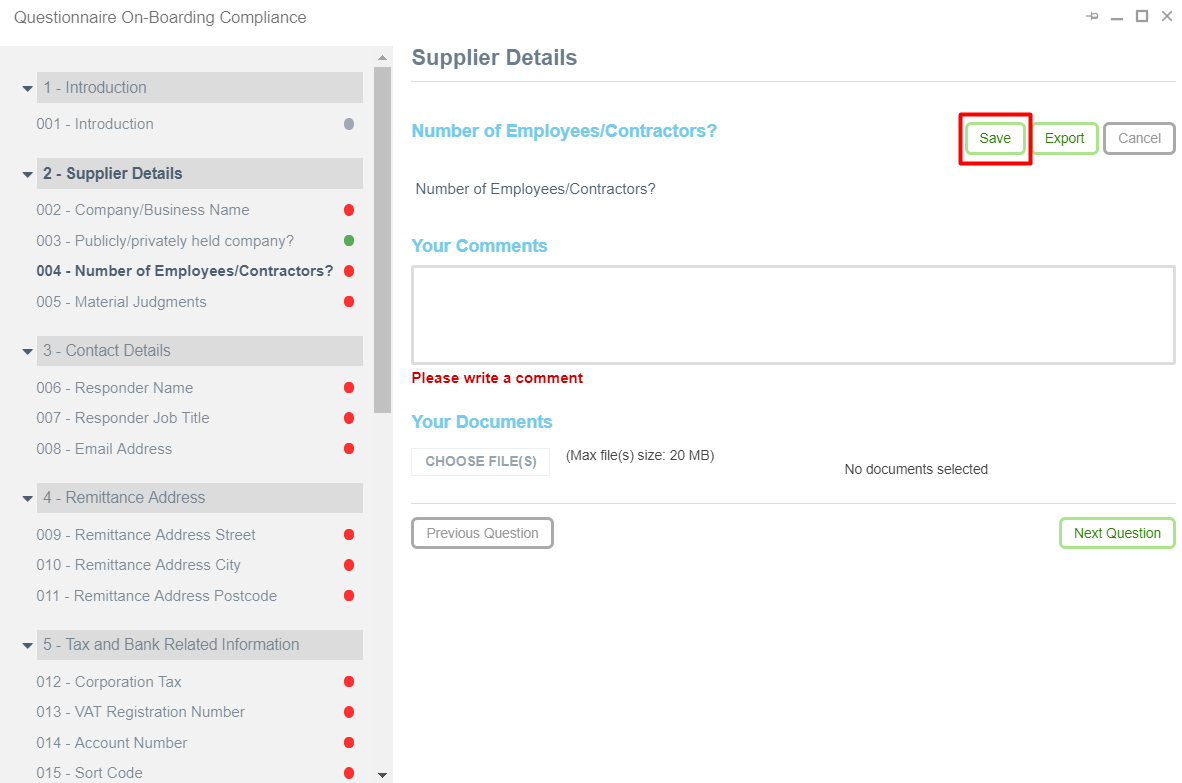
A message " You have successfully saved the questionnaire" will appear. Next time you will resume the questionnaire, your answers will be preserved.
Download / export a questionnaire
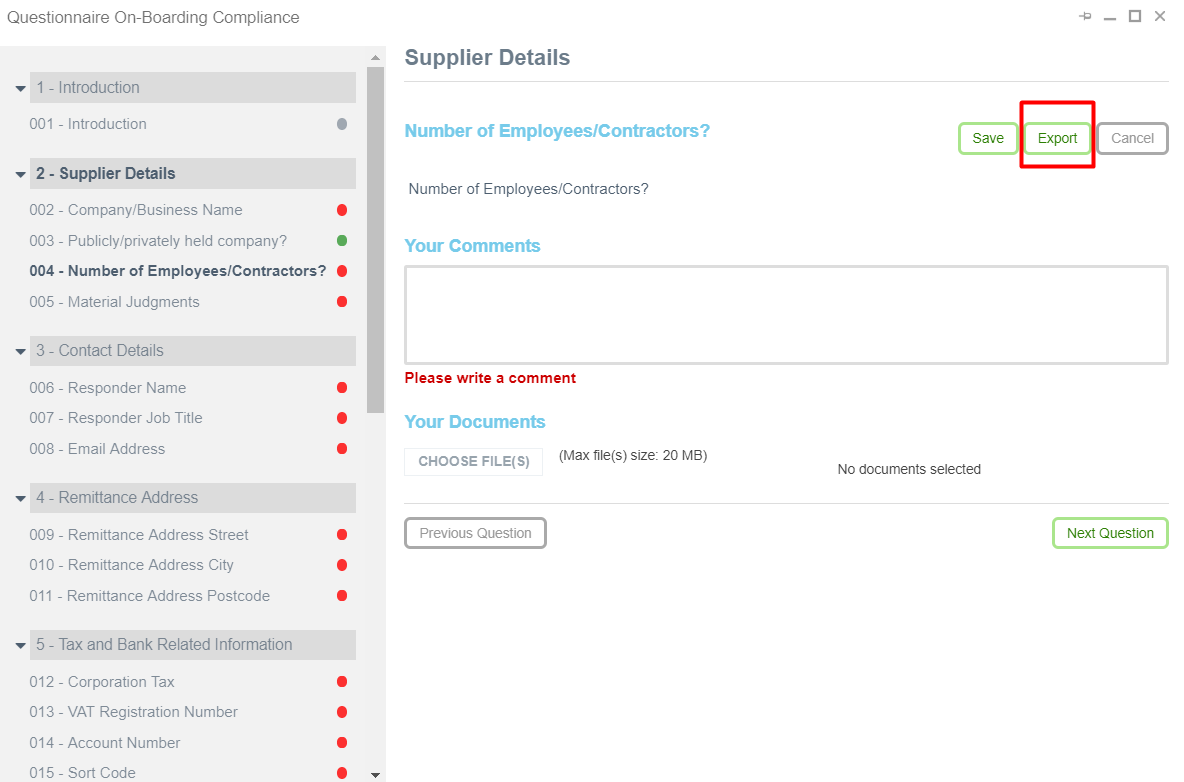
Anytime you want, you can download your answers in an excel file by clicking the Export button, as shown below.
Finish questionnaire
In the end of the questionnaire, the user must submit the questionnaire.
- Click Finish Questionnaire to submit the questionnaire (as shown below).
- Click any question on the left if you want to change any answers and be directed to the specific question page.
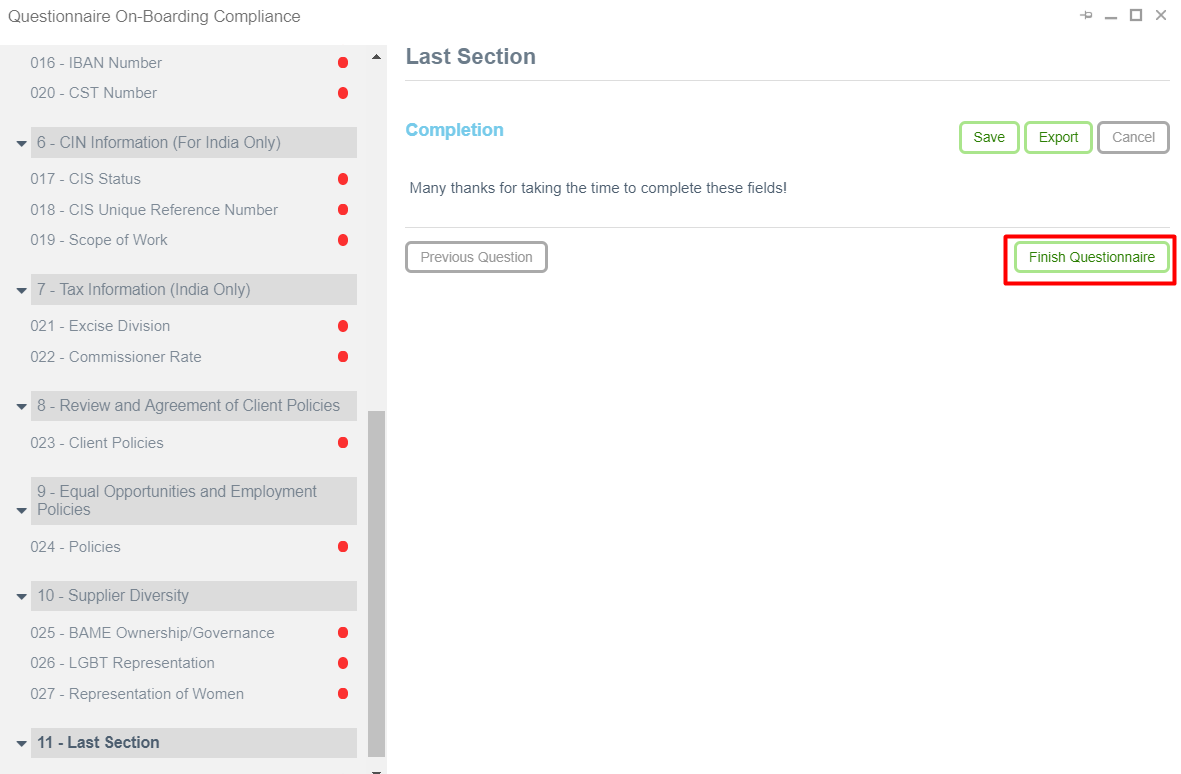
When you finish the questionnaire, you are again directed to the list of questionnaires.
IMPORTANT NOTE: Once you submit your response to a questionnaire, you will not be able to edit your responses.
Review a submitted questionnaire
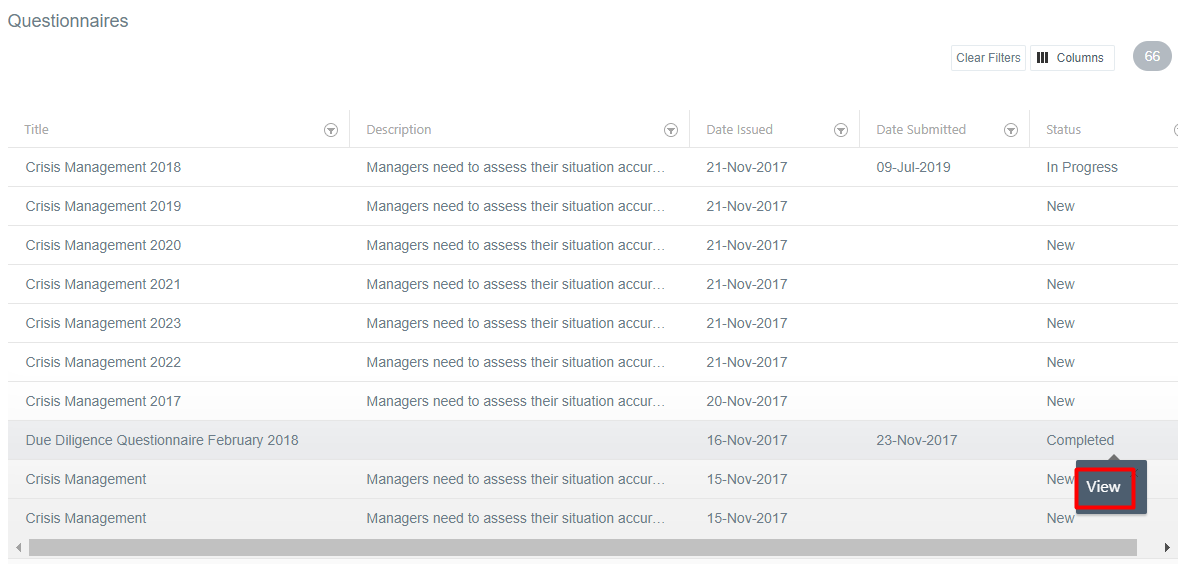
Users can return to a submitted questionnaire to check their responses. To do this:
- Go to the questionnaires page, where you can see the list of questionnaires.
- Find the questionnaire and click the Completed button to view the responses to a submitted module.
Receive reminders about a questionnaire
If you have not completed a questionnaire in due time, the administrator of the questionnaire might send you a reminder email.
Reissuing a questionnaire
Please note that the same questionnaire might be reissued to you, in a different period of time. In this case, the questionnaire you will receive will be prepopulated with your previous answers. You only have to fill in the gaps that may exist, if new questions exist, and make sure that your previous answers are still valid, or else change them as required.