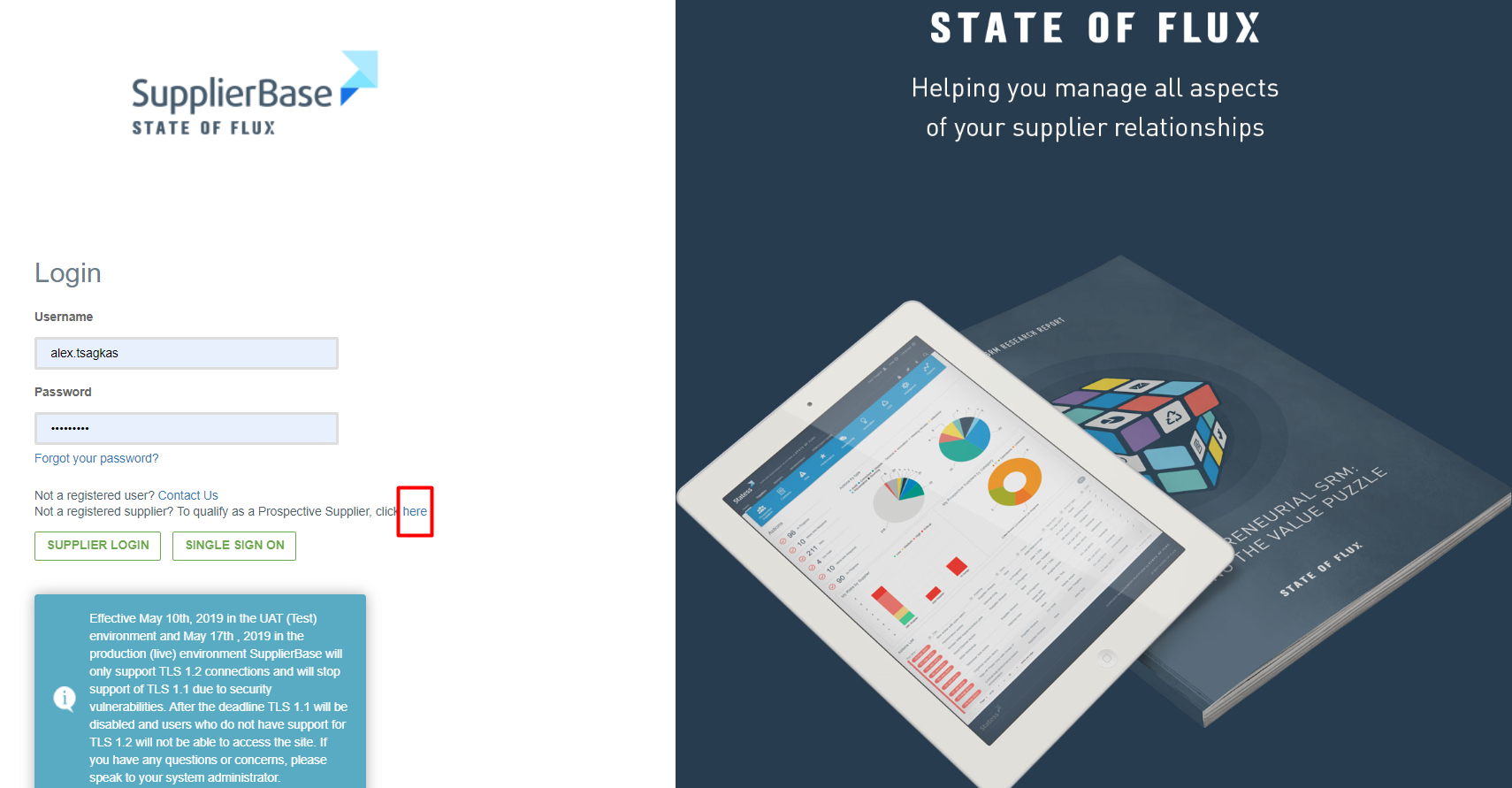
Since a prospective supplier is not registered in the platform, the supplier can commence the registration process by clicking the relevant link in the login page (as shown below).
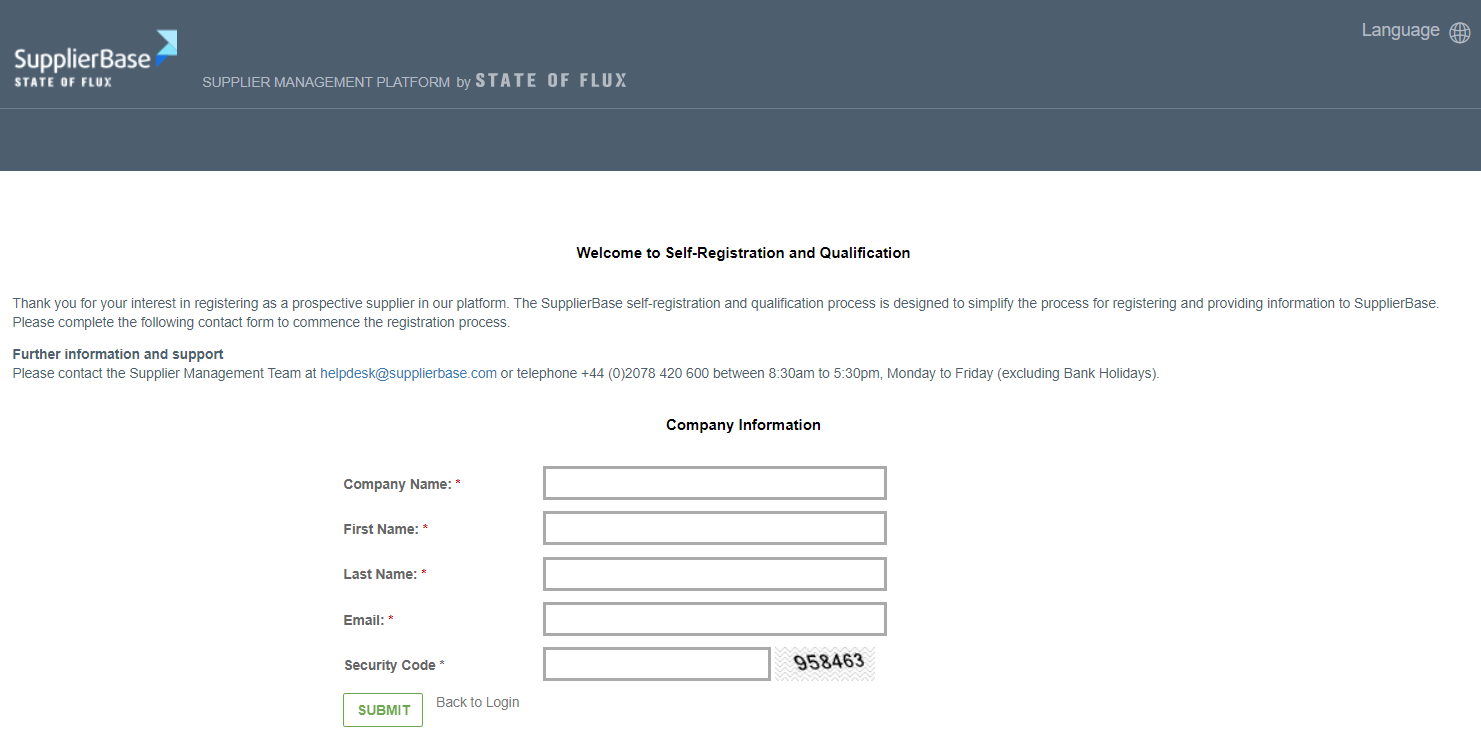
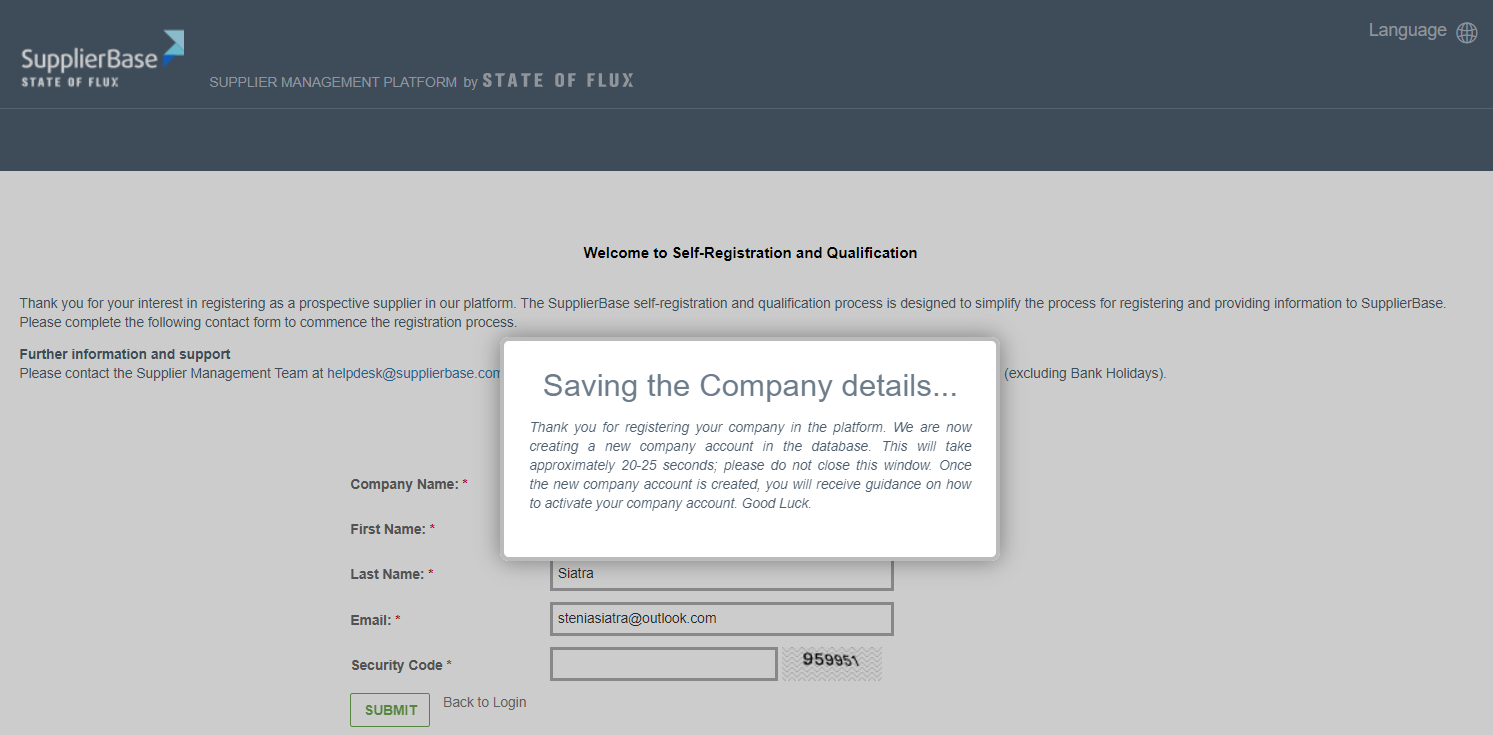
The supplier is then directed to the registration page, in which they need to complete initial information (company, name, contact details) in the registration form and click Submit.
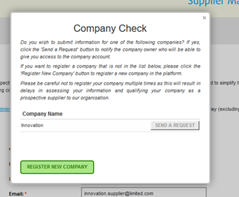
A company check is performed based on the submitted company name; if a match is found (with an existing company account in the platform), the user is requested to confirm the match or choose to register a new company.
After a few seconds, the system displays a message that notifies the supplier that the supplier account is being created and that an activation email will be sent shortly.
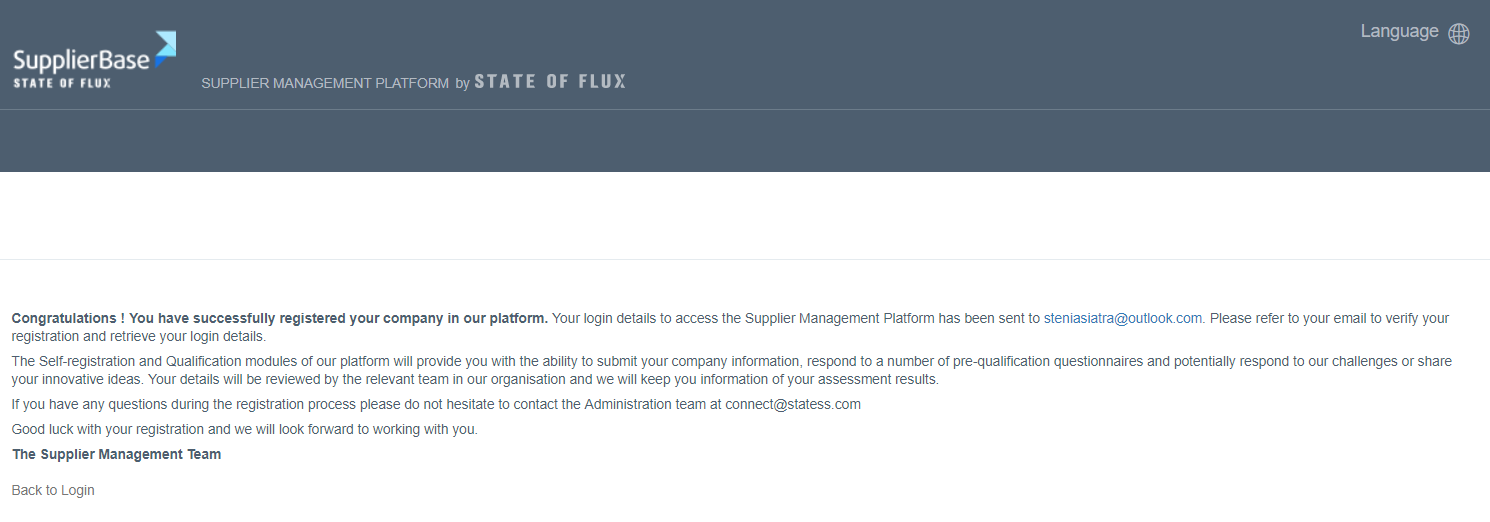
And in the end, the supplier will view a confirmation page.
 Note: In addition to the above, the platform will notify, via email, defined customer users (can be configured) that a new prospective supplier has registered in the platform.
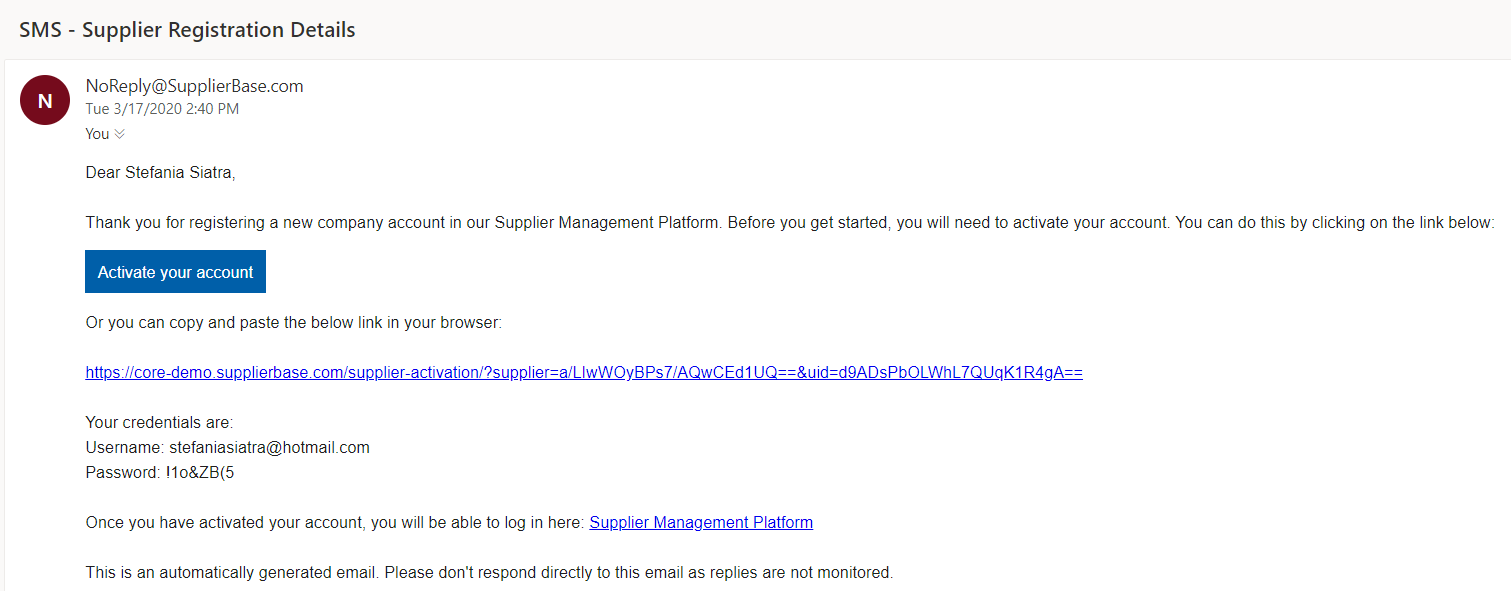
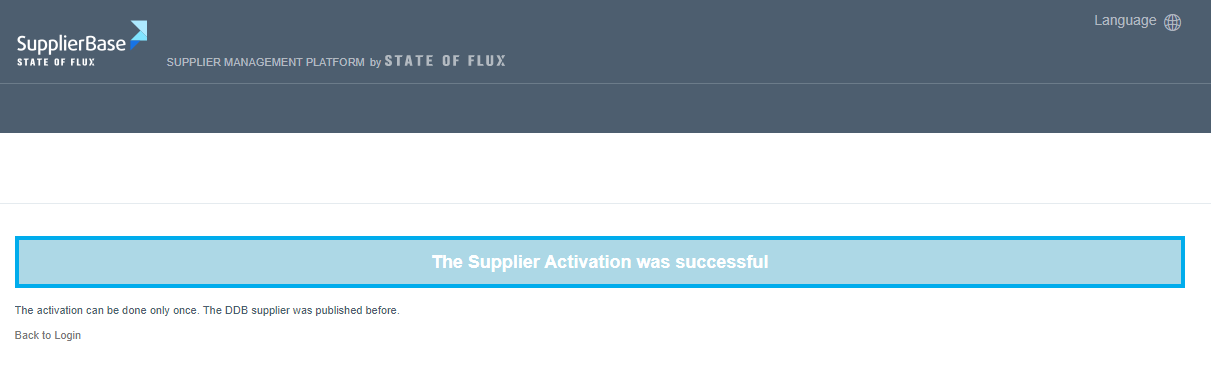
When the prospective suppliers are registered in the system, they receive an email with instructions on how to activate the company account in the platform.
Note: In addition to the above, the platform will notify, via email, defined customer users (the email address(es) can be configured) that a new prospective supplier has registered in the platform.
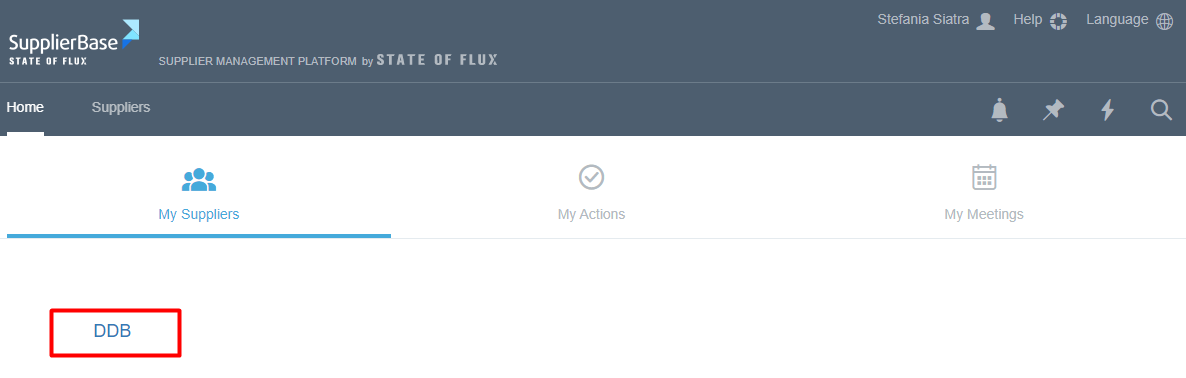
When the suppliers log in, the first screen they see is shown below. (Let’s assume that the prospective supplier is Sentio.) The users have to click on Sentio as shown below.
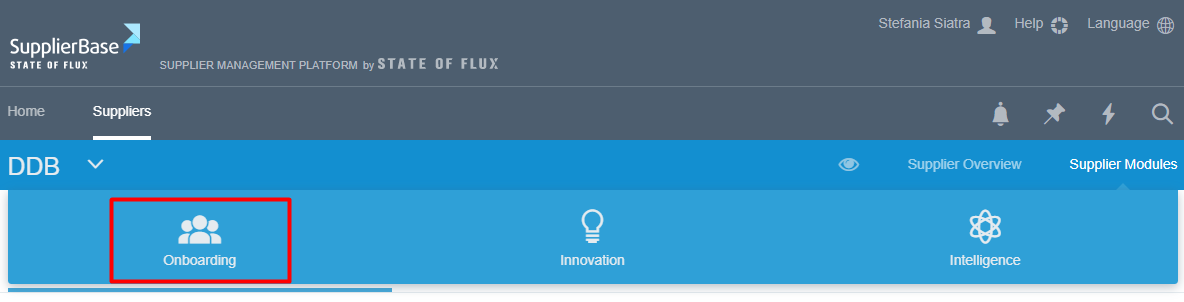
Then, they have to go to the supplier modules in the right corner side of the screen and click the Onboarding tab.
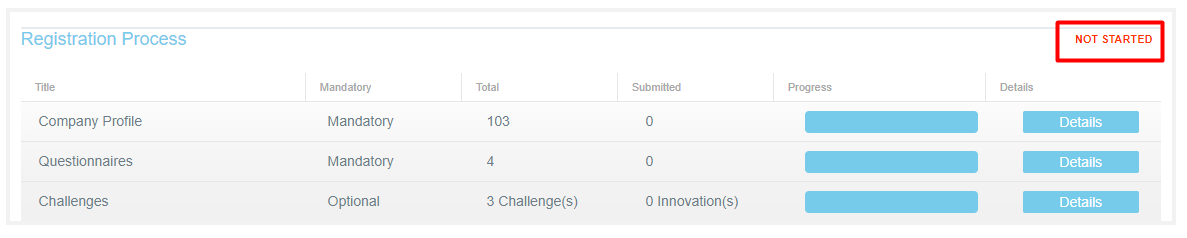
You will be directed to the Onboarding Overview page. In this page, users can read an introduction message, access documents and find other useful information. In the upper corner, the user will see their registration progress status.
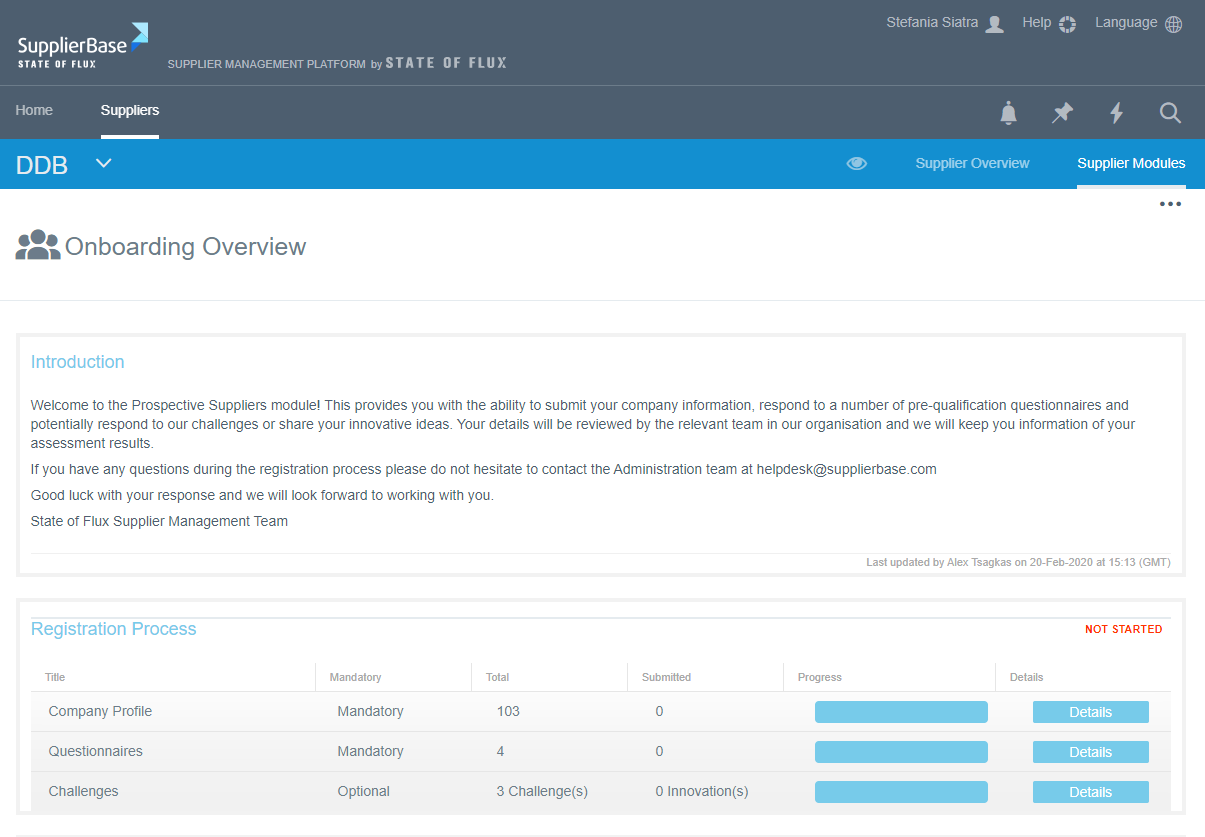
Suppliers are required to submit, at least all mandatory information in order to complete registration. The status of their registration will be updated as soon as they complete the required information.
Depending on your environment’s configuration, suppliers might be asked to respond to:
- Update their company profile.
- Respond to published questionnaires.
- Add solutions / innovations to published challenges.
In order to start the registration process, the users have to click on the Detail buttons that are marked below.
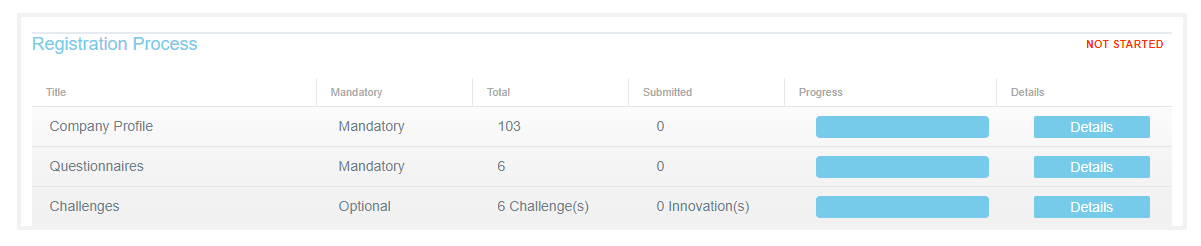
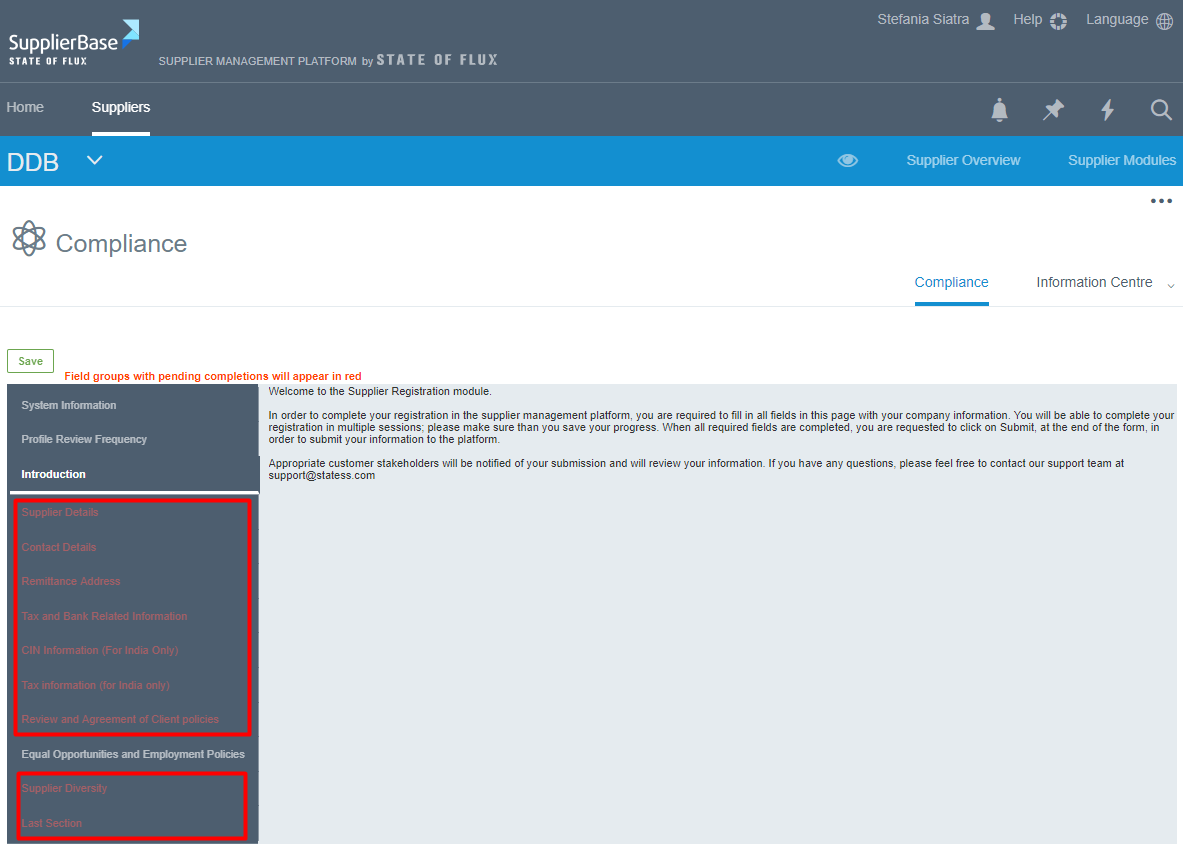
If you click the company profile details, you will be directed to the Compliance page. In this page suppliers are required to update information about their organisation. Depending on your environment’s configuration various fields, grouped into sections, will be available to suppliers to fill in.
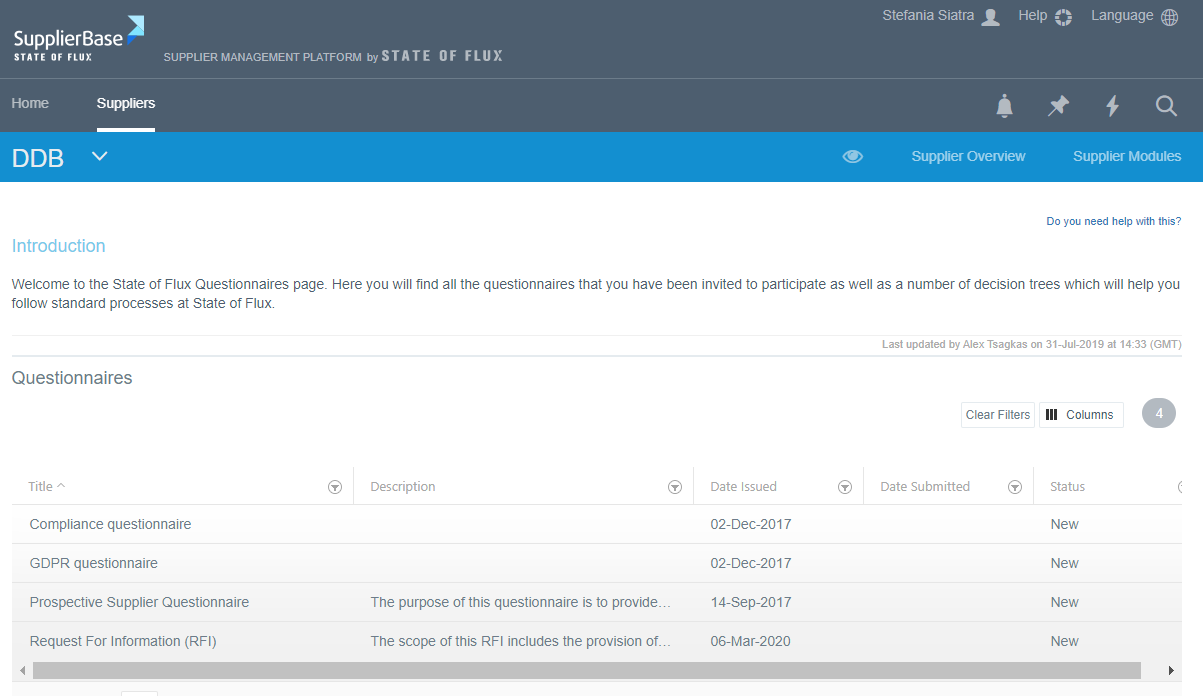
 At the questionnaires page, suppliers can access and submit responses to questionnaire(s).
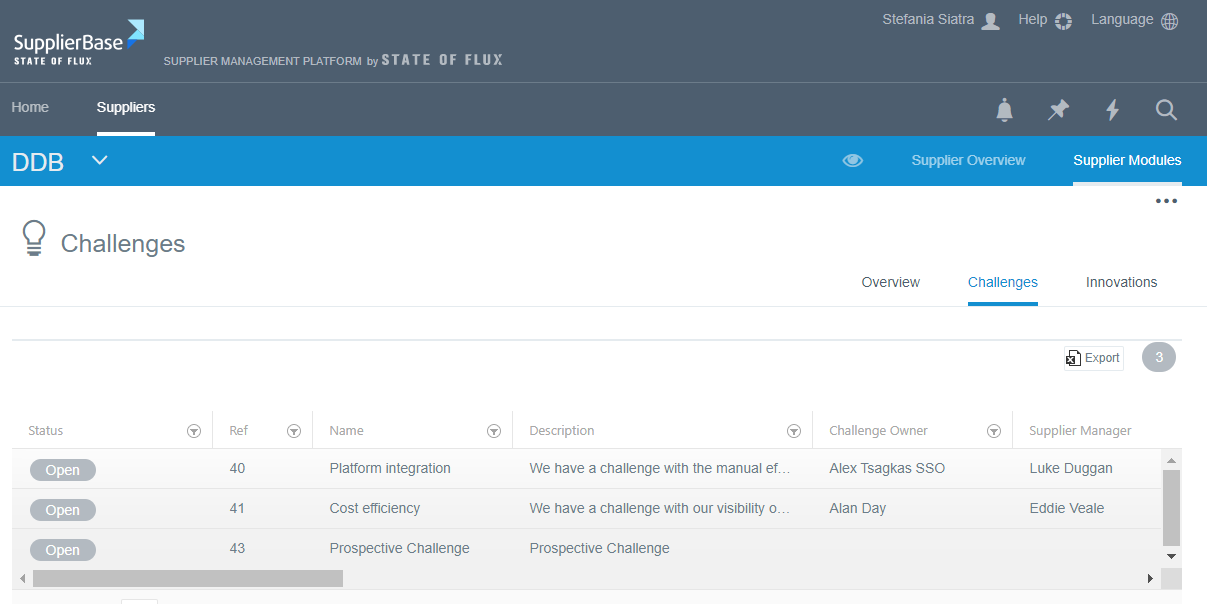
At the Challenges page, suppliers can view information about the customer challenges and respond by submitting innovations.
The status of supplier registration is updated as suppliers complete the required information. Once the prospective supplier has completed the registration, the status 'NOT STARTED' will change to COMPLETED.