
In SupplierBase, users can import spend data related to their suppliers.
NOTE: This function is available to system administrators only.
Spend Data can be uploaded in the platform in bulk from the Administration > Import > Spend Data page.
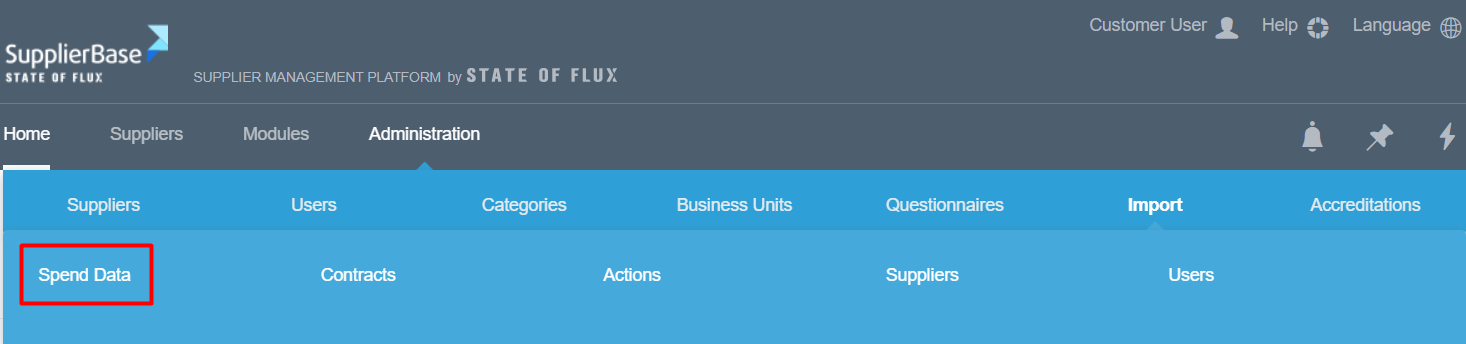
There are 5 steps that you need to follow in order to import the Spend Data.
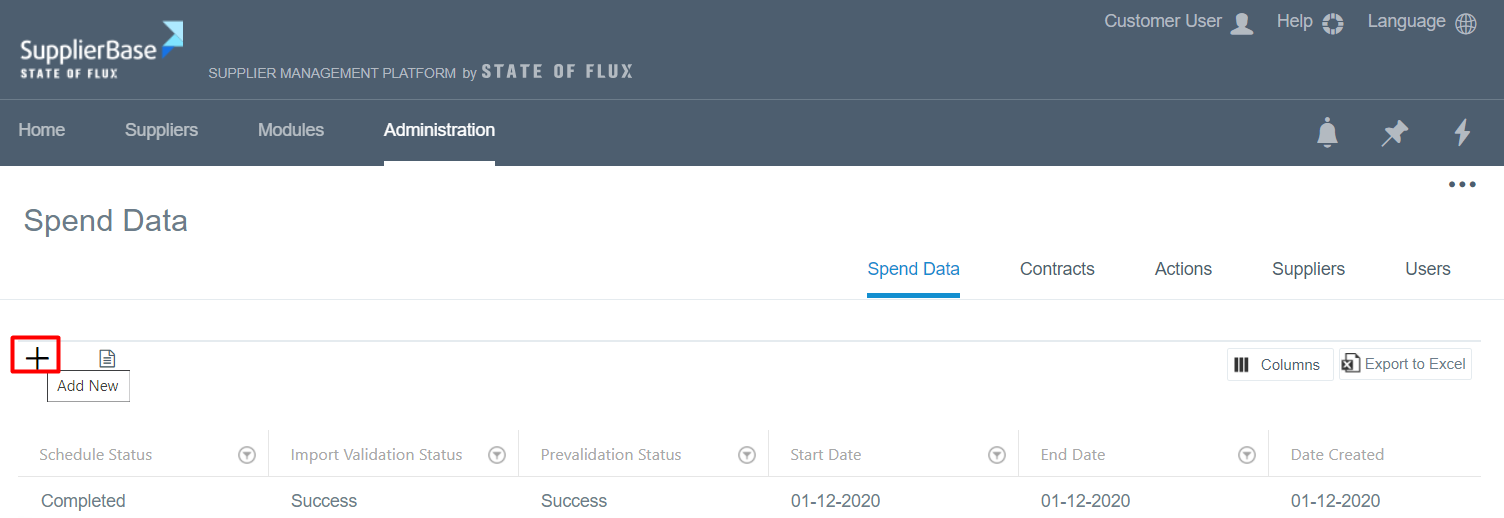
1) Navigate to Administration > Import > Spend Data and select the + button on the left side of the screen.
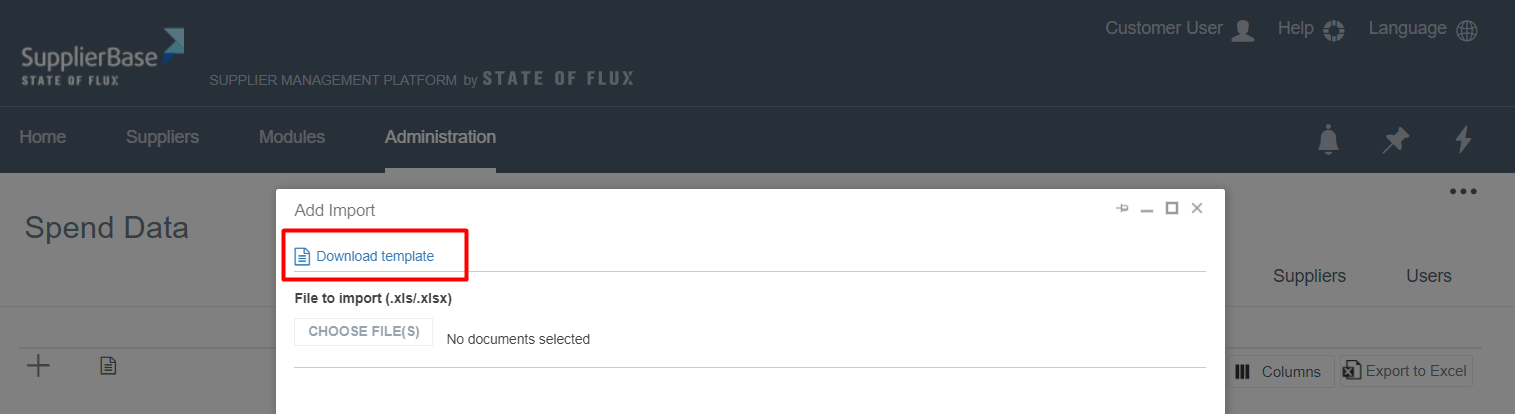
2) On the pop up window that appears, select the Download Template button
You need to download the excel template that is provided by the platform and contains all the fields that you have to fill-in.
The file looks like the one below.

The mandatory fields in the template are: Supplier, Date and Spend.
To complete the file correctly, please note the following:
Supplier: in here you can list a) either the supplier, e.g. the mother company IBM or b) the supplier entities under the mother company e.g. IBM Ltd, IBM Inc etc.
Supplier ID: in this field you need to write the number that you have listed in the Administration > Suppliers page in the CODA field (if any)
Date: please write the date of the spend in the format DD/MM/YYYY
Spend: please insert the amount of spend without any currency sign
After you have completed the file, it is ready to be uploaded.
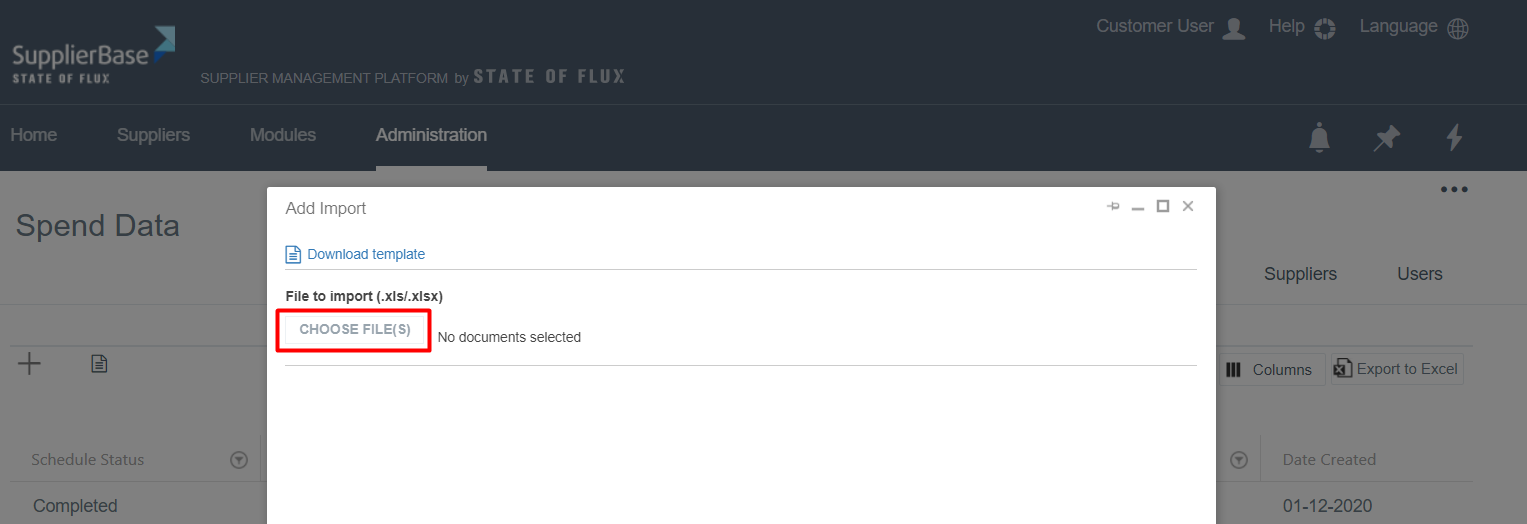
3) Upload the file in the platform
Select the file you have just saved and click on the Choose File button.
4) Review the validation result
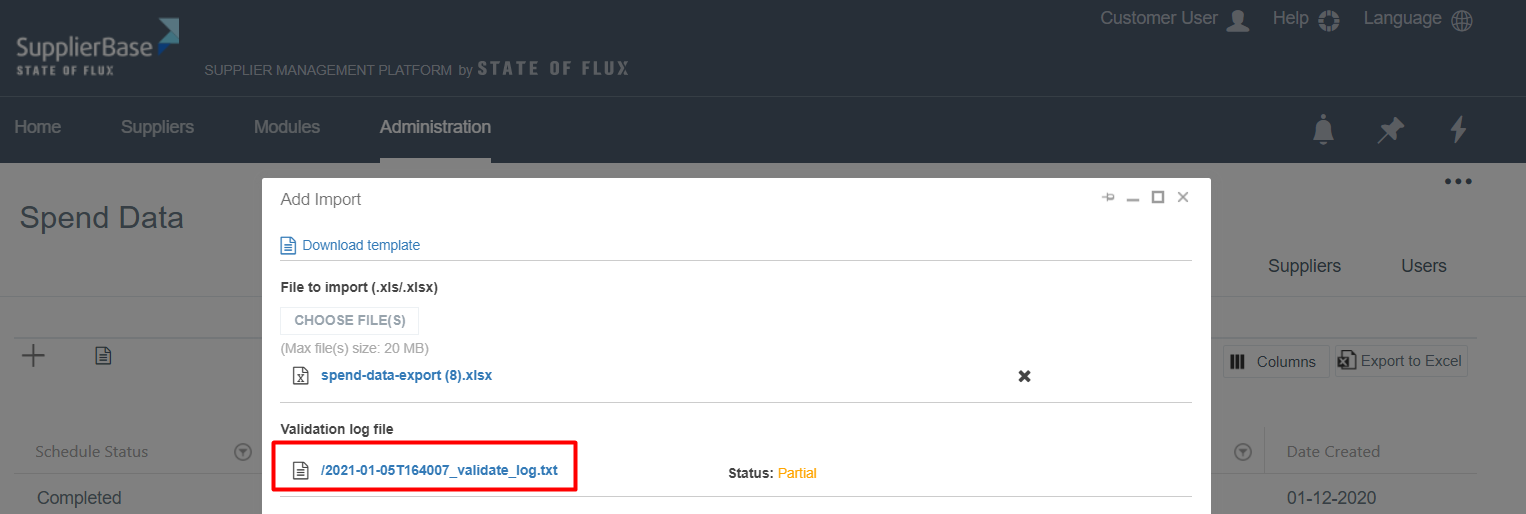
After the uploading of the contract file is complete, you need to review the results of the validation task.
If the result is Partial or Fail, you need to download the Validation Log File, which identifies the cells that do not have the correct information and prevent the file upload.
5) Run the Import Task
After saving the file, an entry will appear in the import grid with the schedule status New. When you hover over the row, the pencil icon appears, which you need to select.
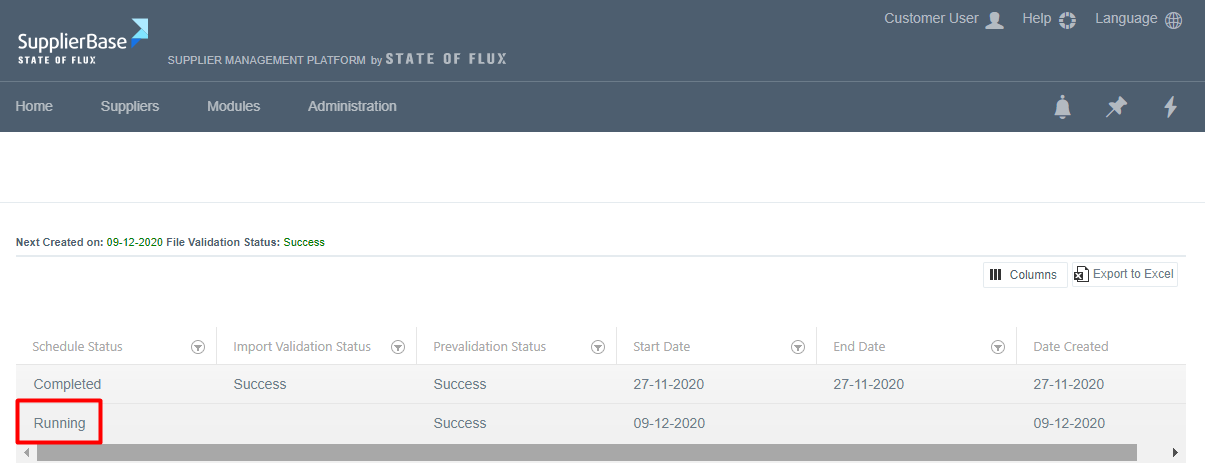
This will open the window with the file to be imported. You need to click on the Run button.
Once the import task is finished, the Schedule Status will change again to Completed.
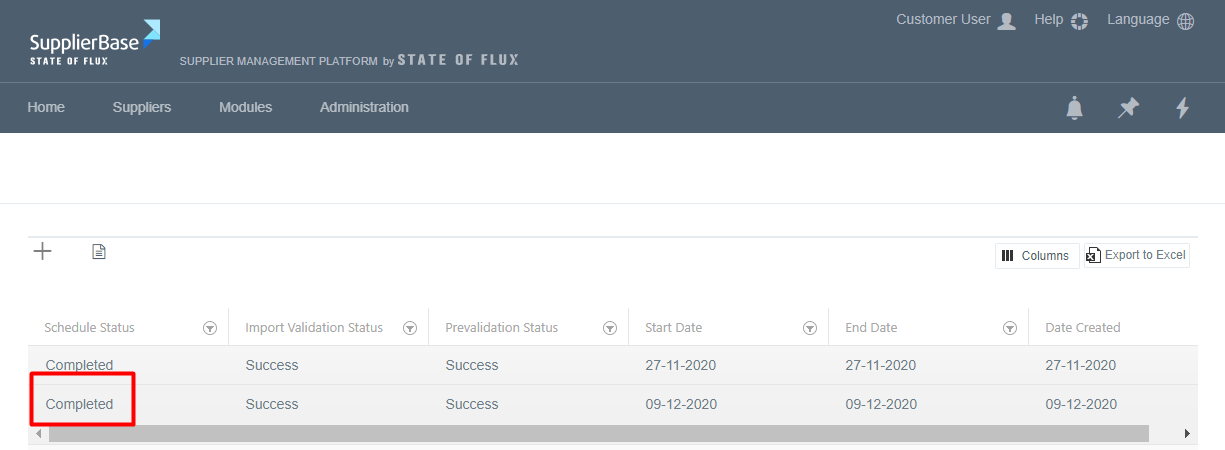
The Spend Data now have been uploaded and you can view them in the Dashboards.