
In order to be able to assess risky areas of business, the types of risks must be added to the platform.
This can be done from both the Module and the Supplier level.
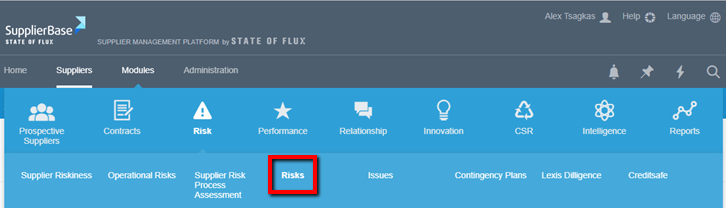
1. On the Module level, you can do that under Modules > Risk > Risks.
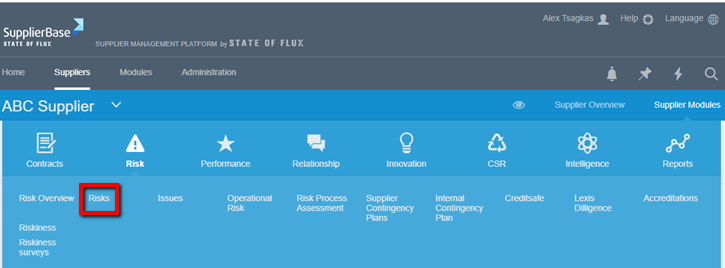
2. On the Supplier level, you can do that under Supplier modules > Risk > Risks.
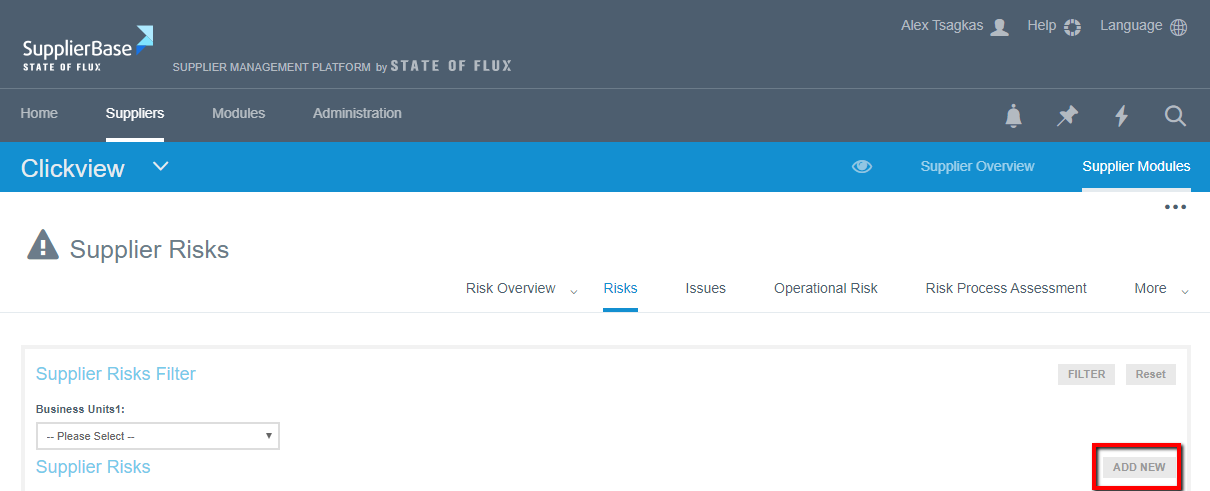
In both cases, in the next screen that appears, you will see the Add New button as shown below. Please note that the difference in each case is that on the Module level, you can add risks related to all suppliers, whereas on the Supplier level the risks can only be related to the specific supplier.
Once you select that, a pop-up window appears (see screenshot below). In order to add a risk you have to fill in all the mandatory fields that are marked with an asterisk (*).
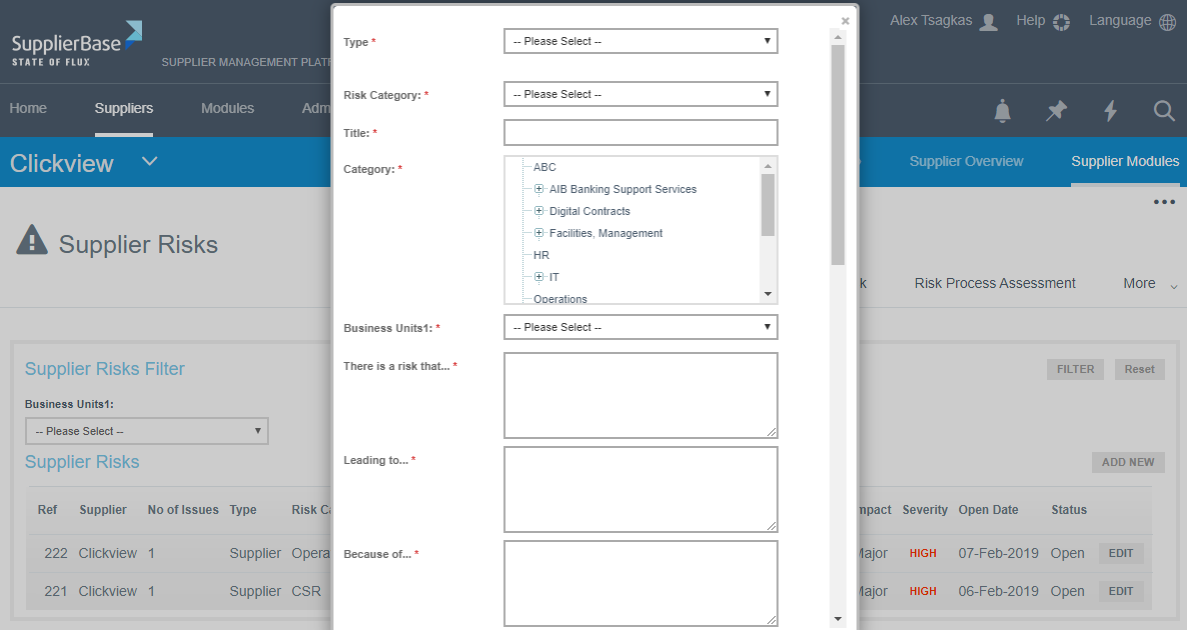
The elements that are contained in this window are the following:
Type: this specifies if the risk is related to suppliers or it is internal only
Risk category: this filed specifies to which the risk is related to, e.g. if it is strategic, operational, etc
Title: in this field the Administrator can type the name of the risk
Category: The area in which the risk refers to, e.g. financial, technology etc
Business unit: The business unit that is affected by the risk, e.g. a specific region, the whole company worldwide, etc
There is a risk that…: In this field the description of the risk must be added
Leading to…: The outcome of the risk
Because of..: The reason that caused the risk
Mitigation: The measures that will be taken and actions that will help minimise the impact of the risk
Probability: How likely the risk is to occur
Impact: The consequences that the risk will cause
Severity: The degree of seriousness of the risk. This field will be automatically calculated, according to the impact and probability fields above
RAG status: Red, Amber or Green status of the risk. This field will be automatically calculated, according to the impact and probability fields above
Priority: The level of attention that must be given to the risk
Company owner: the person accountable for this risk from the company’s side
Supplier owner: the person accountable for this risk from the supplier’s side
Open date: the date when the risk is listed in the platform
Status: if the risk is open or closed
Due date: the date by which the risk must be closed
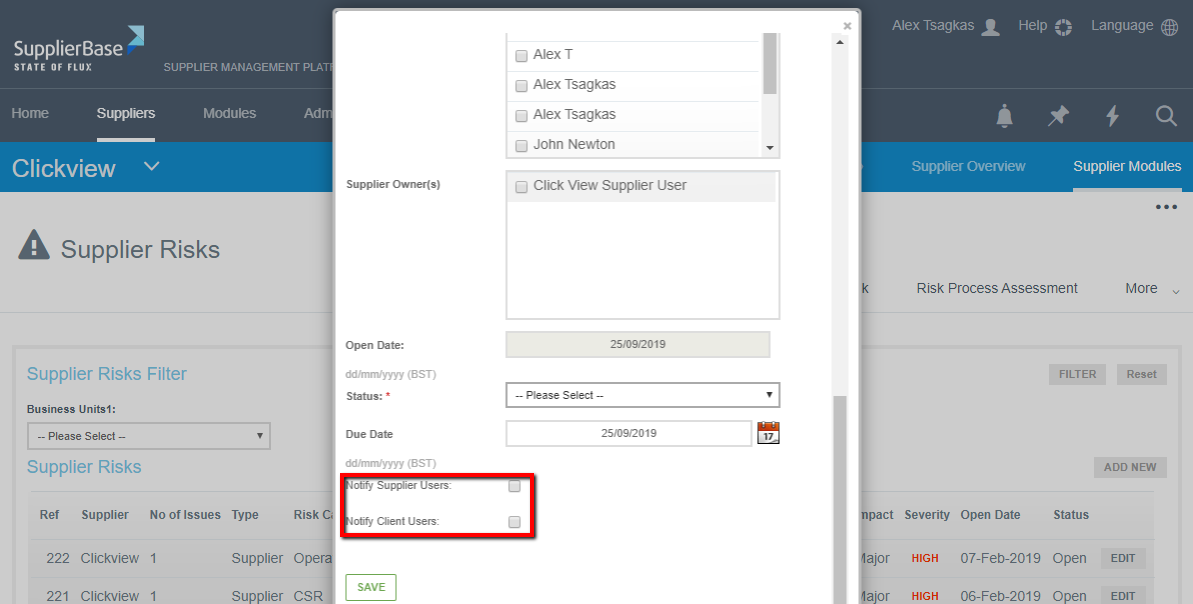
The user has the option to notify the Supplier’s users or the Client users by selecting the corresponding box as shown below.
Then you click the Save button and the risk has been added to the platform and appears in your list.
IMPORTANT NOTE: The above fields might not be exactly the same. This has to do with the configuration your company has selected.