Users can navigate to the Contracts area of a supplier by hovering over a supplier, clicking on the quick navigation icon (see screenshot below) and selecting the Contracts module.
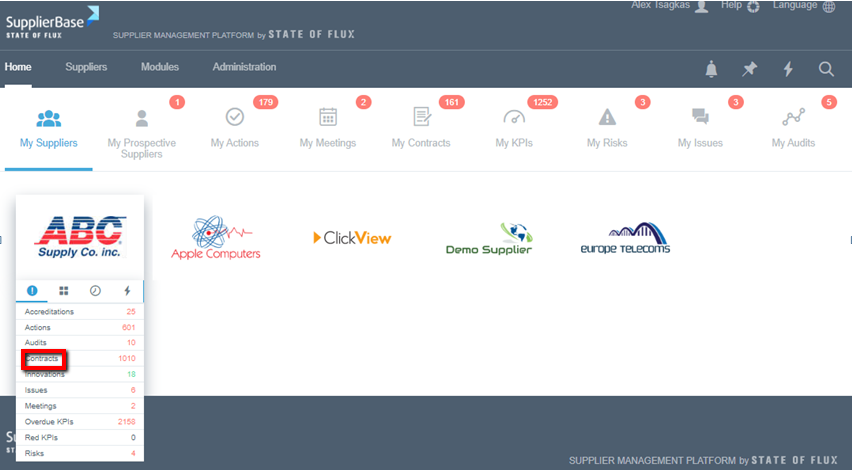
By clicking on contracts, users will be directed to the Contracts Module for a specific supplier, where they can access the various pages of the Contracts Module.
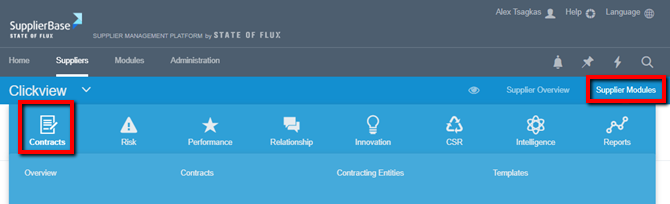
Alternatively, users can first access the supplier pages of a supplier and then mouse over the Supplier Modules menu and select Contracts from the navigation.
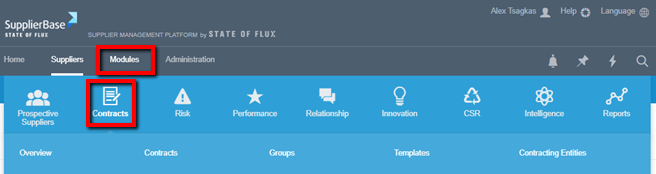
At the module level, users (with the required permissions) are able to view the contracts module at Modules > Contracts page.
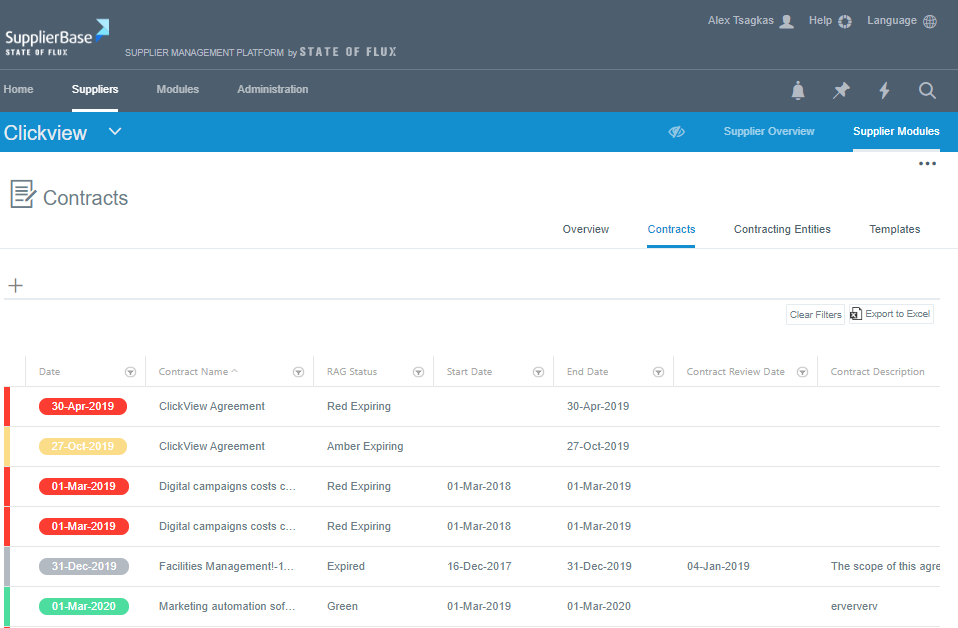
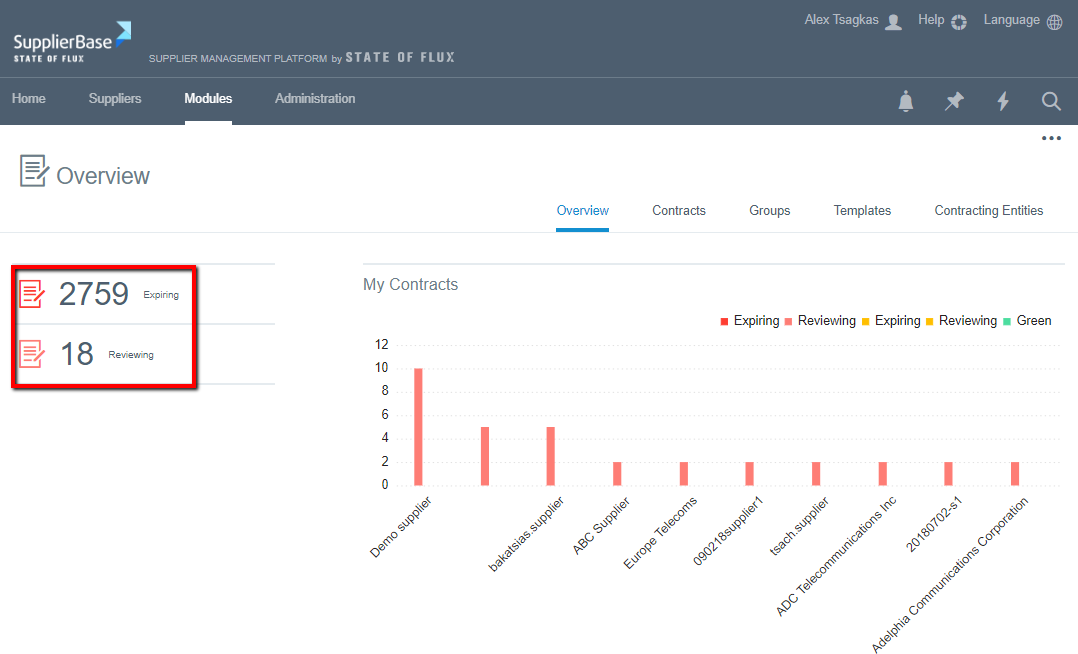
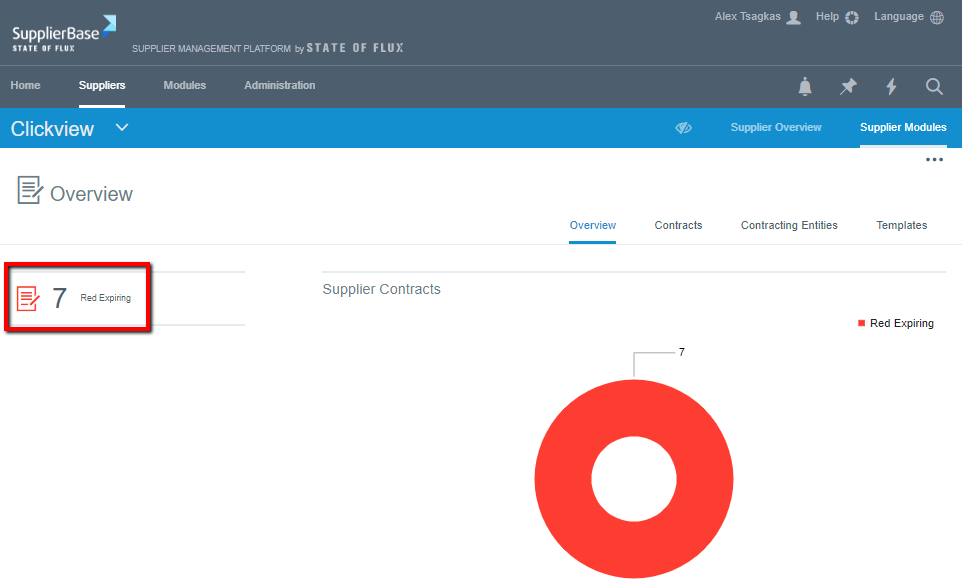
At both the supplier and module level, the user will first access the contracts overview (Modules > Contracts > Overview). On this page, the user views the contracts that require attention (red or amber flag) i.e. contracts that need review and / or the contracts that are about to expire.
For example, as shown below, for the supplier Clickview, you can only see seven contracts that require attention.
All other contracts of the supplier are shown in the Contracts > Contracts page.