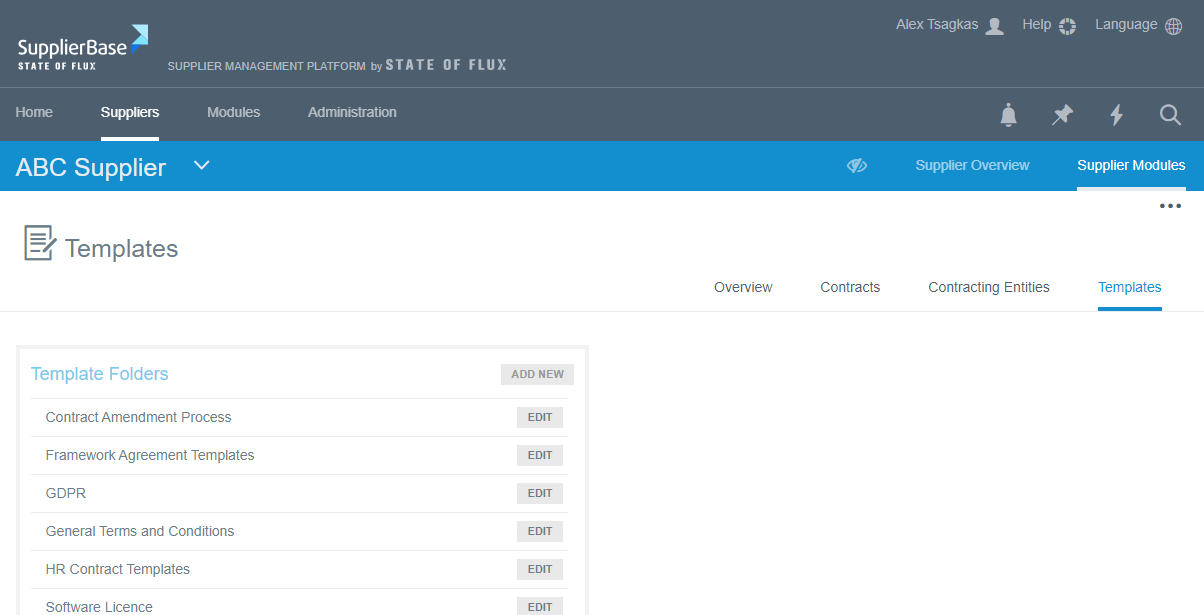
The Templates page serves as a repository of documents that are managed centrally by a system administrator (or a user with high permissions at the contracts module) and can be used by other users when they create a new contract, amendment or other contract documentation.
At this page (Modules > Contracts >Templates), the user can organise the templates in folders and then add documents in the folders. First, click at the Add New button, as shown below.
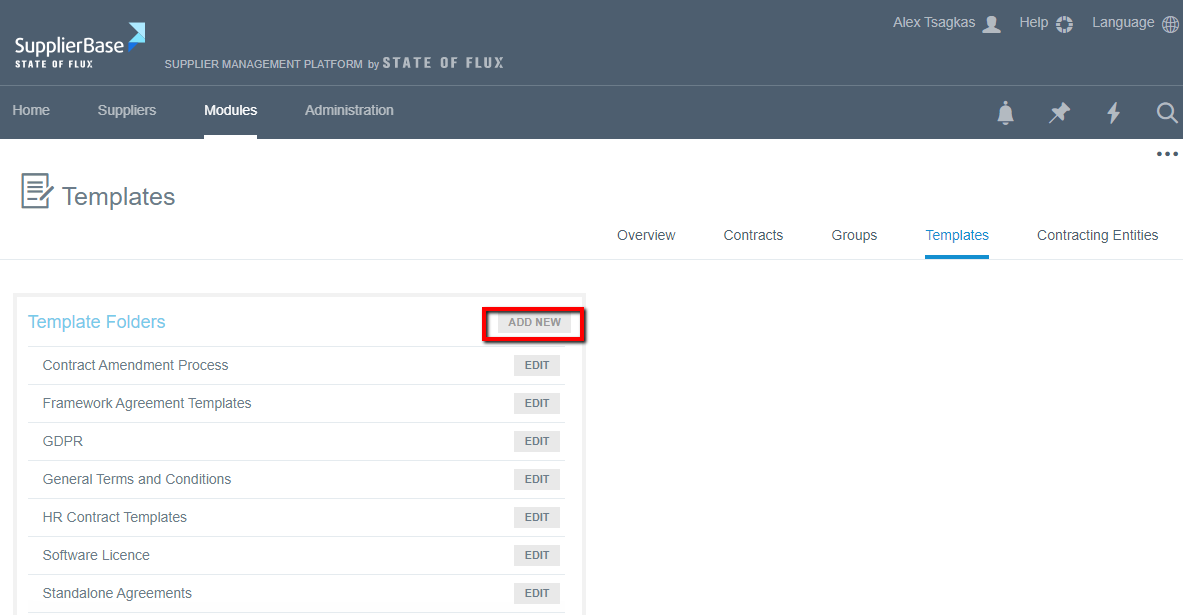
The following window appears, in which the user must type the folder name and also select who will have access to these folders by selecting the corresponding box as shown below. 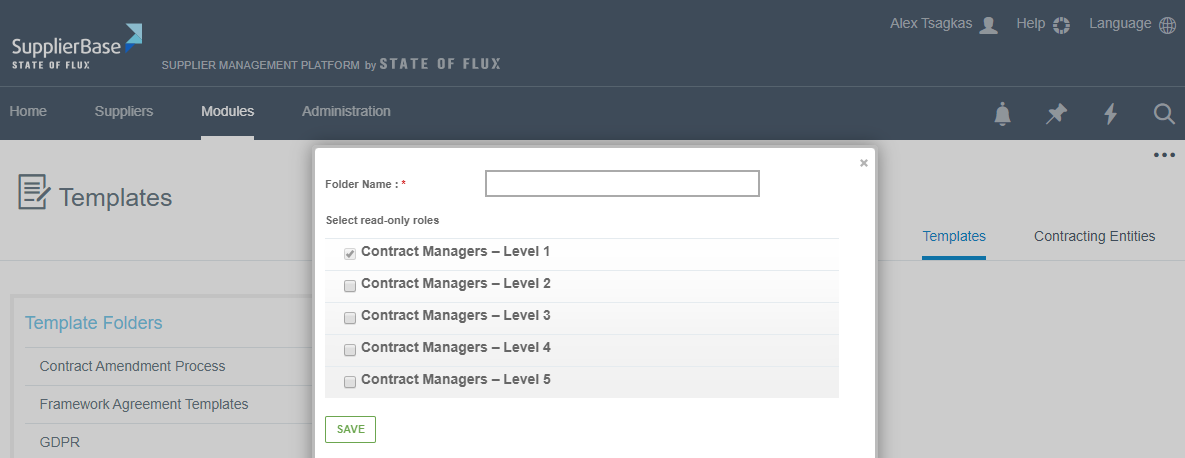
When the user clicks the Save button, the Template folder will be ready for use and appear in the list with the Template folders list (see screenshot below). With the Edit button the Administrator can rename the folder and reset the access to the users.
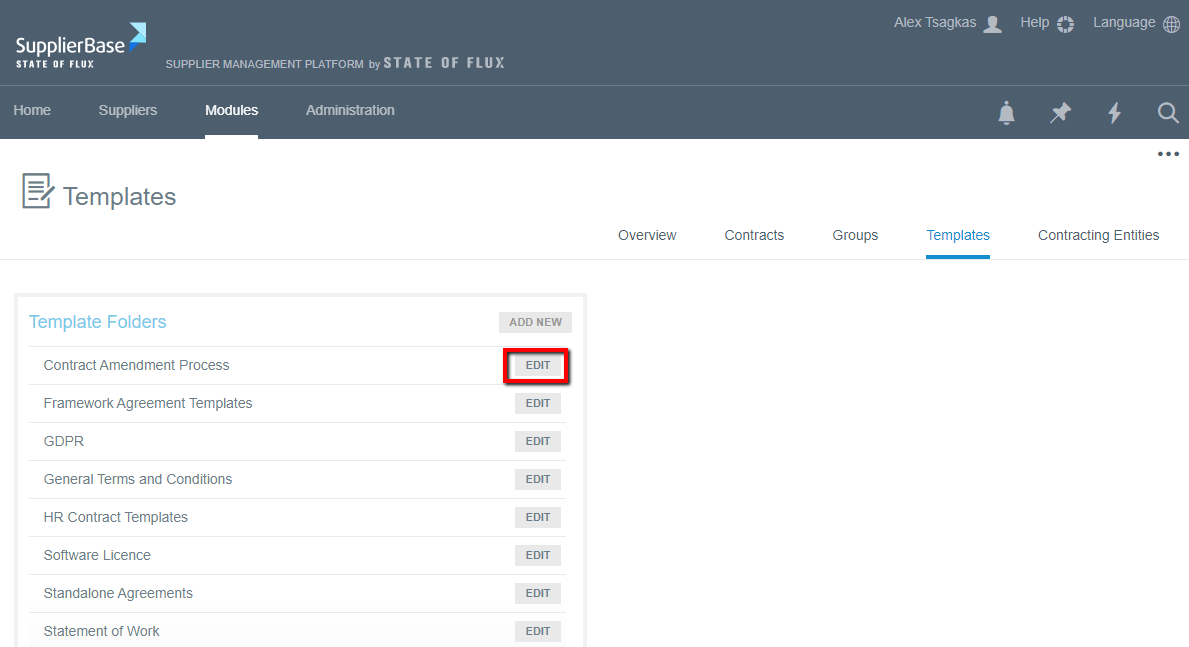
The Template folders are clickable. Therefore to view the content of a folder, click on the folder title.
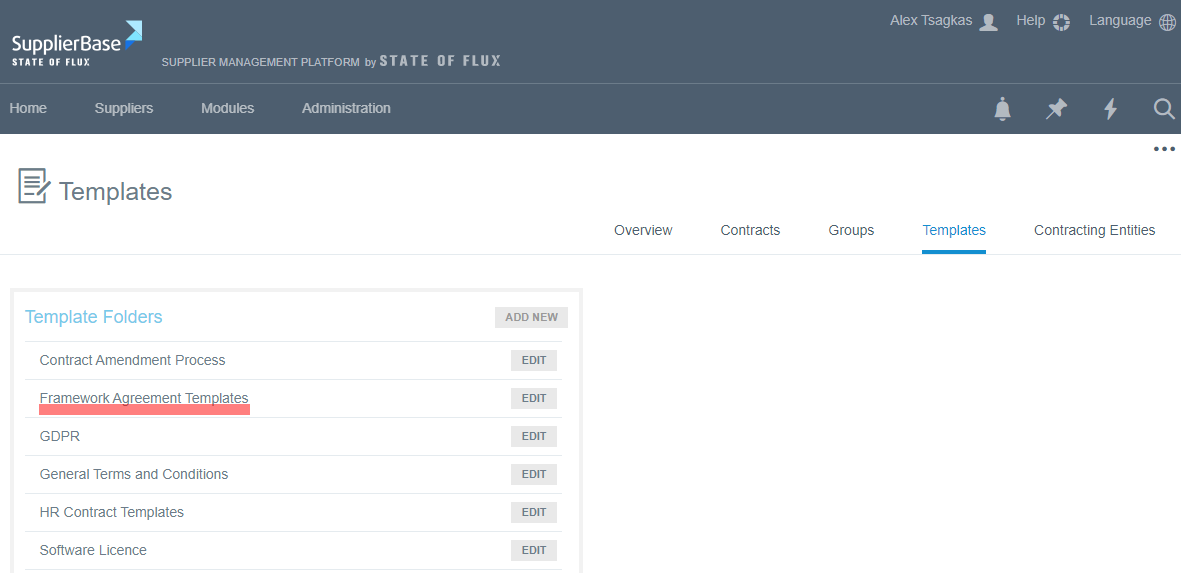
When you click the title of the folder, you are directed to the screen below. If for example you clicked on the Framework Agreement template, on the right of your screen you will see the content of this folder (in this case only one document), and you will be able to edit it and add comments to it. Also you will be able to add a new document in this folder, by clicking the Add Document button as shown below.
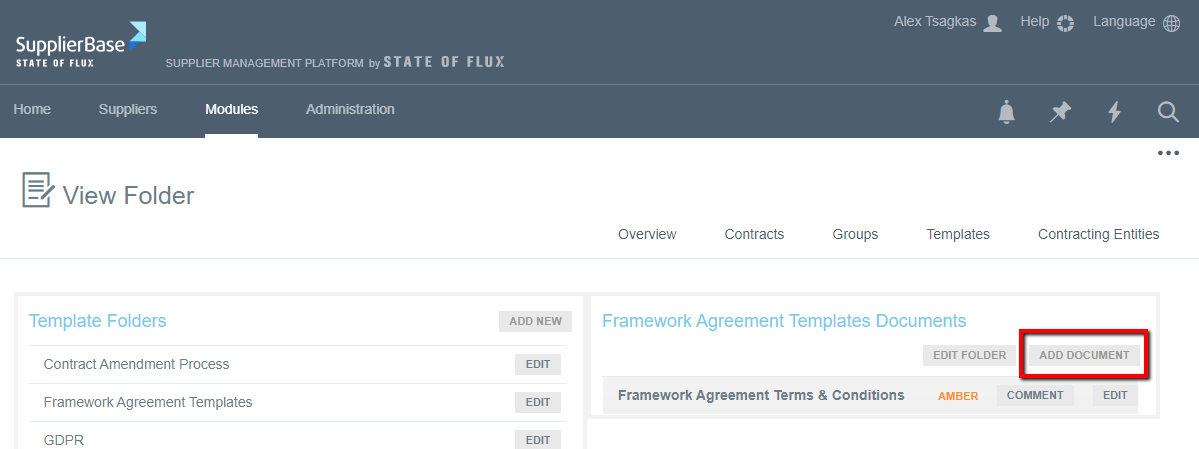
When you click it, the following pop up window appears, in which you can type the name of the document, select and upload it. Additionally, you can add comments to the document and assign a Red, Amber or Green status to it.
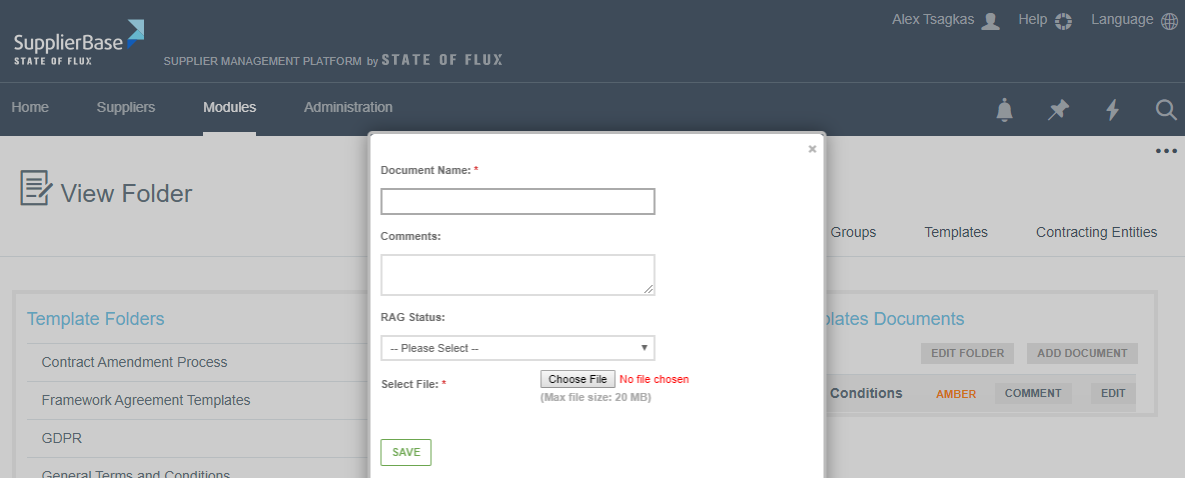
When you click Save, the document will appear in the list of the folder’s documents.
IMPORTANT NOTE: The templates (folders and documents) that will be uploaded in this page, will be visible read-only, for users at the same page at the supplier level (Supplier Modules > Contracts > Templates). At this page, users will be able to access the documents that have been given access to and download them.