
There are three ways to add a new meeting in the system:
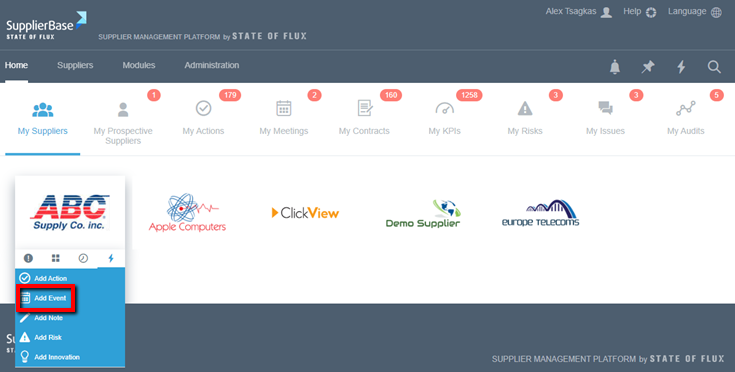
From the homepage
1. From the homepage, hover over Suppliers, and your assigned suppliers will be displayed
2. Hover on a supplier and select the fourth tab
3. Click on Add Event
4. Fill in the form
5. Click Save
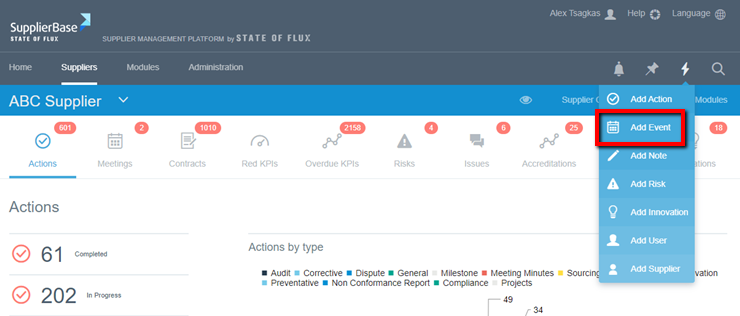
From all supplier pages
1. At the top right of the page, click at the quick actions menu and select Add Event.
2. Fill in the form
3. Click Save
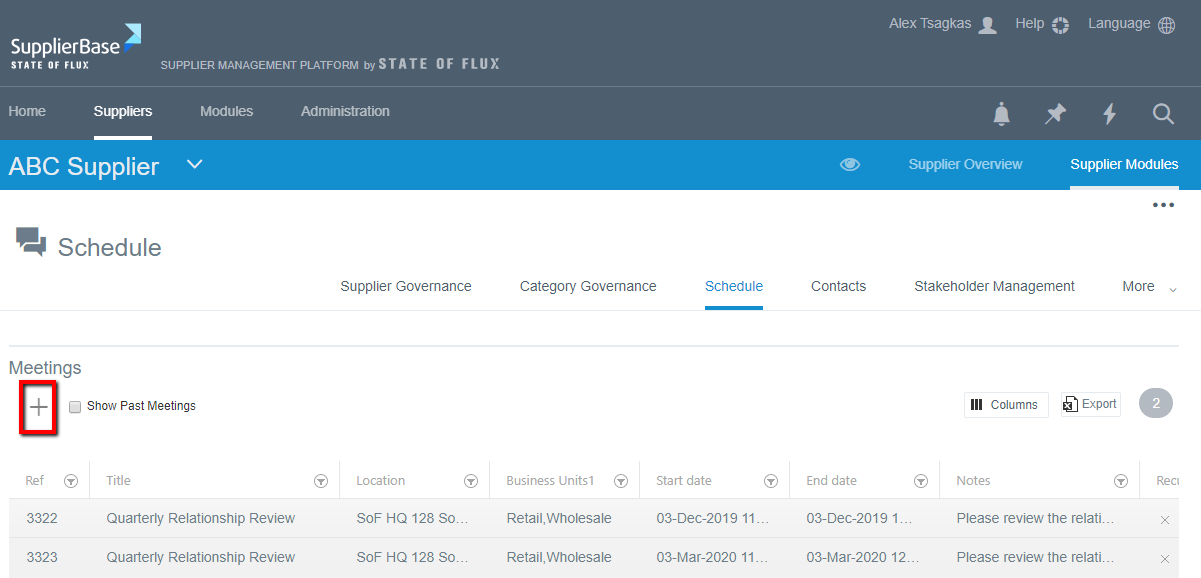
From the meetings page
1. Navigate to Supplier Modules > Relationship > Schedule, click on the Add (+) button at the top-right of the grid
2. Fill in the form
3. Click on Save
The form that appears in order to add a meeting is the following:

The fields in this page are the following:
Event title: the name of the meeting
Event start date: the date on which the meeting takes place
Event end date: the date on which the meeting ends
Business unit(s): the unit(s) involved in the meeting
Event location: where the meeting will take place
Event notes: comments about the meeting
Recurring: in the meeting is scheduled on a recurring basis
NOTE: if you tick the box of recurring meeting, another list with options appears
Recurring start date: the date on which the meeting will take place again
Recurring end date: the date on which the meeting will end
Recurrence type: the period in which the meeting will take place (e.g. quarter, month)
Recurrence pattern: whether the meeting takes place on a defined day or date
Update all recurring meetings: if you make a change to the meeting which applies to all the recurring meetings, check the box to update all of them
Click Save.